Minimal Quantum Start Menu Style
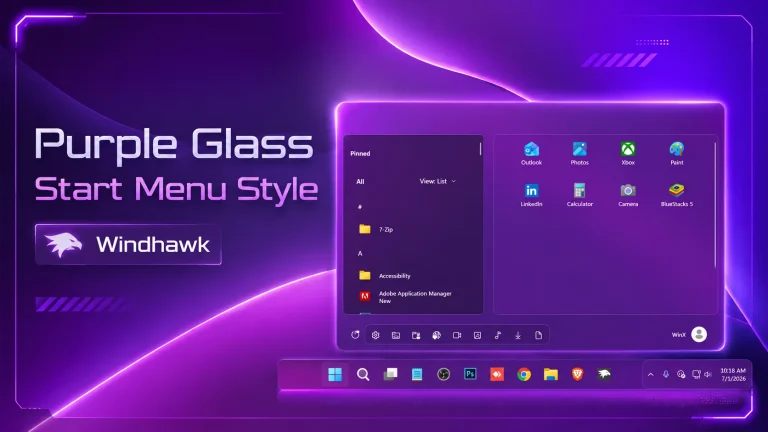
Windhawk Quantum Start Menu Style : Quantum Start Menu Style is a futuristic and highly customizable redesign of the traditional Windows 11 Start Menu

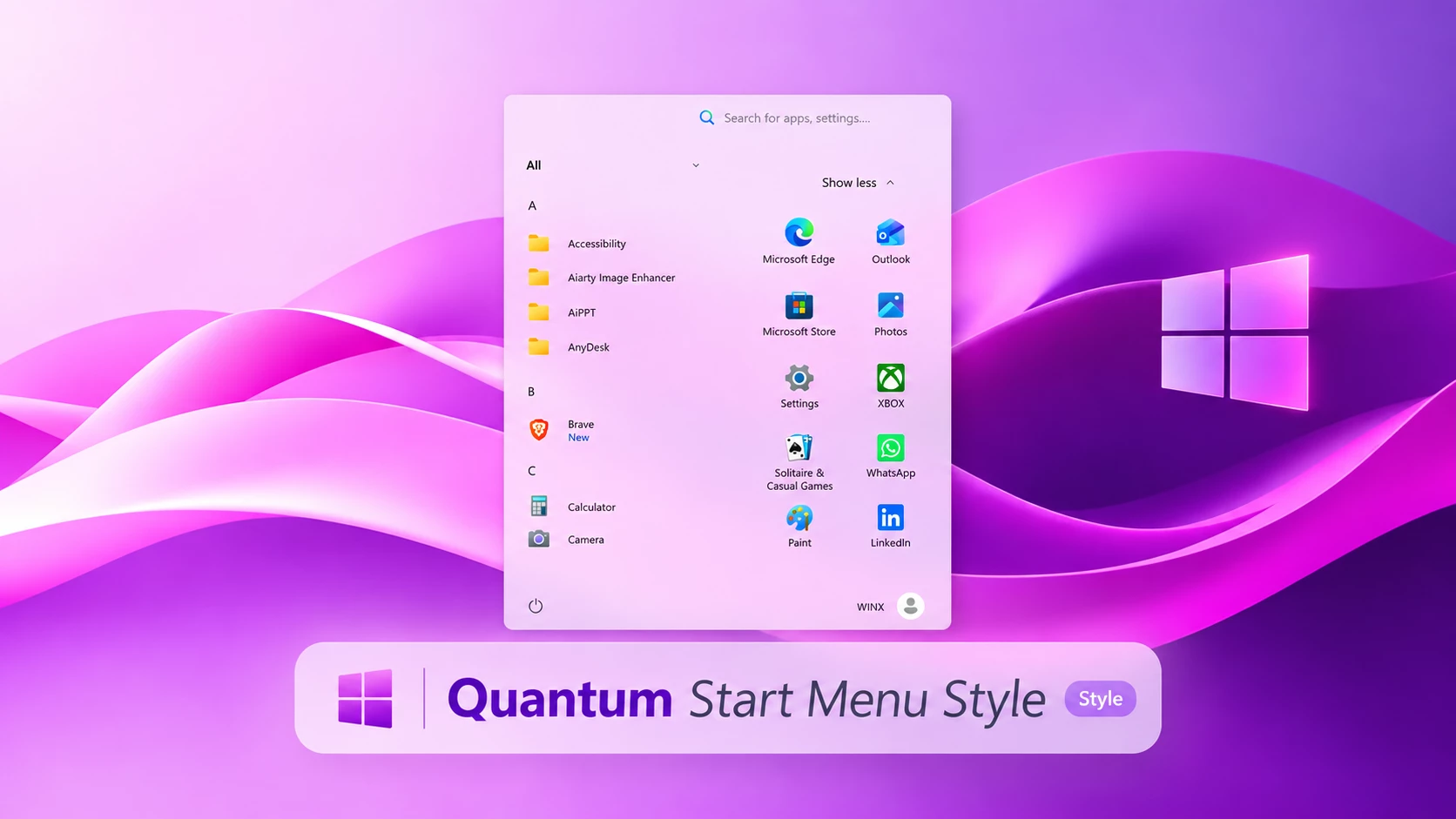
Quantum Start Menu Style (Windhawk) for Windows 11
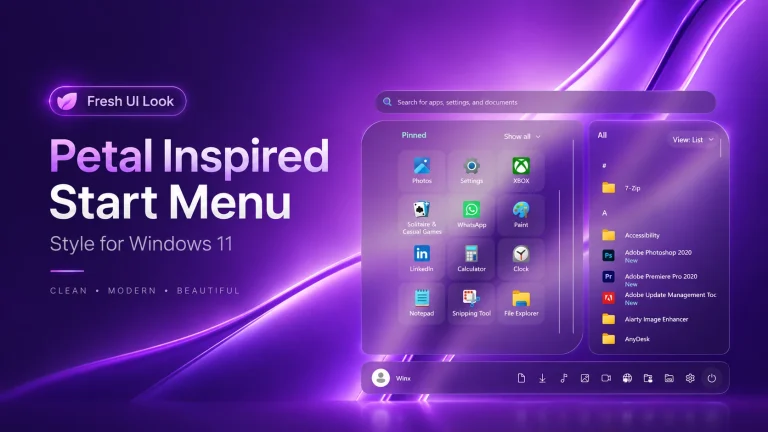
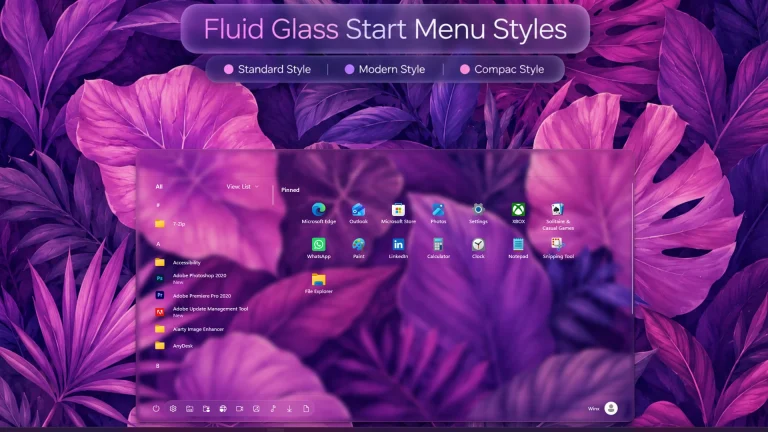
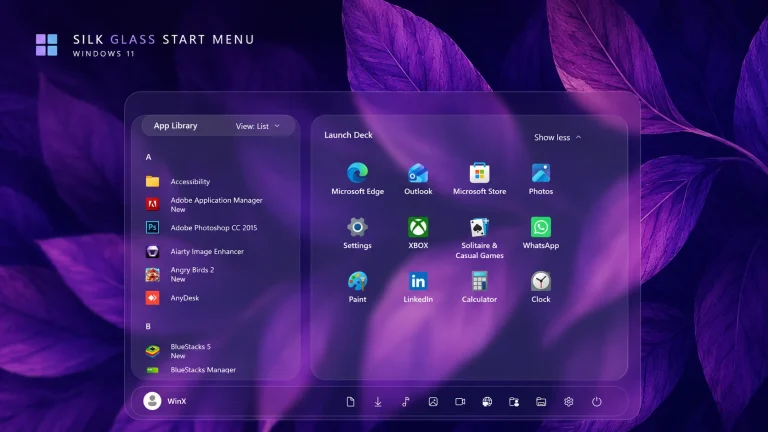
The Quantum Start Menu Style is a modern Windows 11 customization created for users who want a cleaner, more stylish, and futuristic Start Menu experience. Inspired by glass-based UI designs, this style brings a balanced combination of transparency, rounded corners, smooth spacing, and a minimal layout while keeping the familiar Windows 11 Start Menu experience.
Designed with Windhawk Start Menu Styler, this customization changes the visual appearance of the Windows Start Menu without replacing it with a third-party application. It is a great choice for users who enjoy creating unique desktop setups with modern wallpapers, custom icons, and matching Windows interface styles.
Quantum Start Menu Style Features
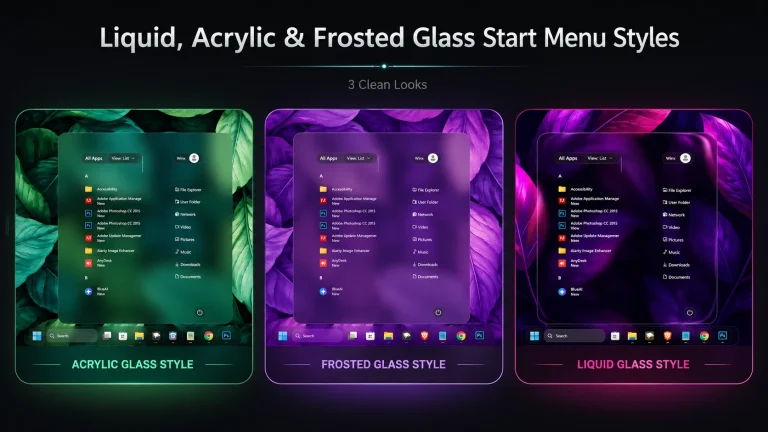
- Modern glass- Compact design: Soft transparency with a clean acrylic-style appearance.
- Light and dark variants: Includes bright glass and deep dark glass visual styles.
- Rounded interface: Smooth corners for a more modern Windows 11 look.
- Minimal layout: Clean spacing and organized elements for a distraction-free experience.
- Improved visual balance: Carefully adjusted app alignment and menu proportions.
- Futuristic appearance: Designed for modern, creative, and customized desktop environments.
- Windhawk compatible: Applied through the Start Menu Styler customization mod.
- Wallpaper-friendly: Works well with colorful, abstract, and dark wallpapers.
What Makes Quantum Start Menu Style Different?
The default Windows 11 Start Menu follows Microsoft’s original design language, but many customization enthusiasts prefer a more personalized interface. The Quantum Start Menu Style introduces a refined visual experience with Compact & Minimal layout, improved spacing, and a futuristic appearance while keeping the original Windows navigation structure.
Whether you prefer a minimal workspace, a gaming-inspired setup, or a modern futuristic desktop theme, this Start Menu style can help create a more consistent look when combined with custom wallpapers, icons, taskbar modifications, and other Windows personalization tools.
Windhawk Start Menu Styler Integration
This customization is designed to work with Windhawk Start Menu Styler, a powerful tool that allows users to modify different visual elements of the Windows interface through custom configurations.
The final appearance may vary depending on your Windows version, system updates, Windhawk version, Start Menu Styler settings, display scaling, and other active customization mods. Creating a restore point or saving your current configuration before applying changes is recommended.
Visual Experience
The Quantum Start Menu Style focuses on improving the visual appearance of Windows 11 while keeping the original Start Menu functionality. The combination of glass surfaces, smooth transparency, rounded design elements, and modern spacing creates a fresh desktop experience.
For the best result, you can combine this style with matching wallpapers, custom icon packs, taskbar styles, and accent colors. A well-balanced setup can transform the overall appearance of your Windows desktop while keeping it clean and easy to use.
Download Windhawk To Use The Style
Installation Steps:
- Download and install Windhawk.
- Open Windhawk and install the Windows 11 Start Menu Styler mod.
- Open the Start Menu Styler settings.
- Back up your existing configuration before making changes.
- Copy the provided Quantum Start Menu configuration.
- Paste the configuration into the appropriate Mod Settings section.
- Save the settings to apply the style.
Compatibility
- Windows 11 21H2: Yes
- Windows 11 22H2: Yes
- Windows 11 23H2: Yes
- Windows 11 24H2: Yes
- Windows 11 25H2: Yes, but test carefully after Windows updates.
- Last Tested on Windows 11 25H2: Build 26200.9457
{ "theme": "", "controlStyles[0].target": "Grid#MainMenu", "controlStyles[0].styles[0]": "Width=500", "controlStyles[0].styles[1]": "MinWidth=500", "controlStyles[0].styles[2]": "MaxWidth=500", "controlStyles[1].target": "Grid#FrameRoot", "controlStyles[1].styles[0]": "Height=700", "controlStyles[1].styles[1]": "MaxHeight=700", "controlStyles[2].target": "Grid#SideBySidePinnedWrapper", "controlStyles[2].styles[0]": "ColumnDefinitions:=<ColumnDefinitionCollection><ColumnDefinition Width=\"250*\"/><ColumnDefinition Width=\"250*\"/></ColumnDefinitionCollection>", "controlStyles[3].target": "GridView#AllAppsGrid > Border > Grid#SideBySidePinnedWrapper > ScrollViewer#ScrollViewer", "controlStyles[3].styles[0]": "Grid.Column=0", "controlStyles[4].target": "ScrollViewer#SideBySidePinnedScrollViewer", "controlStyles[4].styles[0]": "Grid.Column=1", "controlStyles[4].styles[1]": "Margin=0", "controlStyles[5].target": "Grid#SideBySidePinnedWrapper > ScrollViewer > Border#Root > Grid > ScrollContentPresenter > ItemsPresenter > ItemsWrapGrid", "controlStyles[5].styles[0]": "Margin=18,0,18,14", "controlStyles[6].target": "Grid#AllListHeading", "controlStyles[6].styles[0]": "Margin=0,3,0,0", "controlStyles[7].target": "Grid#AllListHeading > TextBlock#AllListHeadingText", "controlStyles[7].styles[0]": "Margin=28,6,8,7", "controlStyles[8].target": "Grid#AllListHeading > Microsoft.UI.Xaml.Controls.DropDownButton#ViewSelectionButton", "controlStyles[8].styles[0]": "Margin=0,0,16,0", "controlStyles[8].styles[1]": "Width=28", "controlStyles[8].styles[2]": "Height=28", "controlStyles[9].target": "GridView#AllAppsGrid", "controlStyles[9].styles[0]": "Margin=0,0,0,64", "controlStyles[10].target": "StartMenu.PinnedList#StartMenuPinnedList", "controlStyles[10].styles[0]": "Width=240", "controlStyles[10].styles[1]": "MaxWidth=240", "controlStyles[10].styles[2]": "Height=510", "controlStyles[10].styles[3]": "MaxHeight=510", "controlStyles[10].styles[4]": "Margin=5,10,5,0", "controlStyles[11].target": "TextBlock#PinnedListHeaderText", "controlStyles[11].styles[0]": "Visibility=Collapsed", "controlStyles[11].styles[1]": "Height=0", "controlStyles[12].target": "Microsoft.UI.Xaml.Controls.PipsPager#PinnedListPipsPager", "controlStyles[12].styles[0]": "Visibility=Collapsed", "controlStyles[13].target": "Grid#TopLevelSuggestionsListHeader", "controlStyles[13].styles[0]": "Visibility=Collapsed", "controlStyles[13].styles[1]": "Height=0", "controlStyles[14].target": "Grid#TopLevelSuggestionsRoot", "controlStyles[14].styles[0]": "Visibility=Collapsed", "controlStyles[14].styles[1]": "Height=0", "controlStyles[14].styles[2]": "MaxHeight=0", "controlStyles[15].target": "Grid#TopLevelSuggestionsContainer", "controlStyles[15].styles[0]": "Visibility=Collapsed", "controlStyles[15].styles[1]": "Height=0", "controlStyles[16].target": "GridView#RecommendedList", "controlStyles[16].styles[0]": "Visibility=Collapsed", "controlStyles[16].styles[1]": "Height=0", "controlStyles[17].target": "Grid#ShowMoreSuggestions", "controlStyles[17].styles[0]": "Visibility=Collapsed", "controlStyles[17].styles[1]": "Height=0", "controlStyles[18].target": "Grid#MoreSuggestionsRoot", "controlStyles[18].styles[0]": "Visibility=Collapsed", "controlStyles[18].styles[1]": "Height=0", "controlStyles[19].target": "StartMenu.SearchBoxToggleButton#SearchBoxToggleButton", "controlStyles[19].styles[0]": "Height=38", "controlStyles[19].styles[1]": "Width=230", "controlStyles[19].styles[2]": "HorizontalAlignment=Right", "controlStyles[19].styles[3]": "Margin=0,0,18,14", "controlStyles[19].styles[4]": "Canvas.ZIndex=10", "controlStyles[20].target": "StartMenu.SearchBoxToggleButton#SearchBoxToggleButton > Grid@CommonStates > Border#BorderElement", "controlStyles[20].styles[0]": "Background:=<SolidColorBrush Color=\"#11FFFFFF\"/>", "controlStyles[20].styles[1]": "BorderBrush:=<RevealBorderBrush Color=\"Transparent\" TargetTheme=\"1\" Opacity=\".55\"/>", "controlStyles[20].styles[2]": "BorderThickness=1", "controlStyles[20].styles[3]": "CornerRadius=20", "controlStyles[21].target": "Border#AcrylicBorder", "controlStyles[21].styles[0]": "Background:=<AcrylicBrush TintColor=\"{ThemeResource CardStrokeColorDefaultSolid}\" FallbackColor=\"{ThemeResource CardStrokeColorDefaultSolid}\" TintOpacity=\"0\" TintLuminosityOpacity=\".80\" Opacity=\"1\"/>", "controlStyles[21].styles[1]": "BorderBrush:=<RevealBorderBrush Color=\"Transparent\" TargetTheme=\"1\" Opacity=\".55\"/>", "controlStyles[21].styles[2]": "BorderThickness=1", "controlStyles[21].styles[3]": "CornerRadius=10", "controlStyles[21].styles[4]": "Margin=0", "controlStyles[22].target": "Border#AcrylicOverlay", "controlStyles[22].styles[0]": "Visibility=Collapsed", "controlStyles[23].target": "Border#DropShadow", "controlStyles[23].styles[0]": "CornerRadius=15", "controlStyles[23].styles[1]": "Margin=0", "controlStyles[24].target": "Border#StartDropShadow", "controlStyles[24].styles[0]": "CornerRadius=15", "controlStyles[25].target": "StartMenu.PinnedList#StartMenuPinnedList Border#ContentBorder@CommonStates > Grid#DroppedFlickerWorkaroundWrapper > Border", "controlStyles[25].styles[0]": "Background@Normal:=<RevealBorderBrush Color=\"Transparent\" TargetTheme=\"1\" Opacity=\".12\"/>", "controlStyles[25].styles[1]": "Background@PointerOver:=<RevealBorderBrush Color=\"Transparent\" TargetTheme=\"1\" Opacity=\".30\"/>", "controlStyles[25].styles[2]": "BorderBrush@PointerOver:=<RevealBorderBrush Color=\"White\" TargetTheme=\"1\" Opacity=\".55\"/>", "controlStyles[25].styles[3]": "BorderThickness=1", "controlStyles[25].styles[4]": "CornerRadius=10", "controlStyles[25].styles[5]": "Margin=1", "controlStyles[26].target": "StartMenu.PinnedList#StartMenuPinnedList Border#ContentBorder@CommonStates > Grid#DroppedFlickerWorkaroundWrapper > Border#BackgroundBorder", "controlStyles[26].styles[0]": "Background@Normal:=<RevealBorderBrush Color=\"Transparent\" TargetTheme=\"0\" Opacity=\".10\"/>", "controlStyles[26].styles[1]": "Background@PointerOver:=<RevealBorderBrush Color=\"Transparent\" TargetTheme=\"1\" Opacity=\".25\"/>", "controlStyles[26].styles[2]": "Margin=2", "controlStyles[26].styles[3]": "CornerRadius=9", "controlStyles[27].target": "Grid#NavPanePlaceholder", "controlStyles[27].styles[0]": "Margin=18,0,18,0", "controlStyles[28].target": "StartDocked.NavigationPaneView#UserControl > Grid#RootPanel", "controlStyles[28].styles[0]": "FlowDirection=1", "controlStyles[29].target": "StartDocked.PowerOptionsView#PowerButton", "controlStyles[29].styles[0]": "FlowDirection=0", "controlStyles[30].target": "ItemsStackPanel > ListViewItem", "controlStyles[30].styles[0]": "FlowDirection=0", "controlStyles[31].target": "StartDocked.AppListView#NavigationPanePlacesListView > Border", "controlStyles[31].styles[0]": "Background:=<RevealBorderBrush Color=\"Transparent\" TargetTheme=\"1\" Opacity=\".18\"/>", "controlStyles[31].styles[1]": "BorderBrush:=<RevealBorderBrush Color=\"Transparent\" TargetTheme=\"1\" Opacity=\".40\"/>", "controlStyles[31].styles[2]": "BorderThickness=1", "controlStyles[31].styles[3]": "CornerRadius=10", "controlStyles[32].target": "StartDocked.AppListViewItem > Grid@CommonStates > Border", "controlStyles[32].styles[0]": "Background@Normal:=<RevealBorderBrush Color=\"Transparent\" TargetTheme=\"1\" Opacity=\".12\"/>", "controlStyles[32].styles[1]": "Background@PointerOver:=<RevealBorderBrush Color=\"Transparent\" TargetTheme=\"1\" Opacity=\".30\"/>", "controlStyles[32].styles[2]": "BorderBrush@PointerOver:=<RevealBorderBrush Color=\"Transparent\" TargetTheme=\"1\" Opacity=\".65\"/>", "controlStyles[32].styles[3]": "BorderThickness=1", "controlStyles[32].styles[4]": "CornerRadius=10", "controlStyles[33].target": "StartDocked.NavigationPaneButton#PowerButton > Grid@CommonStates > Border", "controlStyles[33].styles[0]": "Background@Normal:=<RevealBorderBrush Color=\"Transparent\" TargetTheme=\"1\" Opacity=\".18\"/>", "controlStyles[33].styles[1]": "Background@PointerOver:=<RevealBorderBrush Color=\"Transparent\" TargetTheme=\"1\" Opacity=\".35\"/>", "controlStyles[33].styles[2]": "BorderBrush@PointerOver:=<RevealBorderBrush Color=\"White\" TargetTheme=\"1\" Opacity=\".55\"/>", "controlStyles[33].styles[3]": "BorderThickness=1", "controlStyles[33].styles[4]": "CornerRadius=20", "controlStyles[34].target": "StartDocked.UserTileView", "controlStyles[34].styles[0]": "Height=42", "controlStyles[35].target": "StartDocked.NavigationPaneButton#UserTileButton > Grid@CommonStates > Border", "controlStyles[35].styles[0]": "Background@Normal:=<RevealBorderBrush Color=\"Transparent\" TargetTheme=\"1\" Opacity=\".15\"/>", "controlStyles[35].styles[1]": "Background@PointerOver:=<RevealBorderBrush Color=\"Transparent\" TargetTheme=\"1\" Opacity=\".30\"/>", "controlStyles[35].styles[2]": "CornerRadius=20", "controlStyles[36].target": "MenuFlyoutPresenter > Border", "controlStyles[36].styles[0]": "BorderBrush:=<RevealBorderBrush Color=\"Transparent\" TargetTheme=\"1\" Opacity=\".75\"/>", "controlStyles[36].styles[1]": "BorderThickness=1", "controlStyles[36].styles[2]": "CornerRadius=10", "controlStyles[37].target": "Windows.UI.Xaml.Controls.Primitives.ToggleButton#ShowHideCompanion", "controlStyles[37].styles[0]": "Visibility=Collapsed", "controlStyles[38].target": "Grid#CompanionRoot", "controlStyles[38].styles[0]": "Visibility=Collapsed", "disableNewStartMenuLayout": "newLayoutSideBySide"} ⚠️ Disclaimer: This Windhawk Start Menu Style is provided for Windows UI personalization and educational purposes only. It is an unofficial customization and is not developed, endorsed, or supported by Microsoft. Compatibility may vary depending on your Windows version, Windhawk version, Start Menu Styler version, installed mods, and system configuration. Windows updates may also affect how the style works. Please keep a backup of your current settings before applying changes.
Conclusion
The Quantum Start Menu Style (Windhawk) is a visually distinctive customization for users who want to give the Windows 11 Start Menu a futuristic, clean, and modern appearance. Its transparency, rounded interface elements, organized spacing, and glass-inspired styling can help create a more personalized desktop setup without claiming to replace the original Windows Start Menu.
For the best visual consistency, consider pairing the style with a matching wallpaper, compatible taskbar customization, and icon set. Since Windows interface elements can change through updates, keep Windhawk and your installed customization mods updated and maintain a backup of your previous configuration.