

Linux Inspired Menu Rainmeter Skin
Linux Inspired Menu Rainmeter Skin : The Linux Menu White Rainmeter Skin brings a clean, minimal, and functional Linux-style interface to your Windows desktop.

Linux Inspired Menu Rainmeter Skin
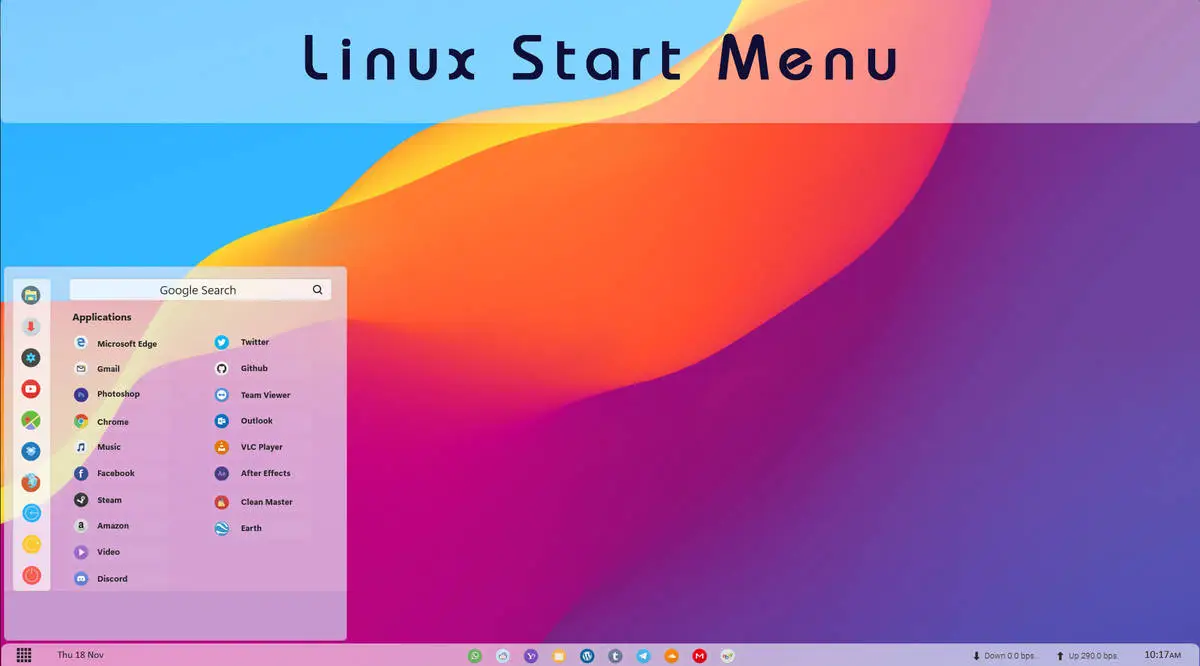
Linux Inspired Menu Rainmeter Skin gives the Windows desktop a compact launcher-style menu with a layout that feels inspired by classic Linux application menus. The design uses a transparent panel, a vertical shortcut bar on the left, and a clean two-column app list, so the wallpaper remains visible through the background instead of being covered by a fully solid menu.
The overall look is simple and lightweight. It stays anchored to the left side of the desktop and keeps the menu area fairly compact, which helps the customization stand out without taking over the whole screen.
Overview of the Design
The menu uses a tall rectangular layout with softly rounded corners and a transparent background. Because the panel is translucent, the wallpaper colors show through the menu body and become part of the final appearance.
A slim vertical sidebar appears on the far left with a stack of circular shortcut icons. Next to it, the main panel contains a search area at the top and an organized applications section below it. The structure feels familiar, practical, and easy to follow.
Layout and Menu Structure
At the top of the main section, there is a wide search bar labeled Google Search with a search icon on the right side. Directly below that, the applications area begins with an Applications label.
The app list is arranged in two neat columns. On the left side, the visible entries include Microsoft Edge, Gmail, Photoshop, Chrome, Music, Facebook, Steam, Amazon, Video, and Discord. On the right side, the visible entries include Twitter, Github, Team Viewer, Outlook, VLC Player, After Effects, Clean Master, and Earth.
Each item uses a small circular icon with its app name beside it, which keeps the menu clear without relying on large tiles. The lower portion of the panel remains open and lightly transparent, helping the design feel less crowded.
Transparency and Background Appearance
The transparent effect is one of the most important parts of this customization. The menu background is not a fixed solid color. Instead, it allows the wallpaper behind it to remain visible, which gives the panel a soft blended look.
This means the final color impression of the menu depends heavily on the wallpaper being used. In this setup, the background artwork adds warm and cool tones across the panel, making the transparent surface look more visually rich without using a heavy interface style.
The left sidebar appears slightly lighter than the main panel, which helps separate the shortcut area from the application list while still keeping the whole menu visually connected.
Main Visual Highlights
- Compact Linux-inspired launcher layout.
- Transparent menu panel that lets the wallpaper show through.
- Rounded rectangular menu body with a clean structure.
- Vertical left sidebar with stacked circular shortcut icons.
- Top search bar labeled Google Search.
- Applications section with a two-column app list.
- Small icon-and-text entries instead of large tiles.
- Open lower area that keeps the design light and uncluttered.
- Rainmeter-based desktop customization.
System Requirements
- Windows operating system.
- Rainmeter installed on your computer.
- The Linux Inspired Menu Rainmeter Skin files.
- Basic familiarity with loading Rainmeter skins.
Installation Steps
- Download and install Rainmeter from the official website.
- Download the Linux Inspired Menu Rainmeter Skin package.
- Extract the ZIP file if needed.
- If the package includes a .rmskin file, open it to launch the Rainmeter Skin Installer.
- Click Install to add the skin to Rainmeter.
- Open Rainmeter from the system tray and go to the Manage panel.
- Find the installed Linux Inspired Menu skin and load the required components.
- Place the menu on the left side of the desktop to match the intended layout.
What is included in this?
- Rainmeter Skins
Required Customization Tool
Theme Files 3MB
DownloadHow to Remove Linux Inspired Menu Rainmeter Skin
If you want to remove the skin, you can unload it directly through Rainmeter without affecting your core Windows installation.
- Right-click the active skin on the desktop.
- Select Unload Skin.
- Open the Rainmeter Manage window from the system tray.
- Locate the Linux Inspired Menu skin in the list.
- Unload any remaining related components.
- Delete the skin folder from the Rainmeter skins directory if you no longer need it.
Who Should Use This Skin?
This skin suits users who prefer compact launcher-style menus and enjoy a desktop look that feels a little different from the standard Windows Start Menu.
- Users who like Linux-inspired menu layouts.
- People who prefer transparent desktop widgets.
- Rainmeter users looking for a compact app launcher.
- Desktop customization enthusiasts who want the wallpaper to remain visible behind the menu.
Disclaimer
Linux Inspired Menu Rainmeter Skin is a third-party Rainmeter customization. It is not an official Linux desktop environment, Microsoft product, or built-in Windows feature. The term Linux Inspired refers only to the visual style of the menu.
Conclusion
Linux Inspired Menu Rainmeter Skin focuses on a clean launcher-style design with a transparent body, a left shortcut strip, and a clearly arranged applications area. The way the wallpaper remains visible through the background gives the menu a softer and more integrated desktop look.
For anyone who likes compact desktop launchers and Linux-style menu ideas, this customization offers a simple and visually distinctive option for a Rainmeter setup.

Disclaimer: All themes, visual styles, and concepts shared on this website are unofficial, fan-made creations built from imagination for customization purposes. We are not affiliated with, endorsed by, or sponsored by Microsoft or any other official brand.