


Glow Rainmeter Skin
Glow Rainmeter Skin:Glow Rainmeter Skin is a sleek, modern skin for Windows desktops, designed to give your interface a glowing desktop

Glow Rainmeter Skin
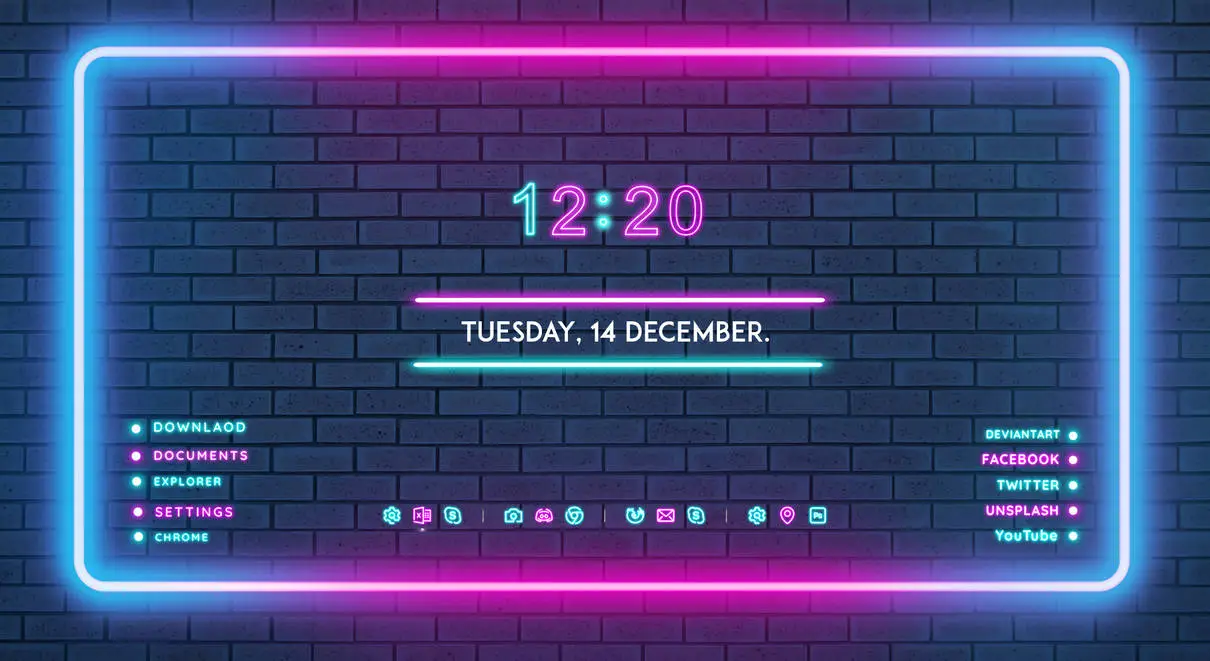
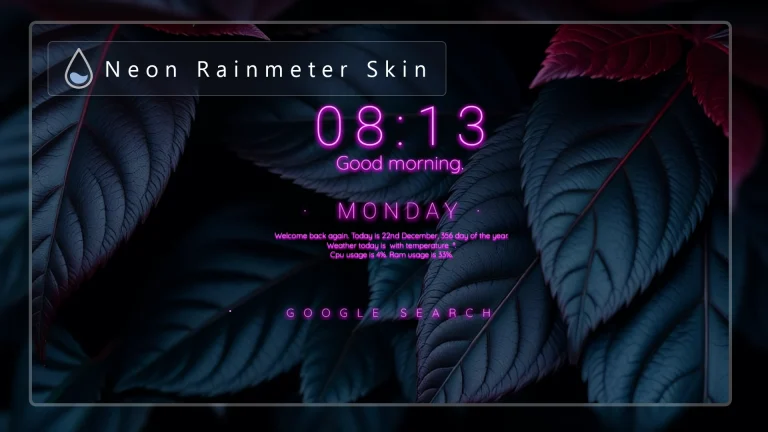
Glow Rainmeter Skin is a futuristic desktop customization skin designed for Windows users who enjoy neon visuals and modern Rainmeter setups. With its glowing interface elements, dark background style, and clean dashboard layout, this skin creates a stylish cyberpunk-inspired desktop appearance.
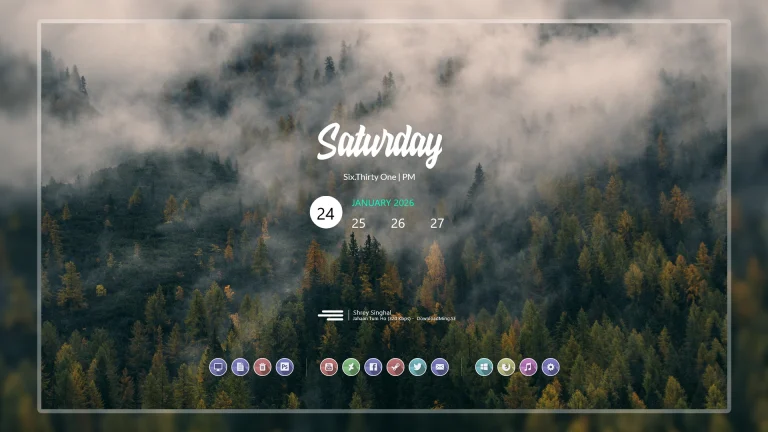
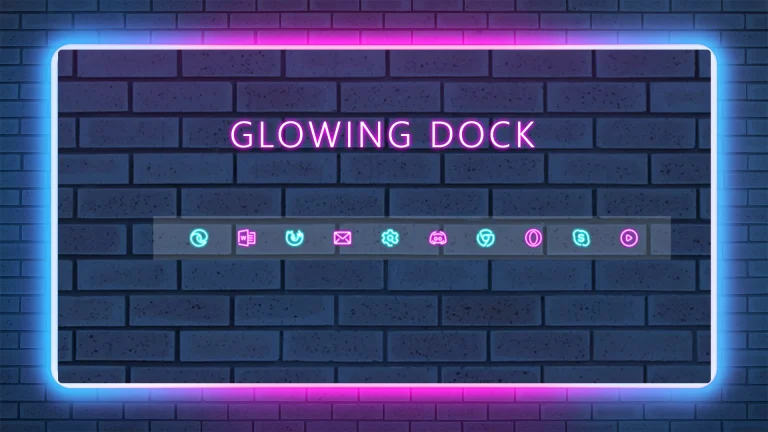
The design features a large clock display, date information, glowing frame elements, shortcut-style menus, and a minimal icon layout. The combination of bright neon colors and dark visuals creates a unique atmosphere while keeping the desktop clean and organized.
Glow Rainmeter Skin is suitable for users who enjoy gaming-style desktops, neon themes, and creative Windows customization. It works well with dark wallpapers, futuristic backgrounds, and other visual resources to create a complete desktop setup.
Key Features
- Neon-style futuristic desktop design.
- Cyberpunk-inspired glowing interface elements.
- Large clock and date display.
- Shortcut-style menu layout.
- Minimal icon-based desktop elements.
- Dark theme with vibrant color highlights.
- Rainmeter-based desktop customization.
System Requirements
- Windows operating system.
- Rainmeter installed on your computer.
- Basic knowledge of loading and managing Rainmeter skins.
- A desktop environment capable of running Rainmeter.
Installation Steps
- Download and install Rainmeter from the official website.
- Download the Glow Rainmeter Skin package.
- Extract the ZIP file if required.
- If the package contains a .rmskin file, double-click it to open the Rainmeter Skin Installer.
- Click Install to add the skin to Rainmeter.
- Right-click the Rainmeter icon from the system tray.
- Go to Skins and select the installed Glow Rainmeter Skin.
- Click Load to apply the available components.
- Adjust the position of the elements according to your preferred desktop layout.
What is included in this?
- Rainmeter Skin
Required Customization Tool
Zip File 3MB
DownloadMore Resources
How to Remove Glow Rainmeter Skin
If you want to remove Glow Rainmeter Skin from your desktop, you can easily disable it through the Rainmeter application. Removing the skin only removes the customization elements from your desktop and does not affect your Windows system files.
- Right-click on the active Glow Rainmeter element.
- Select Unload Skin to remove the widget from your desktop.
- Open the Rainmeter Manage window from the system tray.
- Find Glow Rainmeter Skin from the installed skin list.
- Unload all related components.
- Delete the skin folder from the Rainmeter Skins directory if you no longer want to keep the files.
Who Should Use This Skin?
Glow Rainmeter Skin is suitable for users who enjoy futuristic and visually creative desktop designs.
- Users who like neon and cyberpunk-style desktop themes.
- People who prefer gaming-style desktop setups.
- Rainmeter users looking for futuristic interface designs.
- Users who enjoy creative Windows customization.
Disclaimer
Glow Rainmeter Skin is a third-party desktop customization resource created for Rainmeter users. It is not an official Microsoft product or Windows feature. Windows, Rainmeter, and related trademarks belong to their respective owners. This website provides customization resources for personal desktop personalization purposes only.
Conclusion
Glow Rainmeter Skin provides a futuristic way to customize your Windows desktop with neon visuals and a cyberpunk-style interface. Its glowing elements, clean layout, and modern appearance make it a great option for users who want a unique desktop setup.
For Rainmeter enthusiasts who enjoy dark themes, neon aesthetics, and creative desktop customization, this skin can be a useful addition to their collection.

Disclaimer: All themes, visual styles, and concepts shared on this website are unofficial, fan-made creations built from imagination for customization purposes. We are not affiliated with, endorsed by, or sponsored by Microsoft or any other official brand.