Windows 25 Theme for Windows 11
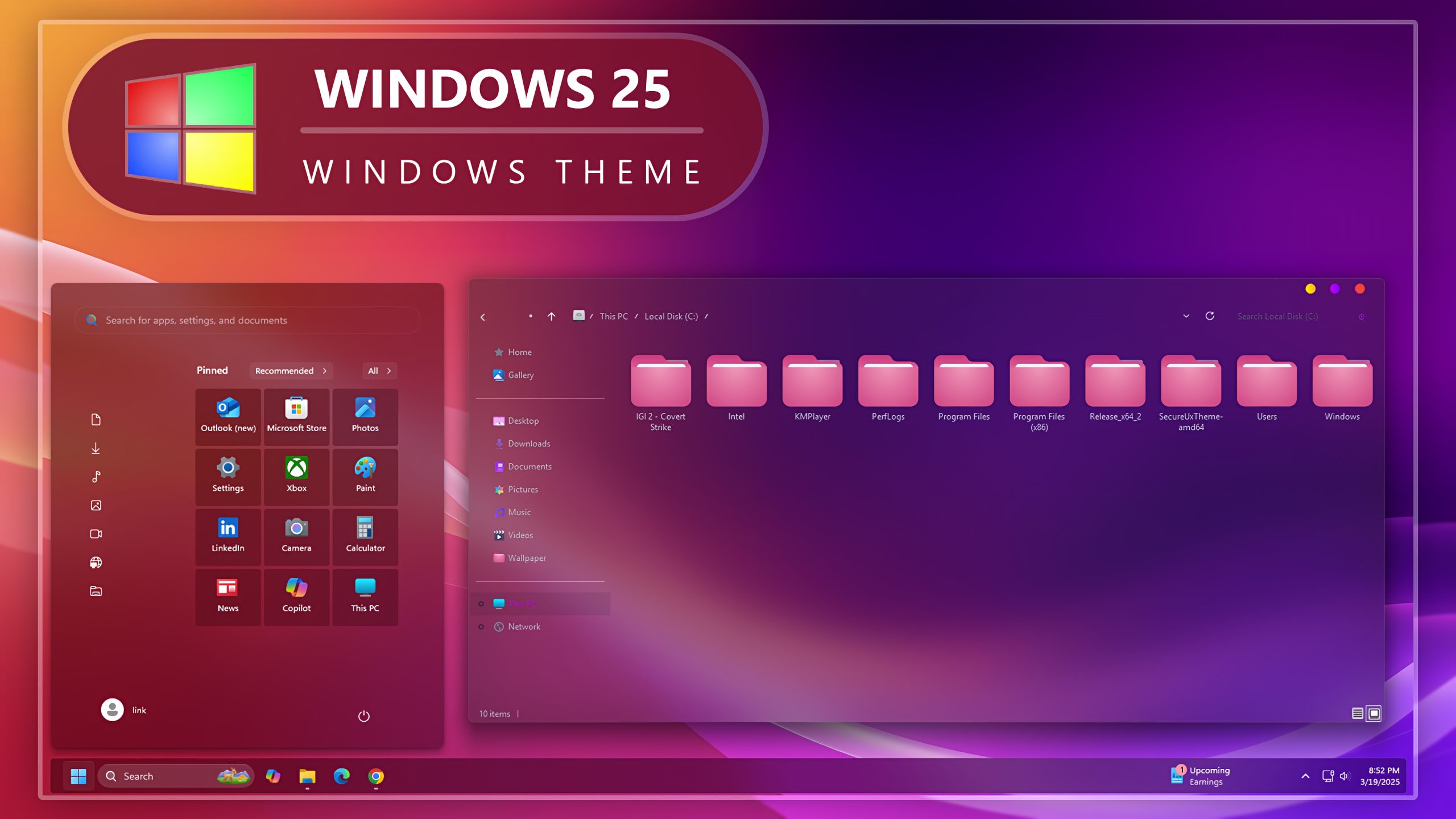
Windows 25 Theme for Windows 11: Ever wondered what would Windows 25 look like? I think this is as close as we're going to get to it.

Windows 25 Theme for Windows 11
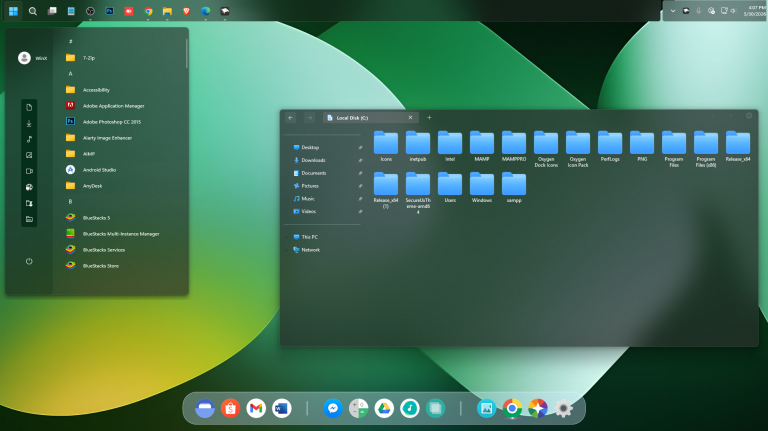
Windows 25 Theme for Windows 11 is a futuristic Windows customization setup designed for users who want to give their desktop a next-generation look. If you have ever wondered what a future version of Windows could look like, this theme brings a creative Windows 25 inspired concept with modern visuals, clean icons, stylish wallpapers, and Windhawk-based customization.
The Windows 25 Theme for Windows 11 is not an official Windows release by Microsoft. It is a custom Windows 11 theme created for personalization and desktop styling purposes only. The design focuses on a clean futuristic interface, modern icon appearance, smooth visual elements, and a polished desktop experience that feels different from the default Windows 11 look.
This theme is suitable for users who enjoy Windows customization, modern desktop setups, futuristic UI concepts, and visual transformation packs. With the right setup, Windows 25 Theme for Windows 11 can make your desktop look more unique, stylish, and visually attractive while keeping the familiar Windows 11 experience.
Futuristic Windows 25 Inspired Design
The main idea behind this theme is to imagine how a future Windows interface might look. It combines a modern theme style, custom icons, wallpapers, and Windhawk mods to create a more advanced desktop appearance. The design is clean, smooth, and visually attractive without making the system look too crowded.
With the right wallpaper, icon pack, and taskbar customization, the Windows 25 Theme for Windows 11 can give your PC a premium and modern feel. It works especially well with minimal wallpapers, glass-style Start Menu designs, transparent taskbar mods, and modern desktop layouts.
Why Choose Windows 25 Theme for Windows 11?
The Windows 25 Theme for Windows 11 is a good choice for users who want a complete desktop transformation instead of only changing a wallpaper. This theme package includes multiple customization elements that work together to create a consistent futuristic Windows look.
It is also useful for users who create Windows customization videos, desktop showcase content, or personal theme setups. If you want your Windows 11 desktop to look different from the default style, this theme can help you create a clean and modern visual experience.
What is Included in This?
- Windows 11 Theme
- 7TSP Icon Pack
- Wallpaper
- Windhawk Mods
Main Features
- Futuristic Windows 25 inspired desktop look
- Custom Windows 11 theme files
- Modern 7TSP icon pack included
- High-quality wallpaper for a matching setup
- Windhawk mods for extra customization
- Suitable for modern and clean desktop setups
- Designed for Windows 11 customization lovers
- Creative concept theme, not an official Microsoft release
Installation Steps
- Create a system restore point before starting the customization process.
- This third-party theme requires a Theme Patcher to work properly, so install a compatible Theme Patcher first.
- Apply the Windows 11 theme files after installing the required patcher.
- Install the 7TSP icon pack if you want the full icon customization look.
- Apply the included wallpaper for a better matching desktop setup.
- Use the included Windhawk mods to improve the Start Menu, taskbar, or other supported UI parts.
- If you are new to Windows customization, follow a detailed custom theme installation guide before applying the files.
- Theme support: Windows 11
Best For Windows Customization Lovers
The Windows 25 Theme for Windows 11 is perfect for users who enjoy creating unique Windows desktop setups. If you like futuristic UI design, modern icons, clean wallpapers, and advanced customization, this theme can give your desktop a completely new feel.
For the best experience, use all included files together. The theme, icon pack, wallpaper, and Windhawk mods are designed to create a more complete visual transformation when applied properly.
Tips for Best Experience
- Use the included wallpaper for a matching theme look.
- Create a restore point before installing the theme.
- Use a compatible Theme Patcher for your Windows version.
- Install the 7TSP icon pack carefully by following its instructions.
- Restart Windows Explorer or your PC after applying major changes.
- Keep a backup of your current theme and icons before customization.
Windows 25 Theme 35MB
DownloadImportant Safety Note
This is an unofficial third-party customization theme made only for personal desktop styling. The Windows 25 Theme for Windows 11 is not developed, supported, or endorsed by Microsoft. Since custom themes and patchers can change system appearance files, you should always create a restore point before applying any changes.
The final look may vary depending on your Windows version, installed patcher, system theme settings, icon pack installation, Windhawk mods, and wallpaper configuration. Always download tools and files from trusted sources and follow the instructions carefully.
Frequently Asked Questions
Is Windows 25 Theme for Windows 11 an official Microsoft theme?
No, Windows 25 Theme for Windows 11 is not an official Microsoft theme or Windows release. It is a third-party customization theme created for Windows 11 personalization.
Do I need a Theme Patcher?
Yes, third-party Windows themes usually require a compatible Theme Patcher to work properly. Make sure you use a patcher that supports your Windows 11 version.
Are icons included in this theme pack?
Yes, this package includes a 7TSP icon pack so you can customize the icon appearance and create a more complete desktop transformation.
Does this theme include wallpapers?
Yes, wallpaper is included in the theme package to help you create a matching Windows 25 inspired desktop setup.
Is it safe to use?
The theme is made for customization purposes, but any third-party theme or patcher should be used carefully. Creating a restore point before installation is strongly recommended.