

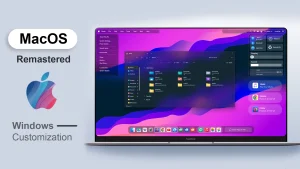
MacOS Inspired Remastered Rainmeter Skin
MacOS Remastered Rainmeter Skin:macOS Remastered is optimized for 1080p and 4K displays, offering seamless performance with lightweight components. The modular layout allows you to place widgets wherever you like, and the dock and menubar can be tailored with your favorite app shortcuts and system tools.

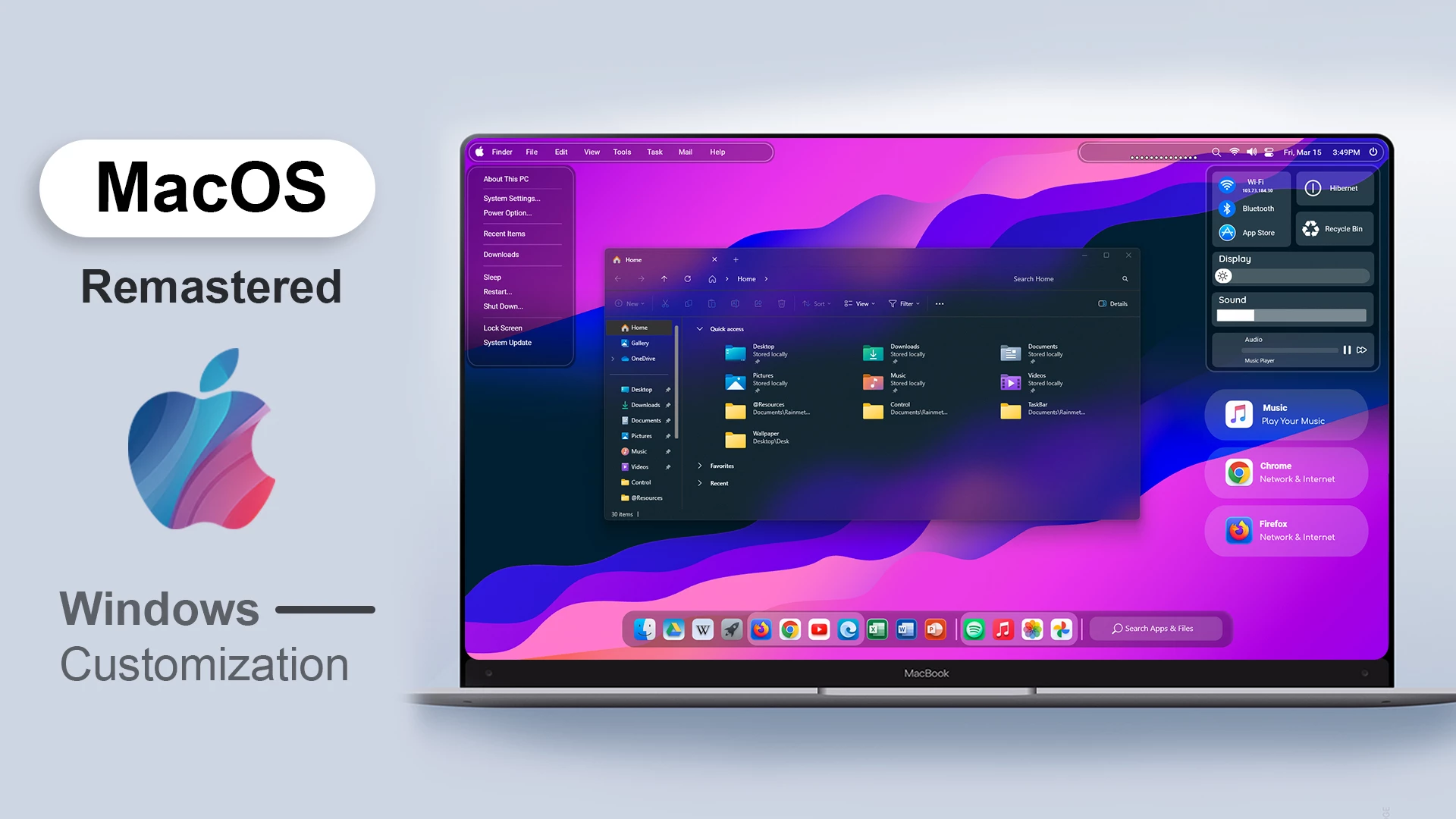
macOS Inspired Remastered Rainmeter Skin
macOS Inspired Remastered Rainmeter Skin gives the Windows desktop a clean macOS-inspired layout with a slim top menu bar, a bottom dock, and small shortcut widgets. The design keeps the main desktop elements separate, making the interface feel organised without adding unnecessary clutter.
The top bar contains menu labels and small status icons. A dropdown menu opens from the left side and provides quick access to different desktop and system options. The bottom dock holds a row of application icons, while additional rounded widgets sit on the right side for quick access to selected tools.
The package also includes a central File Explorer window for the complete desktop arrangement. This window works as part of the overall setup, while the Rainmeter components provide the surrounding menu, dock, and shortcut elements.
Key Features
- macOS-inspired top menu bar.
- Dropdown menu on the left side.
- Menu options for quick access to desktop and system items.
- Bottom dock with a row of application icons.
- Rounded shortcut widgets on the right side.
- Music widget with a play option.
- Firefox shortcut with a Network & Internet label.
- Small additional shortcut and status widgets.
- Central File Explorer window included in the overall desktop arrangement.
- Separate Rainmeter components that can be loaded and moved individually.
System Requirements
- A Windows computer that supports the Rainmeter version you install.
- Rainmeter installed on your computer.
- Basic knowledge of loading and managing Rainmeter skins.
What Is Included In This?
- Rainmeter Skin Files
- Desktop Widget Components
- Dock and Menu Elements
- Supporting Visual Resources
Download & Install Rainmeter
Rainmeter is required to load and manage this desktop customization setup. Install Rainmeter before applying the skin components.
How to Install macOS Inspired Remastered Rainmeter Skin
- Install Rainmeter from the official Rainmeter website.
- Download the macOS Inspired Remastered Rainmeter Skin package.
- Extract the ZIP file if required.
- Open the included .rmskin file to start the Rainmeter installer.
- Click Install to add the skin components.
- Open Rainmeter’s Manage window from the system tray.
- Locate the installed menu, dock, and widget components.
- Click Load to activate the components you want to use.
- Move the widgets and dock to suit your desktop arrangement.
ZIP File 33 MB
DownloadHow to Remove macOS Inspired Remastered Rainmeter Skin
You can hide the active Rainmeter components through the Rainmeter management window whenever you no longer want to use the setup.
- Right-click an active Rainmeter widget or dock element.
- Select Unload Skin to remove that component.
- Open Rainmeter’s Manage window from the system tray.
- Find the installed menu, dock, and widget components.
- Unload the remaining active components.
- Uninstall Rainmeter from Windows Settings if you no longer need it.
Who Should Use This Skin?
This Rainmeter setup suits users who like a top menu bar, a bottom dock, and small shortcut widgets arranged around a central desktop workspace.
- Users who like macOS-inspired desktop layouts.
- People who prefer a top menu bar and bottom dock.
- Rainmeter users who want movable shortcut widgets.
- Users who enjoy combining menus, docks, and desktop panels.
Related Categories
Disclaimer
macOS Inspired Remastered Rainmeter Skin is a third-party Windows desktop customization resource created for Rainmeter users. It is not an official Apple product, macOS software, or Apple-developed application. The term “macOS” describes the visual inspiration and design style only. Apple, macOS, Windows, and related trademarks belong to their respective owners.
Conclusion
macOS Inspired Remastered Rainmeter Skin combines a top menu bar, a bottom application dock, a left-side dropdown menu, and movable shortcut widgets. The central File Explorer window works with these surrounding elements to create an organised desktop arrangement.
For users who enjoy clean menus, dock-style shortcuts, and flexible Rainmeter layouts, this setup offers a simple way to create a more personalised Windows desktop.



Disclaimer: All themes, visual styles, and concepts shared on this website are unofficial, fan-made creations built from imagination for customization purposes. We are not affiliated with, endorsed by, or sponsored by Microsoft or any other official brand.