

Smart Desk Rainmeter skin
Smart Desk Rainmeter skin:Smart Desk Rainmeter Skin is a modern, productivity-focused Rainmeter suite designed to transform your Windows desktop into a smart, organized digital workspace

Smart Desk Rainmeter Skin
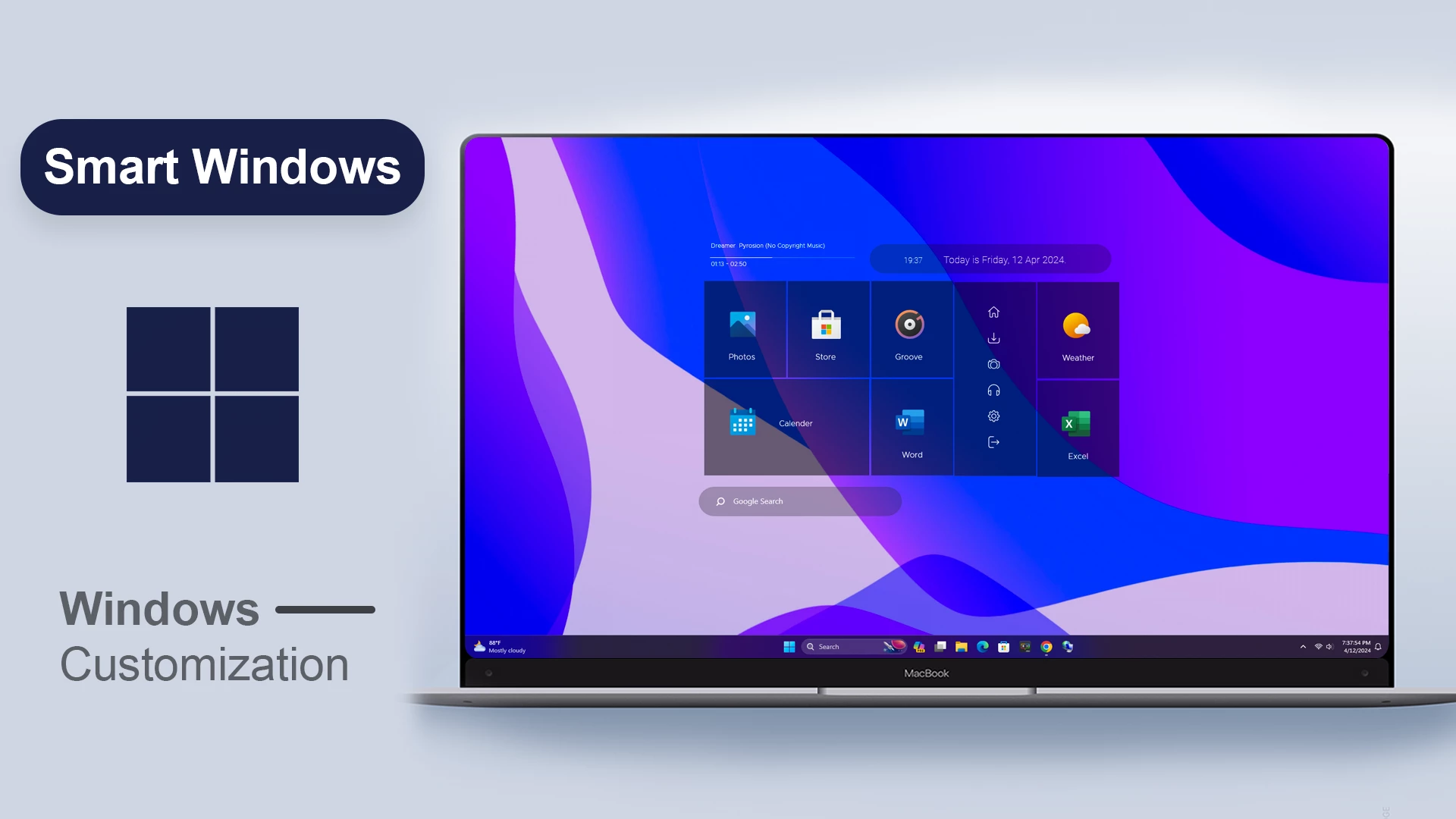
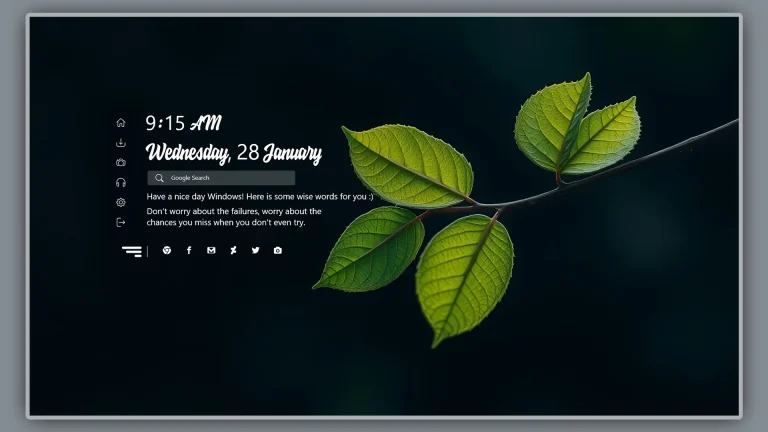
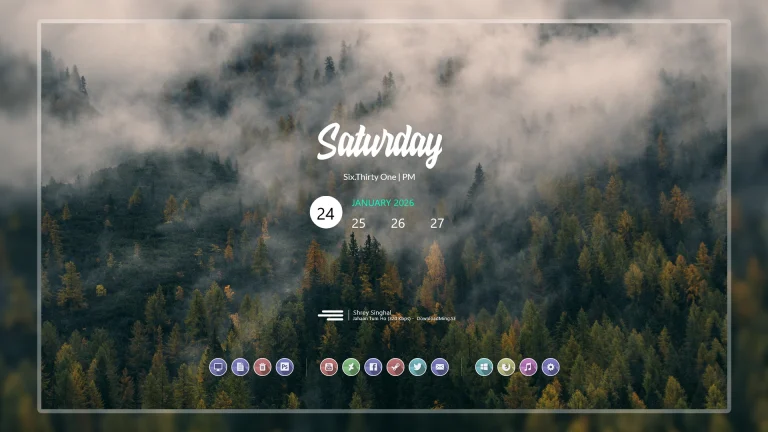
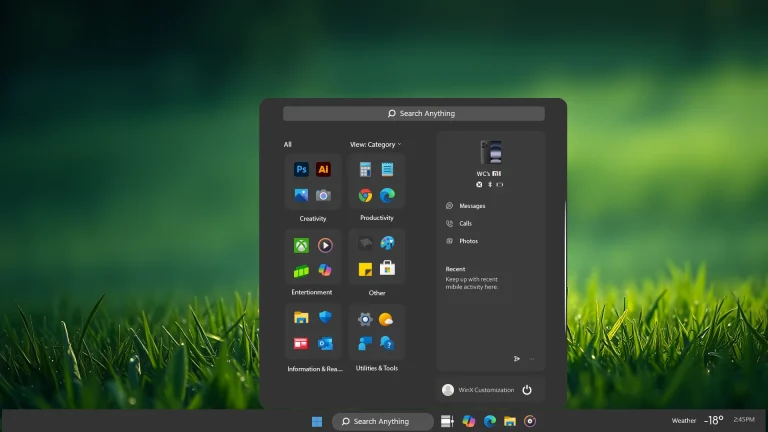
Smart Desk Rainmeter Skin provides a compact desktop menu with application tiles, a date display, a weather tile, and a search field. The layout uses translucent panels and simple spacing so the shortcuts remain easy to identify without covering the entire desktop.
The main menu is arranged in a grid of square tiles. It includes shortcuts such as Photos, Store, Groove, Calendar, Word, Excel, and Weather. A narrow vertical strip of small icons appears beside the tiles, while a date panel is placed along the top of the menu.
A Google Search field is positioned below the main menu. The skin keeps the app shortcuts, date information, side icons, and search option together in one organised area, making it suitable for users who prefer a compact desktop interface.
Desktop Design Overview
Smart Desk Rainmeter Skin uses a translucent application panel with a simple tile-based layout. Each shortcut is placed inside its own square section with an icon and label, making the available options easy to scan.
The menu also includes a small date display across the upper area, a vertical group of additional icons beside the tiles, and a search field below the panel. The individual components can be loaded and positioned through Rainmeter.
Features
- Translucent desktop application panel.
- Grid-based shortcut tile layout.
- Photos shortcut tile.
- Store shortcut tile.
- Groove shortcut tile.
- Calendar shortcut tile.
- Microsoft Word shortcut tile.
- Microsoft Excel shortcut tile.
- Weather shortcut tile.
- Date display across the upper section.
- Vertical strip of additional shortcut icons.
- Google Search field below the menu.
Included Files
- Smart Desk Rainmeter Skin
- Rainmeter configuration files
Required Tool
Rainmeter is required to load and manage Smart Desk Rainmeter Skin. Install Rainmeter before applying the available components.
Required Customization Tool
Installation Steps
- Download and install Rainmeter from the official website.
- Download the Smart Desk Rainmeter Skin package.
- Extract the downloaded file if required.
- Open the .rmskin file if it is included.
- Click Install in the Rainmeter Skin Installer.
- Open Rainmeter from the system tray.
- Go to Skins and select the Smart Desk components.
- Click Load to display the panel, tiles, date section, and search field.
- Move the components to your preferred positions.
Customization Tips
You can move the Smart Desk components separately through Rainmeter. Keep the tile panel, date display, side icons, and search field aligned if you want to maintain the organised menu structure.
Setup Tips
- Leave enough space around the application panel.
- Keep the shortcut tiles aligned in their grid layout.
- Position the search field below the menu for easier access.
- Move the widgets to suit your screen size and desktop arrangement.
Zip File 9MB
DownloadMore Resources
How to Remove Smart Desk Rainmeter Skin
You can hide the Smart Desk elements through Rainmeter’s management window whenever you no longer want to use the menu.
- Right-click an active Smart Desk Rainmeter component.
- Select Unload Skin to remove that component from the desktop.
- Open Rainmeter’s Manage window from the system tray.
- Find the Smart Desk skin folder and unload the remaining components.
- Delete the related skin folder after unloading it if you no longer need the files.
Disclaimer
Smart Desk Rainmeter Skin is a third-party desktop customization resource created for Rainmeter users. It is not an official Microsoft product or Windows feature. Windows, Rainmeter, and related trademarks belong to their respective owners.
Final Thoughts
Smart Desk Rainmeter Skin combines application tiles, a date display, a vertical icon strip, and a search field in one compact desktop menu. The separate square tiles make shortcuts such as Photos, Store, Groove, Calendar, Word, Excel, and Weather easy to find.
For Rainmeter users who prefer a small organised menu instead of many separate desktop widgets, Smart Desk offers a practical and flexible layout.



Disclaimer: All themes, visual styles, and concepts shared on this website are unofficial, fan-made creations built from imagination for customization purposes. We are not affiliated with, endorsed by, or sponsored by Microsoft or any other official brand.