New macOS-Inspired File Explorer Style for Windows 11
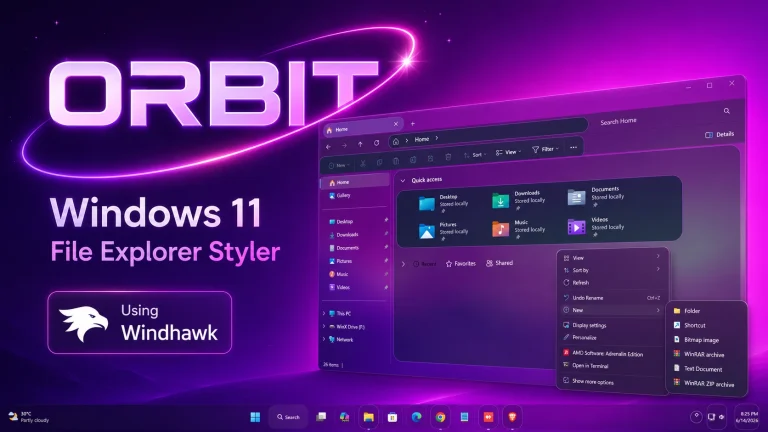
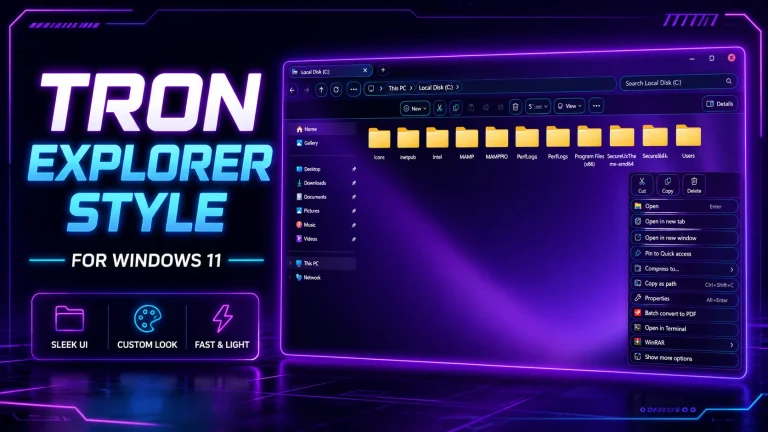
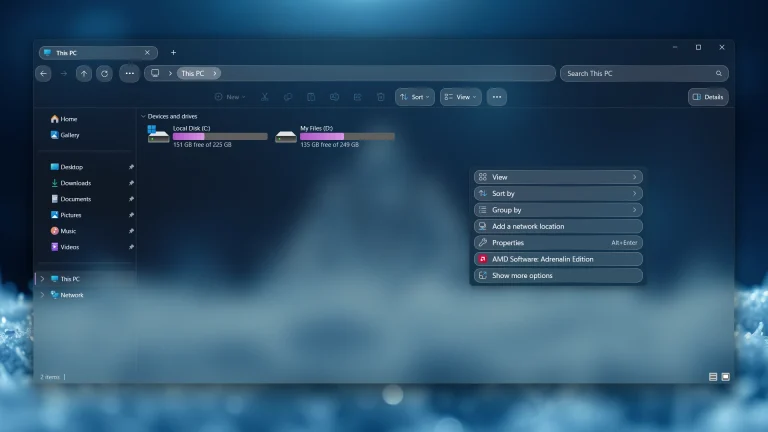
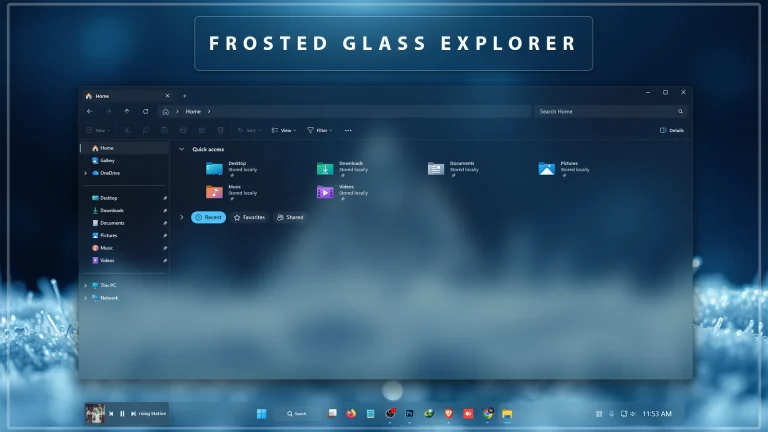
New macOS-Inspired File Explorer Style for Windows 11 : Give your Windows 11 File Explorer a cleaner, premium, macOS-inspired look with this Explorer Style for Windhawk. Learn what it changes, how to install it, how to remove it, and what to check if something does not work properly.

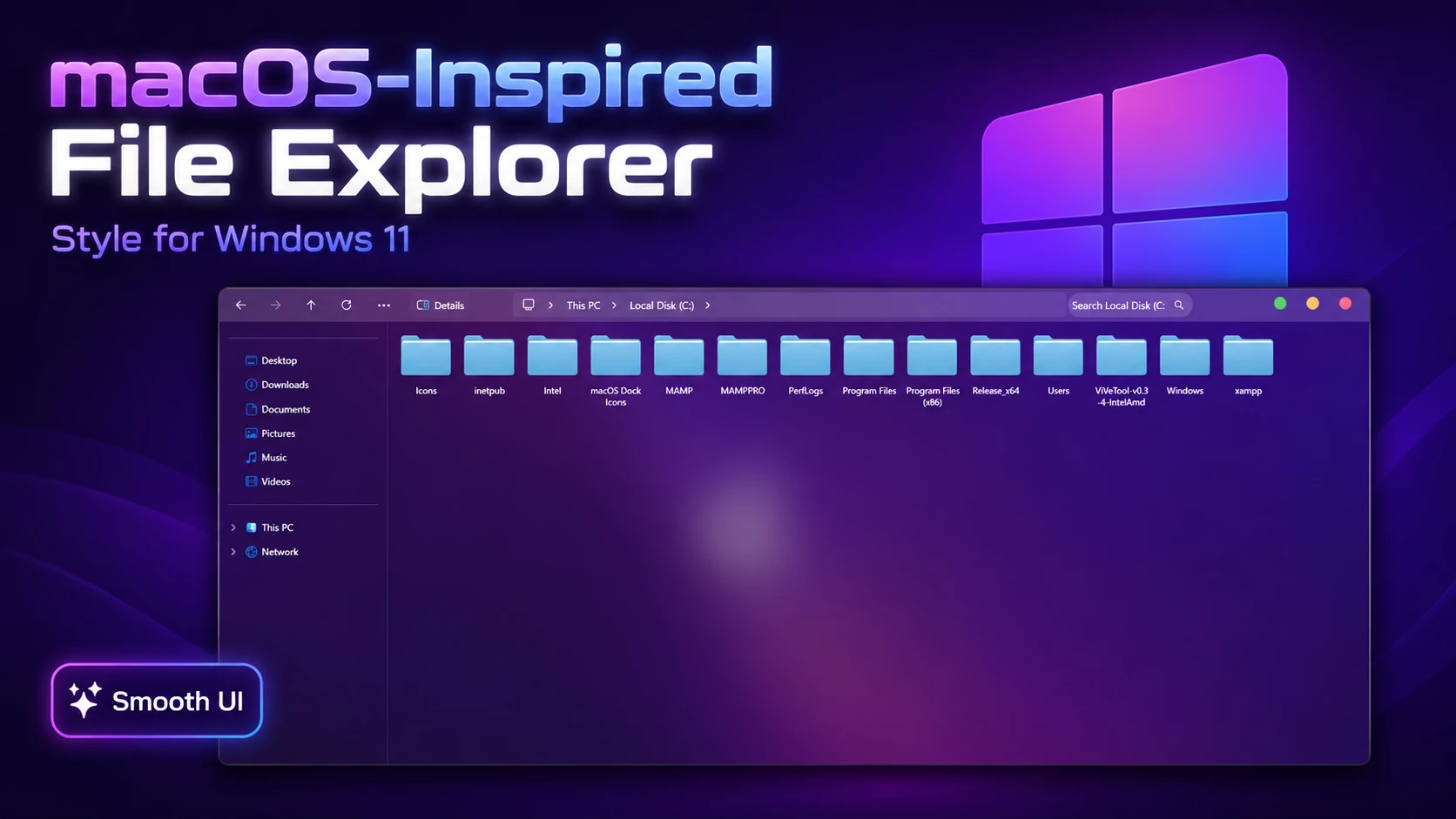
macOS-Inspired File Explorer Style for Windows 11
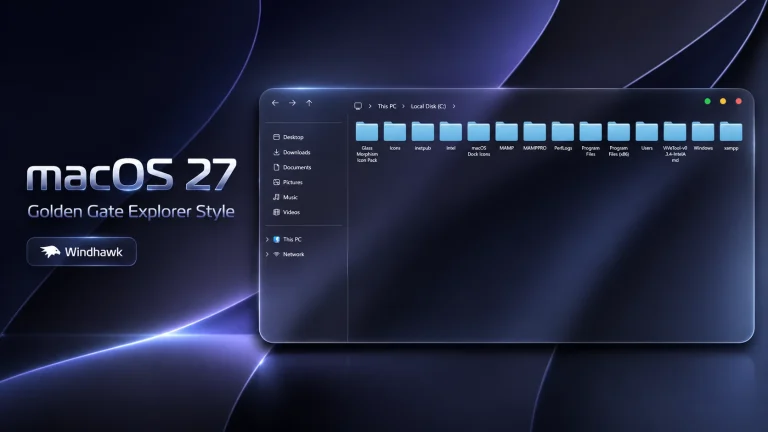
If you want a cleaner and more premium-looking Explorer Style for Windows 11, this macOS-inspired setup is a simple way to refresh the look of File Explorer without changing your whole operating system. It is designed for users who like a minimal, modern, and polished desktop experience while still keeping the familiar Windows workflow.
This style is made for users who customize Windows 11 with Windhawk. It focuses on the visual appearance of File Explorer and gives it a smoother, more elegant look. The idea is not to turn Windows into another operating system, but to make the default Windows 11 File Explorer feel cleaner, softer, and more enjoyable to use every day.
On Link Vegas Theme, we share Windows customization resources such as Windhawk styles, icon packs, wallpapers, Rainmeter skins, taskbar styles, Start Menu designs, and desktop setup tutorials. This post explains what this Explorer style does, how to install it, how to uninstall it, and what to check before using it on your PC.
What Is This Explorer Style?
This is a macOS-inspired File Explorer style for Windows 11. It gives File Explorer a clean and modern interface with a more premium visual feeling. The design is suitable for users who prefer a calm desktop, soft spacing, and a less cluttered file management experience.
The style may work well with other desktop customization elements such as a minimal wallpaper, matching icon pack, centered taskbar layout, or a clean dock-style setup. However, you do not need to use all of those extras. You can use only the Explorer style if you simply want your File Explorer to look better.
This is not an official Microsoft theme. It is also not an official macOS product. It is a Windows customization style inspired by modern desktop design trends. Always use third-party customization tools carefully and make sure you understand what you are installing.
Key Features
- Clean macOS-inspired File Explorer appearance
- Modern and minimal visual style for Windows 11
- Good match for premium desktop customization setups
- Works with Windhawk-based Windows customization
- Easy to enable, disable, or adjust from Windhawk settings
- Suitable for clean theme, icon pack, and dock-style desktop setups
Why Use a Custom Explorer Style?
File Explorer is one of the most used parts of Windows. You open it to manage downloads, documents, photos, project files, software folders, and many other daily tasks. Because of that, even a small visual improvement can make your desktop feel more comfortable.
The default Windows 11 File Explorer is already modern, but many users prefer a more refined design. A custom Explorer style can help reduce visual noise and make the interface feel more personal. This is especially useful if you are building a full Windows 11 customization setup with matching icons, wallpaper, taskbar style, and desktop widgets.
This setup is best for users who want Windows 11 to look clean and premium while still keeping the same basic Windows experience.
Compatibility
This Explorer style is intended for Windows 11 users who use Windhawk for customization. Compatibility can depend on your Windows version, installed updates, Windhawk version, and other active mods.
Before installing, check that your system is updated and that Windhawk is working properly. If you are using other File Explorer-related mods, there may be conflicts. For the best result, enable one Explorer customization at a time and test the appearance before adding more mods.
This style may not behave the same on every PC. Different display scaling, themes, system builds, or third-party tools can affect the final look. If something does not appear correctly, disable the style and review the troubleshooting section below.
Disclaimer
The customization style shared in this post is created for Windows personalization purposes only. Link Vegas Theme is not affiliated with Microsoft, Apple, macOS, or any third-party software developers mentioned in this article.
This is a community-created Windows customization guide using third-party tools such as Windhawk. We do not guarantee that the style will work on every system, as compatibility may depend on your Windows version, updates, installed modifications, and hardware configuration.
Before applying any system customization, we recommend creating a restore point and keeping a backup of your settings. Use third-party customization tools carefully and only apply changes that you understand.
All trademarks, logos, and brand names mentioned in this article belong to their respective owners and are used only for identification and informational purposes.
- Created By ZEUSosX_044
- Modified By Link Vegas
- Windows 11 21H2: May work, but not recommended for the best experience
- Windows 11 22H2: May work, but compatibility can vary
- Windows 11 23H2: Recommended
- Windows 11 24H2: Recommended
- Windows 11 25H2: YES but test carefully after Windows updates
- Download & Install windhawk.
- install & Open Windows 11 File Explorer Styler
- Go to the Settings tab and select Textual mode.
- Copy the content below and paste it into the text box and click “Save”.
- For more details, visit this GitHub guide
theme: 'macOS By Link Vegas'backgroundTranslucentEffect: micabackgroundTranslucentEffectRegion: ''styleConstants: - ''controlStyles: - target: Microsoft.UI.Xaml.Controls.Grid#CommandBarControlRootGrid styles: - Background=Transparent - BorderThickness=0 - Grid.Row=0 - Grid.RowSpan=2 - HorizontalAlignment=Left - VerticalAlignment=Top - Width=155 - Margin=197,-30,0,0 - target: Microsoft.UI.Xaml.Controls.CommandBar#FileExplorerCommandBar styles: - Background=Transparent - HorizontalAlignment=Left - VerticalAlignment=Top - target: Microsoft.UI.Xaml.Controls.Border#BottomBorderLine styles: - Visibility=Collapsed - target: Microsoft.UI.Xaml.Controls.Grid#NavigationBarControlGrid styles: - Background=#30FFFFFF - BorderBrush=Transparent - ColumnDefinitions:=<ColumnDefinitionCollection><ColumnDefinition Width="Auto"/><ColumnDefinition Width="*"/><ColumnDefinition Width="380"/></ColumnDefinitionCollection> - Margin=0,-16,0,-21 - target: Grid#TabContainerGrid styles: - Grid.Row=0 - HorizontalAlignment=Left - Margin=100,0,0,0 - Width=1 - MaxWidth=1 - target: FileExplorerExtensions.FileExplorerTabControl styles: - HorizontalAlignment=Left - Margin=100,0,-20,0 - Width=1 - MaxWidth=1 - target: TabViewItem styles: - Width=0 - Visibility=Collapsed - target: Grid#TabContainerGrid > Border > Button#AddButton styles: - Visibility=Collapsed - target: AutoSuggestBox#FileExplorerSearchBox > Grid#LayoutRoot > TextBox > Grid@CommonStates > Border#BorderElement styles: - Background:=<LinearGradientBrush StartPoint="0,0" EndPoint="0,1"><GradientStop Color="#D9FFFFFF" Offset="0"/><GradientStop Color="#A8E8F8FF" Offset="0.20"/><GradientStop Color="#78BFE8FF" Offset="0.48"/><GradientStop Color="#805EACDC" Offset="0.72"/><GradientStop Color="#96316FAE" Offset="1"/></LinearGradientBrush> - BorderBrush:=<LinearGradientBrush StartPoint="0,0" EndPoint="1,1"><GradientStop Color="#FFFFFFFF" Offset="0"/><GradientStop Color="#E0C5F0FF" Offset="0.35"/><GradientStop Color="#C568BDEB" Offset="0.68"/><GradientStop Color="#E02E75B8" Offset="1"/></LinearGradientBrush> - BorderThickness=1 - CornerRadius=15 - Margin=10,0,0,0 - target: Microsoft.UI.Xaml.Controls.Grid#FileExplorerAddressBarGrid > Grid#LayoutRoot > TextBox > Grid@CommonStates > Border#BorderElement styles: - Background=#55FFFFFF - BorderBrush=#35FFFFFF - BorderThickness=1 - CornerRadius=8 - target: Microsoft.UI.Xaml.Controls.AutoSuggestBox#FileExplorerSearchBox > Microsoft.UI.Xaml.Controls.Grid#LayoutRoot > Microsoft.UI.Xaml.Controls.TextBox#TextBox styles: - Margin=0,0,200,0 - Background=Transparent - BorderBrush=Transparent - Foreground=#F0143854 - TextAlignment=Center - HorizontalContentAlignment=Center - target: Microsoft.UI.Xaml.Controls.Grid#FileExplorerAddressBarGrid styles: - HorizontalAlignment=Stretch - Height=28 - Margin=200,0,0,0 - target: AutoSuggestBox#FileExplorerSearchBox styles: - HorizontalAlignment=Stretch - Height=28 - Margin=-7,-1,7,0 - target: Microsoft.UI.Xaml.Controls.CommandBar#FileExplorerCommandBar Button styles: - FontSize=14 - Foreground=#E6000000 - Background=Transparent - BorderBrush=Transparent - CornerRadius=7 - target: Microsoft.UI.Xaml.Controls.CommandBar#FileExplorerCommandBar Button > Grid@CommonStates > Border#Root styles: - Background=Transparent - BorderBrush=Transparent - CornerRadius=7 - target: Microsoft.UI.Xaml.Controls.CommandBar#FileExplorerCommandBar Button > Grid@CommonStates > Border#Root:pointerover styles: - Background=#30FFFFFF - BorderBrush=#25FFFFFF - CornerRadius=7 - target: Microsoft.UI.Xaml.Controls.CommandBar#FileExplorerCommandBar Button > Grid@CommonStates > Border#Root:pressed styles: - Background=#45FFFFFF - BorderBrush=#35FFFFFF - CornerRadius=1 # HOME PAGE BLACK BACKGROUND TRANSPARENCY - target: Grid#HomeViewRootGrid styles: - Background=Transparent # NORMAL FOLDER/FILE AREA TRANSPARENCY - target: Grid#DetailsViewControlRootGrid styles: - Background=Transparent # GALLERY VIEW TRANSPARENCY - target: FileExplorerExtensions.GalleryViewControl#GalleryViewControl > Grid styles: - Background=TransparentthemeResourceVariables: - ''explorerFrameContainerHeight: 44xamlDiagnosticsHandling: ''theme: 'macOS By Link Vegas'backgroundTranslucentEffect: micabackgroundTranslucentEffectRegion: ''styleConstants: - ''controlStyles: - target: Microsoft.UI.Xaml.Controls.Grid#CommandBarControlRootGrid styles: - Background=Transparent - BorderThickness=0 - Grid.Row=0 - Grid.RowSpan=2 - HorizontalAlignment=Left - VerticalAlignment=Top - Width=155 - Margin=197,-30,0,0 - target: Microsoft.UI.Xaml.Controls.CommandBar#FileExplorerCommandBar styles: - Background=Transparent - HorizontalAlignment=Left - VerticalAlignment=Top - target: Microsoft.UI.Xaml.Controls.Border#BottomBorderLine styles: - Visibility=Collapsed - target: Microsoft.UI.Xaml.Controls.Grid#NavigationBarControlGrid styles: - Background=#30FFFFFF - BorderBrush=Transparent - ColumnDefinitions:=<ColumnDefinitionCollection><ColumnDefinition Width="Auto"/><ColumnDefinition Width="*"/><ColumnDefinition Width="380"/></ColumnDefinitionCollection> - Margin=0,-16,0,-21 - target: Grid#TabContainerGrid styles: - Grid.Row=0 - HorizontalAlignment=Left - Margin=100,0,0,0 - Width=1 - MaxWidth=1 - target: FileExplorerExtensions.FileExplorerTabControl styles: - HorizontalAlignment=Left - Margin=100,0,-20,0 - Width=1 - MaxWidth=1 - target: TabViewItem styles: - Width=0 - Visibility=Collapsed - target: Grid#TabContainerGrid > Border > Button#AddButton styles: - Visibility=Collapsed - target: AutoSuggestBox#FileExplorerSearchBox > Grid#LayoutRoot > TextBox > Grid@CommonStates > Border#BorderElement styles: - Background=#35FFFFFF - BorderBrush=#35FFFFFF - BorderThickness=1 - CornerRadius=15 - Margin=10,0,0,0 - target: Microsoft.UI.Xaml.Controls.Grid#FileExplorerAddressBarGrid > Grid#LayoutRoot > TextBox > Grid@CommonStates > Border#BorderElement styles: - Background=#55FFFFFF - BorderBrush=#35FFFFFF - BorderThickness=1 - CornerRadius=8 - target: Microsoft.UI.Xaml.Controls.AutoSuggestBox#FileExplorerSearchBox > Microsoft.UI.Xaml.Controls.Grid#LayoutRoot > Microsoft.UI.Xaml.Controls.TextBox#TextBox styles: - Margin=0,0,200,0 - Background=Transparent - BorderBrush=Transparent - Foreground=#E6000000 - TextAlignment=Center - HorizontalContentAlignment=Center - target: Microsoft.UI.Xaml.Controls.Grid#FileExplorerAddressBarGrid styles: - HorizontalAlignment=Stretch - Height=28 - Margin=200,0,0,0 - target: AutoSuggestBox#FileExplorerSearchBox styles: - HorizontalAlignment=Stretch - Height=28 - Margin=-7,-1,7,0 - target: Microsoft.UI.Xaml.Controls.CommandBar#FileExplorerCommandBar Button styles: - FontSize=14 - Foreground=#E6000000 - Background=Transparent - BorderBrush=Transparent - CornerRadius=7 - target: Microsoft.UI.Xaml.Controls.CommandBar#FileExplorerCommandBar Button > Grid@CommonStates > Border#Root styles: - Background=Transparent - BorderBrush=Transparent - CornerRadius=7 - target: Microsoft.UI.Xaml.Controls.CommandBar#FileExplorerCommandBar Button > Grid@CommonStates > Border#Root:pointerover styles: - Background=#30FFFFFF - BorderBrush=#25FFFFFF - CornerRadius=7 - target: Microsoft.UI.Xaml.Controls.CommandBar#FileExplorerCommandBar Button > Grid@CommonStates > Border#Root:pressed styles: - Background=#45FFFFFF - BorderBrush=#35FFFFFF - CornerRadius=1themeResourceVariables: - ''explorerFrameContainerHeight: 44xamlDiagnosticsHandling: ''Explorer Style V2 Minimalist Style

theme: 'macOS Minimalist'backgroundTranslucentEffect: micabackgroundTranslucentEffectRegion: ''styleConstants: - ''controlStyles: - target: Microsoft.UI.Xaml.Controls.Grid#CommandBarControlRootGrid styles: - Background=Transparent - BorderThickness=0 - Grid.Row=0 - Grid.RowSpan=2 - HorizontalAlignment=Left - VerticalAlignment=Top - Width=155 - Margin=197,-30,0,0 - Visibility=Collapsed - target: Microsoft.UI.Xaml.Controls.CommandBar#FileExplorerCommandBar styles: - Background=Transparent - HorizontalAlignment=Left - VerticalAlignment=Top - target: Microsoft.UI.Xaml.Controls.Border#BottomBorderLine styles: - Visibility=Collapsed - target: Microsoft.UI.Xaml.Controls.Grid#NavigationBarControlGrid styles: - Background=#30FFFFFF - BorderBrush=Transparent - ColumnDefinitions:=<ColumnDefinitionCollection><ColumnDefinition Width="Auto"/><ColumnDefinition Width="*"/><ColumnDefinition Width="380"/></ColumnDefinitionCollection> - Margin=0,-16,0,-21 - target: Grid#TabContainerGrid styles: - Grid.Row=0 - HorizontalAlignment=Left - Margin=100,0,0,0 - Width=1 - MaxWidth=1 - target: FileExplorerExtensions.FileExplorerTabControl styles: - HorizontalAlignment=Left - Margin=100,0,-20,0 - Width=1 - MaxWidth=1 - target: TabViewItem styles: - Width=0 - Visibility=Collapsed - target: Grid#TabContainerGrid > Border > Button#AddButton styles: - Visibility=Collapsed - target: AutoSuggestBox#FileExplorerSearchBox > Grid#LayoutRoot > TextBox > Grid@CommonStates > Border#BorderElement styles: - Background=#35FFFFFF - BorderBrush=#35FFFFFF - BorderThickness=1 - CornerRadius=6 - Margin=10,0,0,0 - target: Microsoft.UI.Xaml.Controls.Grid#FileExplorerAddressBarGrid > Grid#LayoutRoot > TextBox > Grid@CommonStates > Border#BorderElement styles: - Background=#55FFFFFF - BorderBrush=#35FFFFFF - BorderThickness=1 - CornerRadius=8 - target: Microsoft.UI.Xaml.Controls.AutoSuggestBox#FileExplorerSearchBox > Microsoft.UI.Xaml.Controls.Grid#LayoutRoot > Microsoft.UI.Xaml.Controls.TextBox#TextBox styles: - Margin=0,0,200,0 - Background=Transparent - BorderBrush=Transparent - Foreground=#E6000000 - TextAlignment=Center - HorizontalContentAlignment=Center - target: Microsoft.UI.Xaml.Controls.Grid#FileExplorerAddressBarGrid styles: - HorizontalAlignment=Stretch - Height=28 - Margin=50,0,0,0 - target: AutoSuggestBox#FileExplorerSearchBox styles: - HorizontalAlignment=Stretch - Height=28 - Margin=-7,-1,7,0 - target: Microsoft.UI.Xaml.Controls.CommandBar#FileExplorerCommandBar Button styles: - FontSize=14 - Foreground=#E6000000 - Background=Transparent - BorderBrush=Transparent - CornerRadius=7 - target: Microsoft.UI.Xaml.Controls.CommandBar#FileExplorerCommandBar Button > Grid@CommonStates > Border#Root styles: - Background=Transparent - BorderBrush=Transparent - CornerRadius=7 - target: Microsoft.UI.Xaml.Controls.CommandBar#FileExplorerCommandBar Button > Grid@CommonStates > Border#Root:pointerover styles: - Background=#30FFFFFF - BorderBrush=#25FFFFFF - CornerRadius=7 - target: Microsoft.UI.Xaml.Controls.CommandBar#FileExplorerCommandBar Button > Grid@CommonStates > Border#Root:pressed styles: - Background=#45FFFFFF - BorderBrush=#35FFFFFF - CornerRadius=1themeResourceVariables: - ''explorerFrameContainerHeight: 44xamlDiagnosticsHandling: ''Frequently Asked Questions
Is this an official Microsoft Explorer style?
No. This is not an official Microsoft theme or official Windows feature. It is a third-party customization style made for users who like to personalize Windows 11.
Do I need Windhawk to use this style?
Yes, this post is made for a Windhawk-based Explorer style. You need the required Windhawk mod to apply the style properly.
Will this work on all Windows 11 PCs?
It may not work the same on every PC. Windows version, updates, display scaling, and other installed mods can affect compatibility.
Can I remove the style later?
Yes. You can disable the related Windhawk mod or remove the custom style settings to return to the default Windows 11 File Explorer look.
Is this safe for daily use?
Many users use Windhawk for Windows customization, but any third-party modification should be used carefully. Create a restore point, use trusted sources, and avoid installing unknown files.
Can I use this with icon packs and wallpapers?
Yes. This Explorer style can be used with matching icon packs, wallpapers, taskbar styles, and Rainmeter skins to create a complete desktop setup.
Final Thoughts
The macOS-inspired File Explorer Style for Windows 11 is a clean way to make your desktop feel more premium without changing your normal workflow. It gives File Explorer a fresh look while keeping the familiar Windows experience.
If you enjoy Windows customization, Windhawk styles can be a useful part of your setup. Just remember to apply changes carefully, keep your system backed up, and use only clear download instructions from trusted pages.