


Amazing Mac Mini Explorer Style – Windhawk
Mac Mini Explorer Style - Windhawk

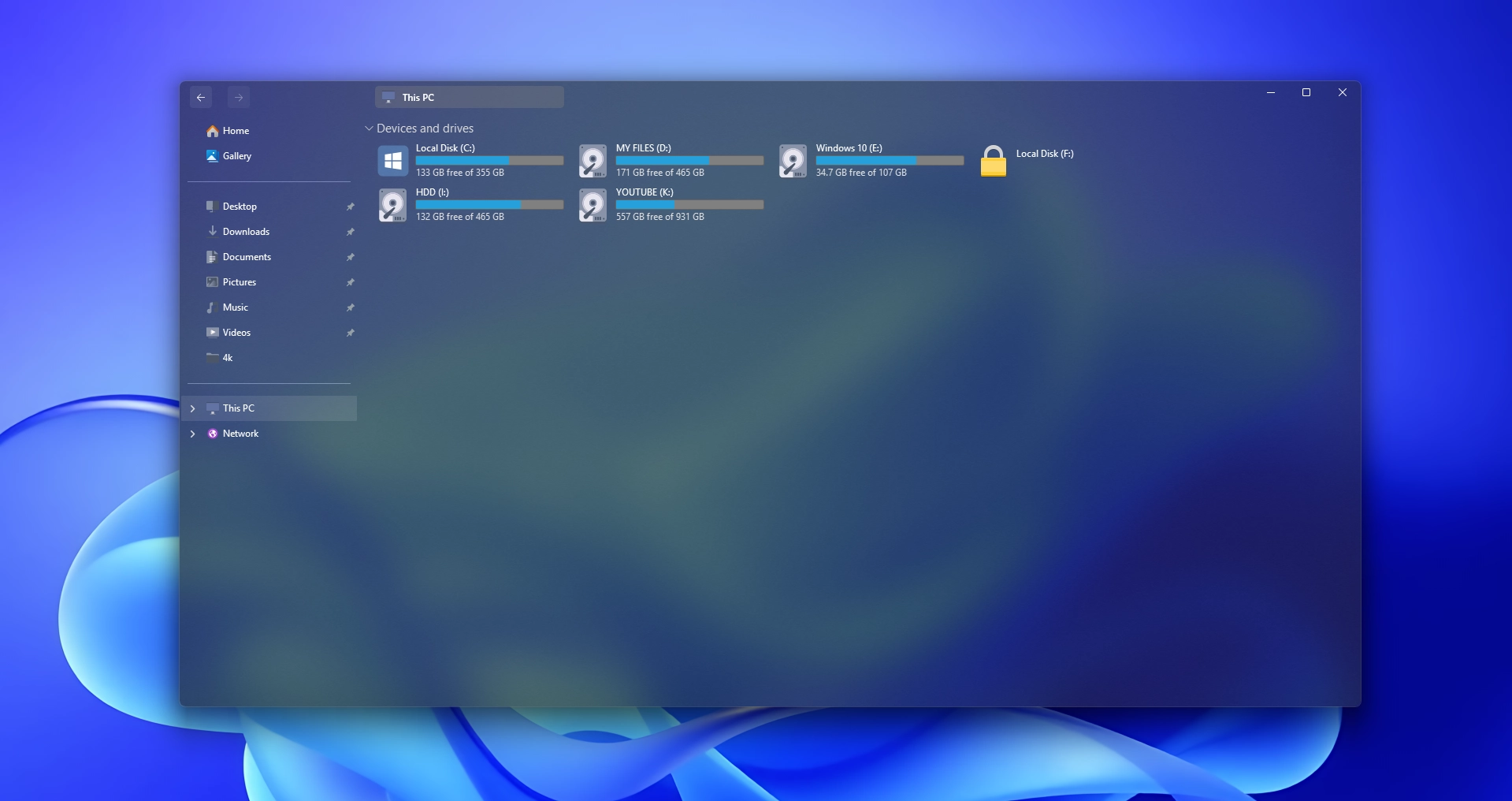
Mac Mini Explorer Style – Windhawk
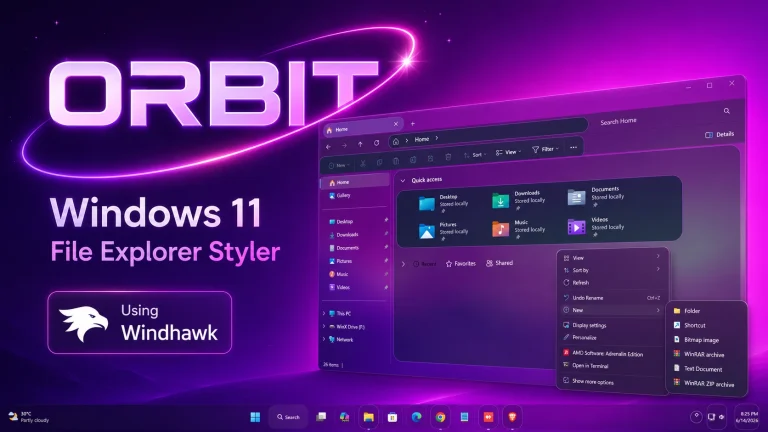
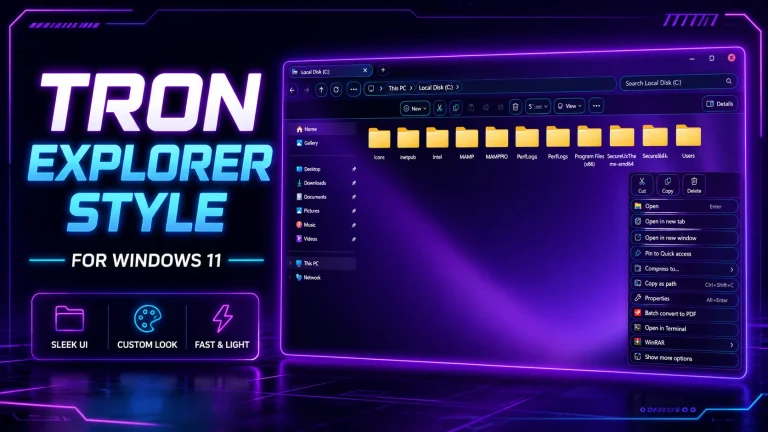
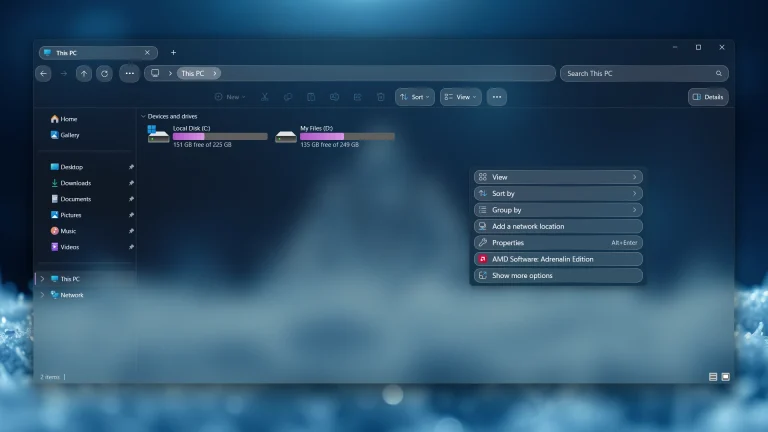
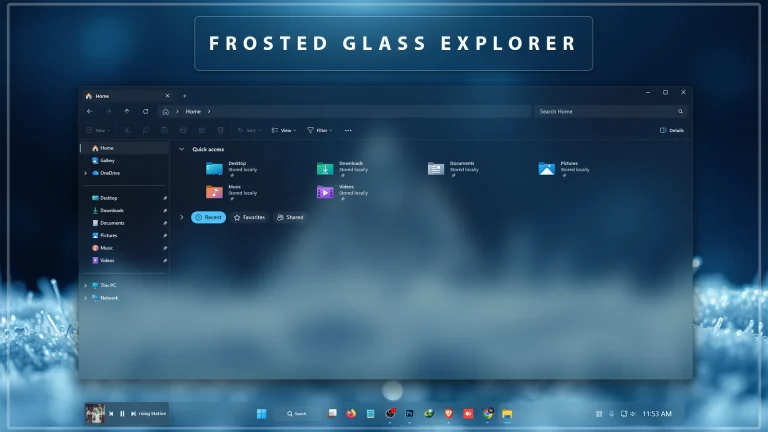
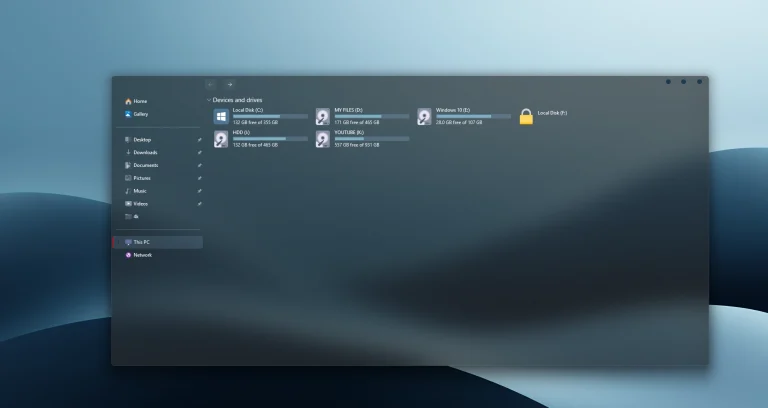
Mac Mini Explorer Style is a clean and modern Explorer Style for Windows 11 users who want File Explorer to look more compact, smooth, and premium. It gives the Explorer window a fresh visual feel without changing how your files, folders, drives, or normal Windows features work.
This style is made for users who enjoy Windows customization and want their File Explorer to match a cleaner desktop setup. The “Mac Mini” name is used here as a design style name. It does not mean this is an official Apple theme, and it is not made or supported by Microsoft. It is a third-party visual customization that works through Windhawk and a compatible File Explorer styling mod.
If you like simple desktop layouts, soft UI styling, modern icons, and clean folder windows, this Explorer style can make your Windows 11 setup feel more polished. In this guide, you will learn what it does, how to install it, how to remove it, what to check before using it, and how to fix common issues.
What Is Mac Mini Explorer Style?
Mac Mini Explorer Style is a visual customization for Windows 11 File Explorer. It focuses on making the Explorer window look cleaner and more refined. Instead of changing the whole Windows system, it mainly adjusts the look of File Explorer, so your regular workflow stays familiar.
This kind of style is useful if you spend a lot of time opening folders, organizing files, editing videos, downloading themes, or managing desktop resources. A cleaner File Explorer can make the whole Windows setup feel more comfortable to use.
The style looks best when it is paired with a matching Windows theme, simple wallpaper, and clean icon pack. You do not need a heavy full-system setup. Even a minimal desktop can look much better when File Explorer matches the rest of the design.
Why Use a Custom Explorer Style?
Windows 11 File Explorer is already simple, but the default design may feel too basic for users who like deep customization. Windows Settings does not offer many options to fully restyle File Explorer. You can change light or dark mode, folder view, and some layout options, but deeper visual changes usually need a customization tool.
That is where Windhawk can help. With the right mod, you can apply custom styles to File Explorer and make it match your desktop theme more naturally. Mac Mini Explorer Style is a good option if you want something clean, compact, and modern without making the design too colorful or distracting.
It is also useful for creators who make Windows customization videos, theme previews, desktop screenshots, or tutorial content. A clean Explorer window makes screenshots look more professional and easier to understand.
Main Features
- Clean Mac-inspired File Explorer appearance
- Compact and modern visual style for Windows 11
- Good match for minimal desktop setups
- Works well with custom wallpapers and icon packs
- Useful for Windows customization screenshots and videos
- Can be removed if you want to return to the default Explorer look
- Designed for Windhawk-based File Explorer customization
Before You Install
Before applying any Explorer Style, take a few simple precautions. File Explorer is an important part of Windows, so it is better to test visual changes carefully instead of applying many mods at the same time.
- Use a stable version of Windows 11.
- Download Windhawk only from its official website.
- Install only the mod needed for File Explorer styling.
- Save your current Windhawk settings before changing anything.
- Disable other Explorer-related mods before testing this style.
- Create a restore point if you often test Windows customization tools.
No custom Windows style should be described as guaranteed to work on every PC. Your result may depend on Windows updates, display scaling, monitor resolution, system language, File Explorer layout, and other active customization tools.
How to Install Mac Mini Explorer Style with Windhawk
Follow these steps to apply Mac Mini Explorer Style on your Windows 11 computer.
- Download and install Windhawk from the official Windhawk website.
- Open Windhawk after installation.
- Go to the Mods section.
- Search for Windows 11 File Explorer Styler.
- Install and enable the File Explorer styler mod.
- Copy or download the Mac Mini Explorer Style settings from this page.
- Open the settings area of the File Explorer styler mod.
- Paste or import the style settings into the correct field.
- Apply the changes and open a new File Explorer window.
- If the style does not appear, restart File Explorer or restart your PC.
{ "controlStyles[0].target": "AppBarButton#backButton > Grid#Root@CommonStates > Border#AppBarButtonInnerBorder", "controlStyles[0].styles[0]": "Background@Normal:=<AcrylicBrush TintColor=\"Transparent\" Opacity=\"0.07\"/>", "controlStyles[0].styles[1]": "Background@PointerOver:=<AcrylicBrush TintColor=\"Transparent\" Opacity=\"0.12\"/>", "controlStyles[0].styles[2]": "Background@Pressed:=<AcrylicBrush TintColor=\"Transparent\" Opacity=\"0.12\"/>", "controlStyles[0].styles[3]": "Background@Disabled:=<AcrylicBrush TintColor=\"Transparent\" Opacity=\"0.05\"/>", "controlStyles[1].target": "AppBarButton#forwardButton > Grid#Root@CommonStates > Border#AppBarButtonInnerBorder", "controlStyles[1].styles[0]": "Background@Normal:=<AcrylicBrush TintColor=\"Transparent\" Opacity=\"0.05\"/>", "controlStyles[1].styles[1]": "Background@PointerOver:=<AcrylicBrush TintColor=\"Transparent\" Opacity=\"0.12\"/>", "controlStyles[1].styles[2]": "Background@Pressed:=<AcrylicBrush TintColor=\"Transparent\" Opacity=\"0.12\"/>", "controlStyles[1].styles[3]": "Background@Disabled:=<AcrylicBrush TintColor=\"Transparent\" Opacity=\"0.05\"/>", "controlStyles[2].target": "AppBarButton#refreshButton", "controlStyles[2].styles[0]": "Visibility=Collapsed", "controlStyles[3].target": "AppBarButton#upButton", "controlStyles[3].styles[0]": "Visibility=Collapsed", "controlStyles[4].target": "Border#BottomBorderLine", "controlStyles[4].styles[0]": "Visibility=Collapsed", "controlStyles[5].target": "FileExplorerExtensions.CommandBarControl", "controlStyles[5].styles[0]": "Visibility=Collapsed", "controlStyles[6].target": "FileExplorerExtensions.AddressBarControl > Grid#PART_LayoutRoot > Grid#NormalModeGrid", "controlStyles[6].styles[0]": "BorderThickness=0,0,0,1", "controlStyles[6].styles[1]": "BorderBrush=#A0A0A0", "controlStyles[7].target": "Grid#DetailsViewControlRootGrid", "controlStyles[7].styles[0]": "Background=Transparent", "controlStyles[8].target": "Grid#TabContainerGrid > Border#LeftBottomBorderLine", "controlStyles[8].styles[0]": "Visibility=Collapsed", "controlStyles[9].target": "Grid#TabContainerGrid > Border#RightBottomBorderLine", "controlStyles[9].styles[0]": "Visibility=Collapsed", "controlStyles[10].target": "StackPanel#DetailsViewThumbnail > Grid", "controlStyles[10].styles[0]": "Background=Transparent", "controlStyles[11].target": "TabViewItem", "controlStyles[11].styles[0]": "Margin=190,0,3,0", "controlStyles[12].target": "TabViewItem > Grid#LayoutRoot", "controlStyles[12].styles[0]": "CornerRadius=4", "controlStyles[12].styles[1]": "Margin=0,-3,0,3", "controlStyles[12].styles[2]": "Height=28", "controlStyles[13].target": "TabViewItem > Grid#LayoutRoot > Canvas", "controlStyles[13].styles[0]": "Visibility=Collapsed", "controlStyles[14].target": "TabViewItem > Grid#LayoutRoot > Grid#TabContainer", "controlStyles[14].styles[0]": "Background=Transparent", "controlStyles[14].styles[1]": "BorderBrush=Transparent", "controlStyles[15].target": "TabViewItem > Grid#LayoutRoot@CommonStates", "controlStyles[15].styles[0]": "Background@Selected:=<SolidColorBrush Color=\"#808080\" Opacity=\"0.35\"/>", "controlStyles[15].styles[1]": "Background@PointerOverSelected:=<SolidColorBrush Color=\"#808080\" Opacity=\"0.35\"/>", "controlStyles[15].styles[2]": "Background@PointerOver:=<AcrylicBrush TintColor=\"Transparent\" Opacity=\"0.13\"/>", "controlStyles[15].styles[3]": "Background@Normal:=<AcrylicBrush TintColor=\"Transparent\" Opacity=\"0.05\"/>", "controlStyles[15].styles[4]": "Background@PressedSelected:=<SolidColorBrush Color=\"#808080\" Opacity=\"0.35\"/>", "controlStyles[16].target": "Grid#FileExplorerAddressBarGrid", "controlStyles[16].styles[0]": "Grid.ColumnSpan=2", "controlStyles[16].styles[1]": "Margin=0,0,10,0", "controlStyles[17].target": "AutoSuggestBox#FileExplorerSearchBox", "controlStyles[17].styles[0]": "Visibility=Collapsed", "controlStyles[18].target": "AppBarButton#backButton > Grid#Root", "controlStyles[18].styles[0]": "Padding=2", "controlStyles[19].target": "AppBarButton#forwardButton > Grid#Root", "controlStyles[19].styles[0]": "Padding=2", "controlStyles[20].target": "AppBarButton#forwardButton > Grid#Root > Grid#ContentRoot > Viewbox#ContentViewbox", "controlStyles[20].styles[0]": "Margin=9", "controlStyles[21].target": "AppBarButton#backButton > Grid#Root > Grid#ContentRoot > Viewbox#ContentViewbox", "controlStyles[21].styles[0]": "Margin=9", "controlStyles[22].target": "Grid#PART_LayoutRoot", "controlStyles[22].styles[0]": "MinHeight=28", "controlStyles[22].styles[1]": "Height=28", "controlStyles[23].target": "Grid#TabContainerGrid > Border > Button#AddButton", "controlStyles[23].styles[0]": "Margin=0,0,20,4", "controlStyles[24].target": "Border#ScrollIncreaseButtonContainer", "controlStyles[24].styles[0]": "Margin=0,0,0,4", "controlStyles[25].target": "Border#ScrollDecreaseButtonContainer", "controlStyles[25].styles[0]": "Margin=0,0,0,4", "controlStyles[26].target": "Grid#FileExplorerAddressBarGrid", "controlStyles[26].styles[0]": "Visibility=Collapsed", "controlStyles[27].target": "FileExplorerExtensions.NavigationBarControl#NavigationBarControl", "controlStyles[27].styles[0]": "Grid.Row=0", "controlStyles[27].styles[1]": "Grid.RowSpan=2", "controlStyles[28].target": "FileExplorerExtensions.FileExplorerTabControl", "controlStyles[28].styles[0]": "Margin=50,0,0,-15", "controlStyles[28].styles[1]": "Grid.RowSpan=2", "controlStyles[29].target": "FileExplorerExtensions.NavigationBarControl > Grid#NavigationBarControlGrid", "controlStyles[29].styles[0]": "Margin=0,0,0,-18", "controlStyles[29].styles[1]": "Background=Transparent", "controlStyles[29].styles[2]": "Width=100", "controlStyles[29].styles[3]": "HorizontalAlignment=0", "explorerFrameContainerHeight": 42, "controlStyles[30].target": "Microsoft.UI.Xaml.Controls.Grid#TabContainerGrid > Border", "controlStyles[30].styles[0]": "Visibility=Collapsed", "controlStyles[31].target": "Microsoft.UI.Xaml.Controls.Grid#TabContainer > Microsoft.UI.Xaml.Controls.Button#CloseButton", "controlStyles[31].styles[0]": "Visibility=Collapsed"}Final Thoughts
Mac Mini Explorer Style is a nice option if you want Windows 11 File Explorer to look cleaner, more compact, and more modern. It gives your file manager a fresh visual style without changing how Windows normally works.
For the best result, keep your desktop setup simple, use matching icons, and apply one customization at a time. If you enjoy Windows desktop styling, visit Link Vegas Theme for more Windhawk styles, Windows 11 themes, icon packs, taskbar styles, Start Menu styles, File Explorer styles, and wallpapers.
how do i use this?
You Need to Use Windhwak – Windhawk
New to windhawk and wanted to use your custom explorer theme, how can i apply it?
Video Coming Soon
bro its saying Invalid JSON…..check the issue please