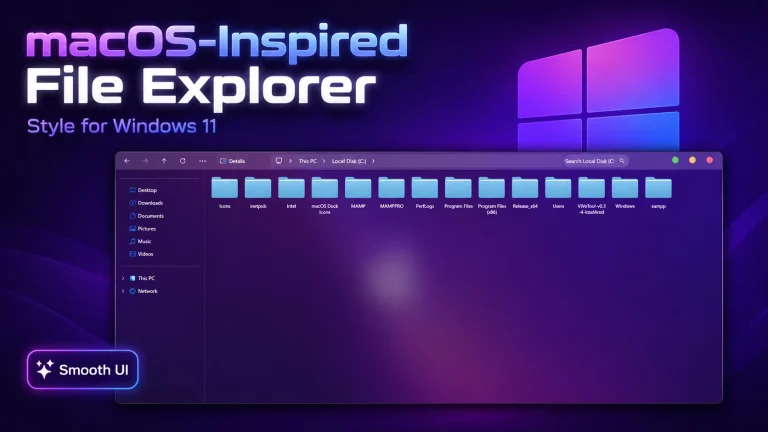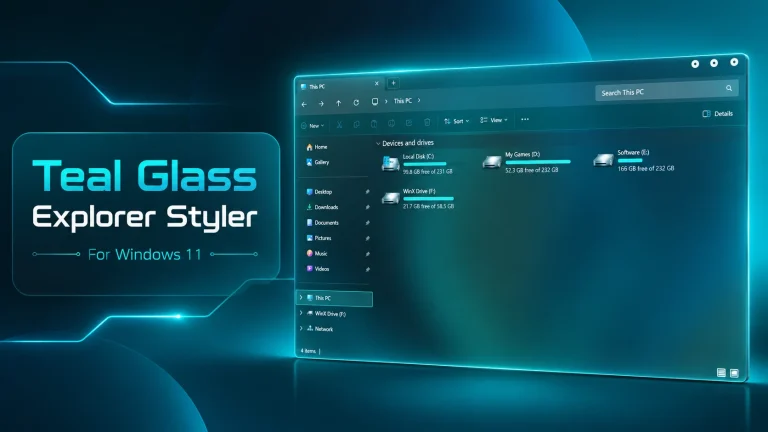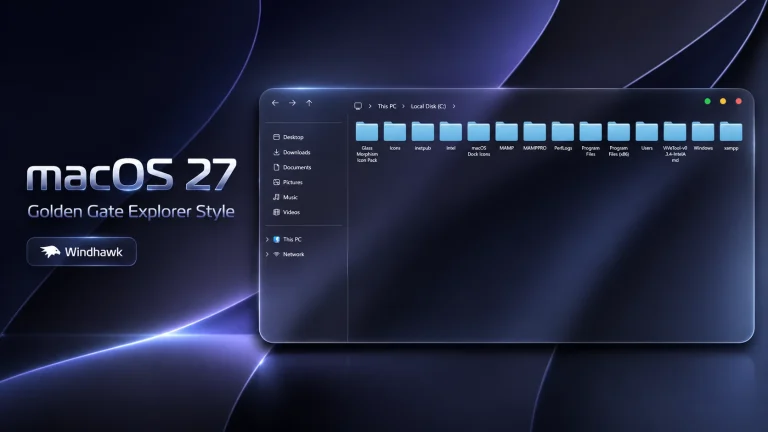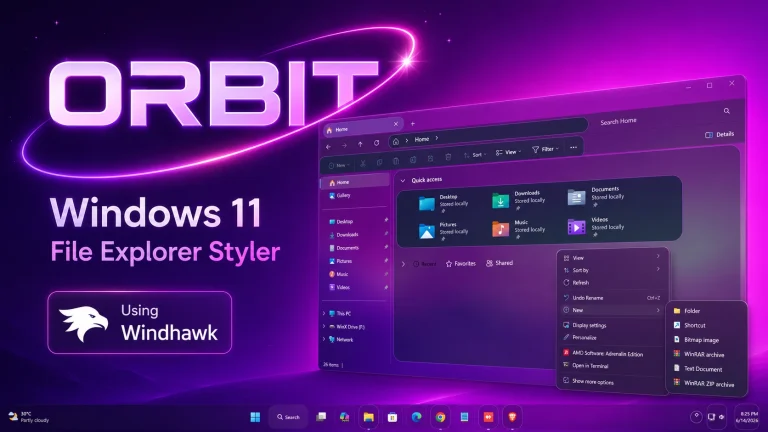
Frosted glass Explorer For Windows
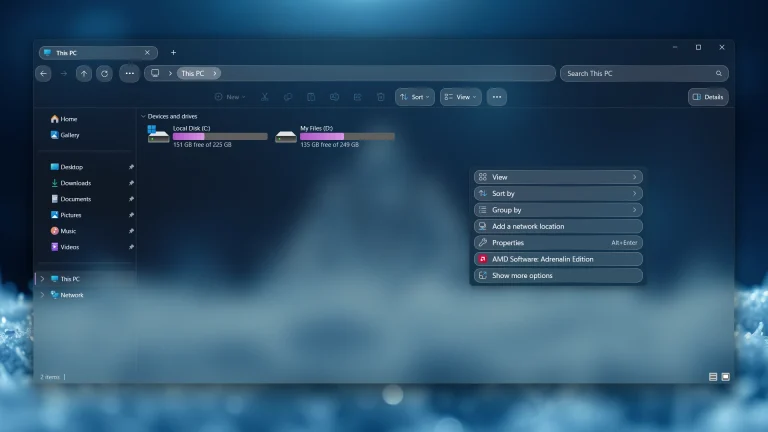
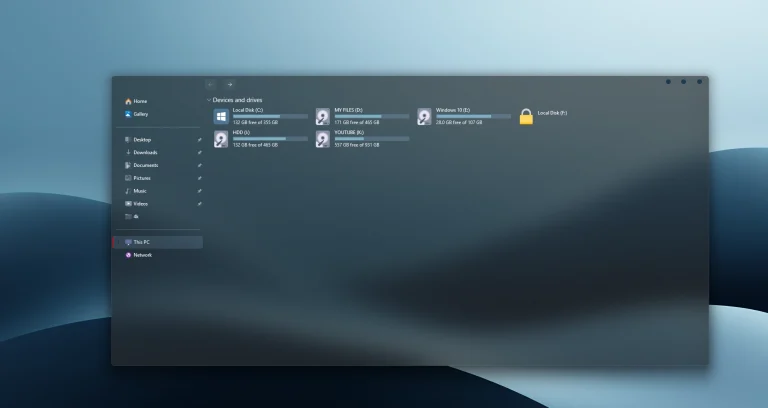
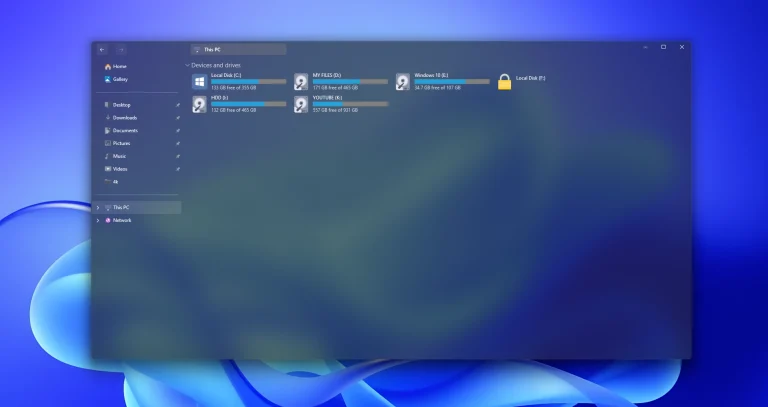
Frosted glass Explorer For Windows : Frosted Glass File Explorer using Windhawk adds a smooth, translucent glass effect to Windows File Explorer, featuring subtle blur, soft transparency, and a modern aesthetic. It enhances visual depth while keeping the interface clean, readable, and performance-friendly.

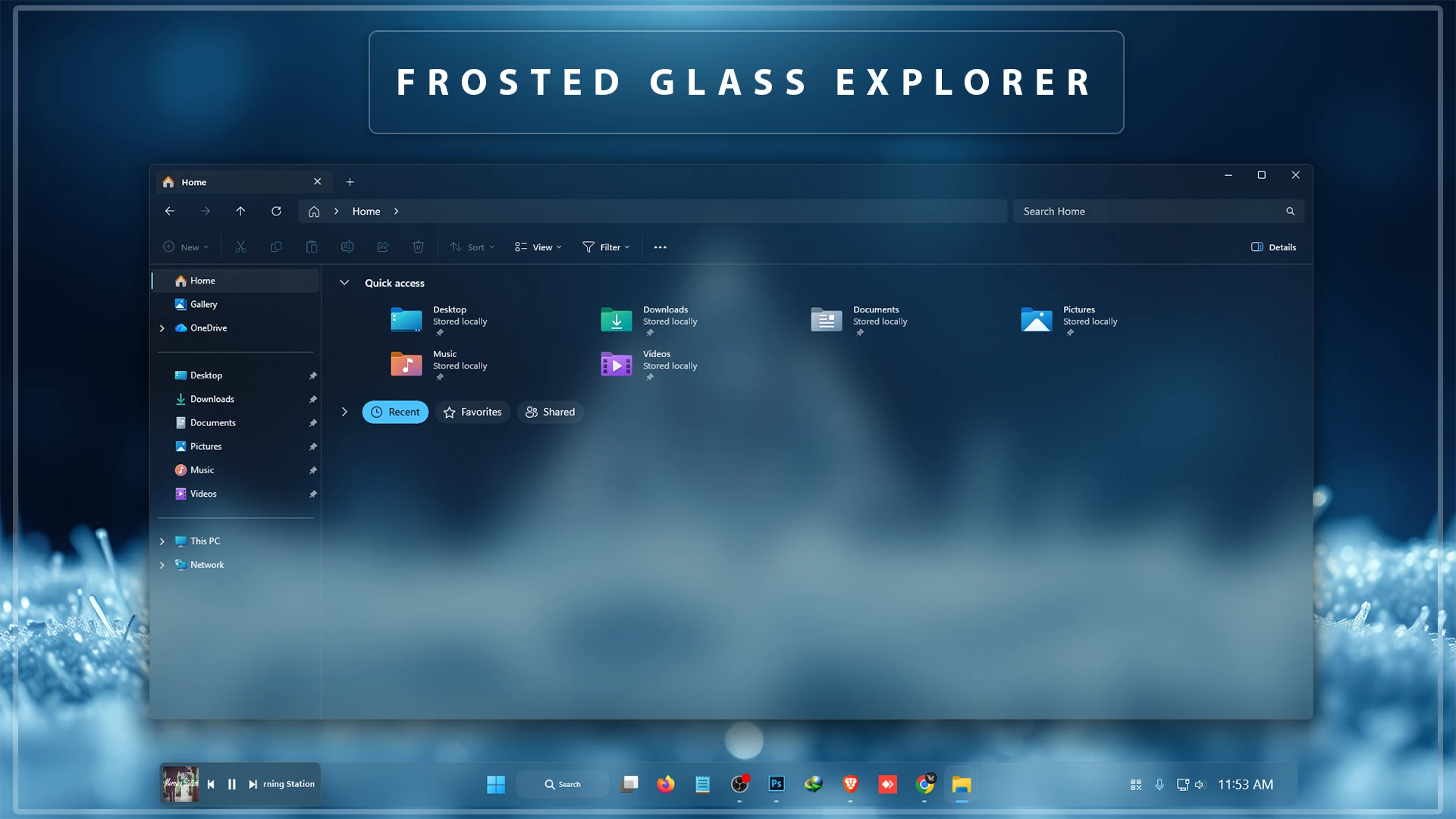
Frosted glass Explorer For Windows
The Frosted Glass File Explorer for Windows using Windhawk is a modern customization that transforms the default File Explorer into a sleek, elegant, and visually immersive interface. Inspired by glass-morphism design, this style introduces soft blur effects, subtle transparency, and smooth light diffusion, giving File Explorer a premium frosted-glass appearance while maintaining excellent readability..
- Windows 11 21H2: May work, but not recommended for the best experience
- Windows 11 22H2: May work, but compatibility can vary
- Windows 11 23H2: Recommended
- Windows 11 24H2: Recommended
- Windows 11 25H2: YES work, but test carefully after Windows updates
- Download & Install windhawk.
- install & Open Translucent Windows Mods
- Go to the “Advanced” tab.
- Copy the content below to the text box under “Mod settings” and click “Save”.
{ "RenderingMod.ThemeBackground": 1, "RenderingMod.SysColors": 0, "RenderingMod.AccentColorControls": 0, "type": "acrylicblur", "AccentBlurBehind": "3A232323", "ImmersiveDarkTitle": 0, "ExtendFrame": 1, "CornerOption": "default", "RainbowSpeed": 1, "TitlebarColor.ColorTitlebar": 0, "TitlebarColor.RainbowTitlebar": 0, "TitlebarColor.titlerbarstyles_active": "FF0000", "TitlebarColor.titlerbarstyles_inactive": "00FFFF", "TitlebarTextColor.ColorTitlebarText": 0, "TitlebarTextColor.RainbowTextColor": 0, "TitlebarTextColor.titlerbarcolorstyles_active": "FF0000", "TitlebarTextColor.titlerbarcolorstyles_inactive": "00FFFF", "BorderColor.ColorBorder": 0, "BorderColor.RainbowBorder": 0, "BorderColor.borderstyles_active": "FF0000", "BorderColor.borderstyles_inactive": "00FFFF", "RuledPrograms[0].target": "mspaint.exe", "RuledPrograms[0].RenderingMod.ThemeBackground": 0, "RuledPrograms[0].RenderingMod.AccentColorControls": 0, "RuledPrograms[0].type": "none", "RuledPrograms[0].AccentBlurBehind": "3A232323", "RuledPrograms[0].ImmersiveDarkTitle": 0, "RuledPrograms[0].ExtendFrame": 0, "RuledPrograms[0].CornerOption": "default", "RuledPrograms[0].RainbowSpeed": 1, "RuledPrograms[0].TitlebarColor.ColorTitlebar": 0, "RuledPrograms[0].TitlebarColor.RainbowTitlebar": 0, "RuledPrograms[0].TitlebarColor.titlerbarstyles_active": "FF0000", "RuledPrograms[0].TitlebarColor.titlerbarstyles_inactive": "00FFFF", "RuledPrograms[0].TitlebarTextColor.ColorTitlebarText": 0, "RuledPrograms[0].TitlebarTextColor.RainbowTextColor": 0, "RuledPrograms[0].TitlebarTextColor.titlerbarcolorstyles_active": "FF0000", "RuledPrograms[0].TitlebarTextColor.titlerbarcolorstyles_inactive": "00FFFF", "RuledPrograms[0].BorderColor.ColorBorder": 0, "RuledPrograms[0].BorderColor.RainbowBorder": 0, "RuledPrograms[0].BorderColor.borderstyles_active": "FF0000", "RuledPrograms[0].BorderColor.borderstyles_inactive": "00FFFF"}The redesigned Explorer features refined spacing, smooth edges, gentle shadows, and balanced contrast, creating a cleaner and more modern browsing experience. File lists, navigation panels, and title bars appear sharper and more polished, improving usability without sacrificing performance.