

macOS Inspired Blurry Rainmeter Skin
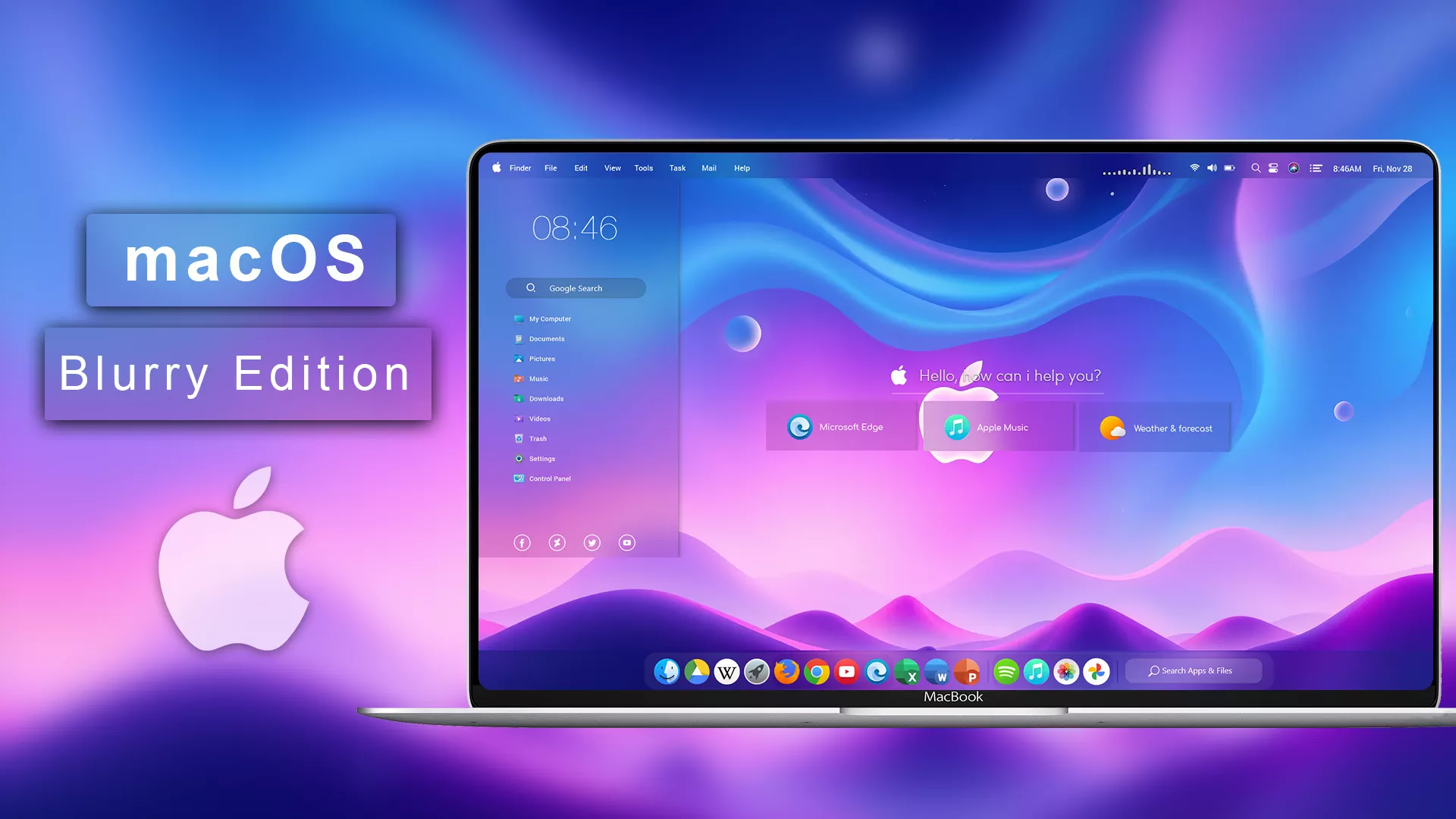
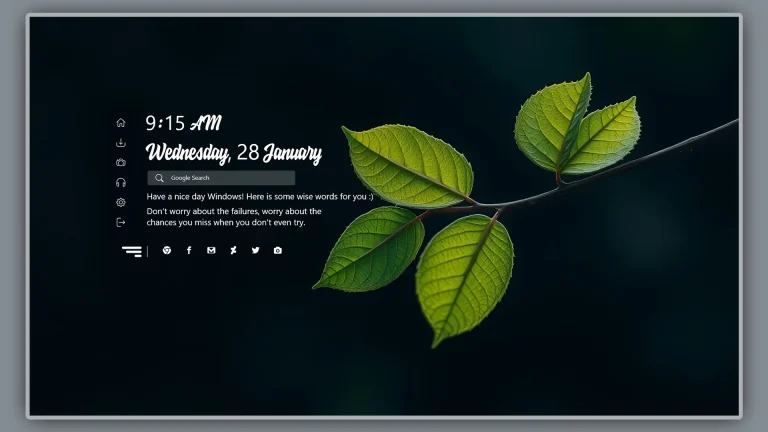
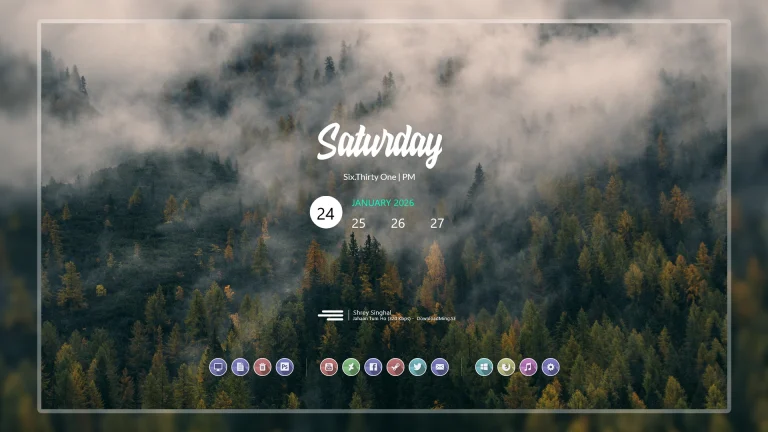
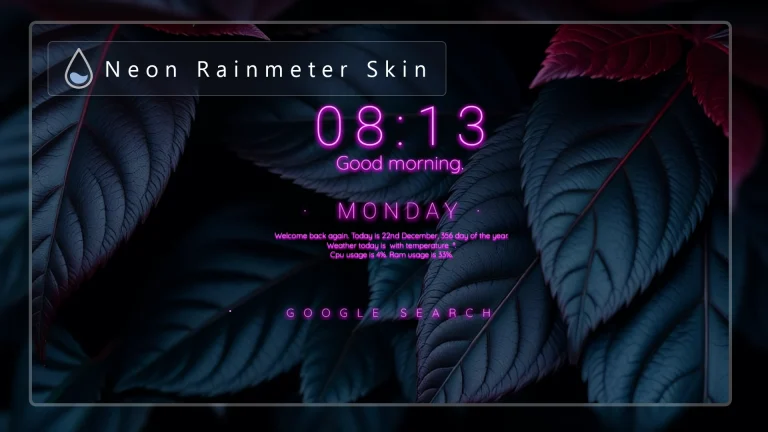
macOS Blurry Rainmeter Skin :The macOS Blurry Rainmeter Skin for Windows brings the iconic Apple-style frosted glass design to your desktop with smooth blur, soft transparency, and premium visual depth.

macOS Inspired Blurry Rainmeter Skin for Windows
If you enjoy the calm, translucent look often seen on macOS desktops but prefer to keep using Windows, the macOS Blurry Rainmeter Skin can give your setup that same visual direction. It uses soft glass-style panels, rounded corners, gentle shadows, and minimal widgets to make the desktop feel less busy and more put together.
Instead of changing Windows itself, this Rainmeter setup places useful information directly on the desktop in a clean, consistent style. Depending on the widgets included in the package, you can keep the time, date, system details, shortcuts, and media controls within easy reach without filling the screen with large panels.
The macOS Blurry Rainmeter Skin is a third-party desktop customization resource. It is not an official Apple product, an official macOS theme, or a Microsoft feature. Your final result can look a little different from the preview, since Rainmeter layouts are affected by the Windows version, Rainmeter version, wallpaper, monitor resolution, display scaling, and the widgets you choose to load.
For the nicest result, treat the skin as a starting point rather than something that has to be copied exactly. A few small adjustments to widget positions, spacing, and wallpaper contrast usually make the layout feel much more natural on your own desktop.
macOS Blurry Rainmeter Skin Overview
The most noticeable part of the macOS Blurry Rainmeter Skin is its frosted-glass-inspired interface. Semi-transparent widget panels allow some of the wallpaper to show through, while the soft backgrounds keep labels, icons, shortcuts, and system information easy to read.
The design relies on small visual details rather than heavy effects. Rounded panels, balanced spacing, subtle gradients, and gentle shadows work together to give the desktop a polished look without making it feel crowded. It is a good fit for users who like a minimal workspace but still want quick access to everyday information.
Wallpaper choice matters more than people expect with a blurry or transparent setup. A simple background with soft colors, a dark gradient, a blurred landscape, or a clean abstract image usually works best. If the wallpaper is too detailed or too bright behind a widget, the text can become harder to read.
You do not need to load every available module. Many users get the best result by starting with a clock, date, and one system monitor, then adding shortcuts or media controls only when they are genuinely useful.
Main Features
The macOS Blurry Rainmeter Skin is made for users who want their desktop to look organized without losing practicality. You can normally move individual widgets around, keep the parts you use every day, and remove the pieces that do not fit your routine.
- Clean glass-inspired desktop appearance
- Soft transparency and rounded widget panels
- Minimal clock, date, and system information layout
- Customizable widget position and size
- Suitable for both light and dark wallpapers
- Can be combined with matching icon packs and wallpapers
- Widgets can be loaded or unloaded individually
- Compatible with standard Rainmeter skin management
- Useful for clean and organized desktop setups
What is included in this?
- Rainmeter skin files
- Blurry or translucent desktop widgets
- Clock and date modules
- System information widgets
- Application launcher or dock-style elements
- Music or media control widgets, when supported
- Configuration files and visual resources
Installation steps:
- Download Rainmeter from the official Rainmeter website.
- Run the Rainmeter installer and complete the installation process.
- After installation, Rainmeter should start automatically.
- Download the skin package from the download button below.
- Locate the downloaded .rmskin file on your computer.
- Double-click the .rmskin file to open the Rainmeter Skin Installer.
- Review the listed components and click Install.
- Right-click the Rainmeter icon in the Windows system tray.
- Open the Skins menu and locate the newly installed skin folder.
- Select the desired widget file and click Load.
- Drag the loaded widget to your preferred position on the desktop.
- Repeat the process for any additional widgets you want to use.
Theme Files 30 MB
Download Disclaimer: This custom desktop skin and package (macOS Blurry Rainmeter Skin for Windows) is created independently for personal desktop customization purposes. We are not officially affiliated, associated, authorized, endorsed by, or in any way officially connected with Apple Inc., Microsoft Corporation, or any of their subsidiaries. All trademarks, logos, and brand names are the property of their respective owners.
Final Thoughts
The macOS Blurry Rainmeter Skin is a nice option for Windows users who want a cleaner, more relaxed desktop without turning the screen into a complicated dashboard. Its translucent widgets can work especially well with modern wallpapers while keeping useful information close at hand.
The final look depends less on loading every widget and more on making a few thoughtful choices: use a readable wallpaper, keep comfortable spacing, and adjust the layout around the way you actually use your computer. A simple setup that feels good every day is usually better than a crowded one that only looks impressive in a screenshot.
This skin is intended for visual customization only. It is not affiliated with, endorsed by, or officially provided by Apple or Microsoft.
Frequently Asked Questions
Do I need Rainmeter to use this skin?
Yes. Rainmeter is required to install, load, and manage the desktop widgets included with this skin. Install Rainmeter from its official website first, then add the skin package.
Will this skin turn Windows into macOS?
No. The skin only changes the look of selected desktop widgets. Windows, your installed apps, and normal system functions remain Windows; the layout is simply inspired by a clean, glass-style desktop aesthetic.
Is the macOS Blurry Rainmeter Skin customizable?
Yes. You can usually change widget positions, transparency, size, colors, application shortcuts, and other supported settings. The available options depend on the individual widget, so some modules may offer more controls than others.
Can I move the widgets?
Yes. Most Rainmeter widgets can be dragged to another part of the desktop when the draggable option is enabled. After you arrange them, save the layout so Rainmeter remembers the positions.
Can I disable individual widgets?
Yes. Right-click the widget you no longer want and choose Unload skin. The other Rainmeter widgets can stay active, so you can keep only the modules that are useful to you.
Why is the weather or music widget not working?
These widgets often need additional information before they can work. Check for a weather location, API setting, supported media player, or plugin requirement in the skin’s configuration notes.
Does this skin support all screen resolutions?
It can be arranged on many common resolutions, including 1080p, 1440p, and 4K. However, the widget size and position may need manual adjustment to suit your display scaling, monitor size, and preferred layout.
How can I remove the skin?
Right-click a loaded widget and choose Unload skin to remove it from the desktop. To delete the package completely, remove the related skin folder only after checking that another saved layout is not using it.

Disclaimer: All themes, visual styles, and concepts shared on this website are unofficial, fan-made creations built from imagination for customization purposes. We are not affiliated with, endorsed by, or sponsored by Microsoft or any other official brand.