Goruda Icon Pack For Windows 10/11
Goruda Icon Pack For Windows 10/11 : GORUDA Windows 11 Custom Icon Pack is a sleek and modern icon set designed to transform your desktop into a visually stunning and futuristic workspace

Goruda Icon Pack for Windows 11
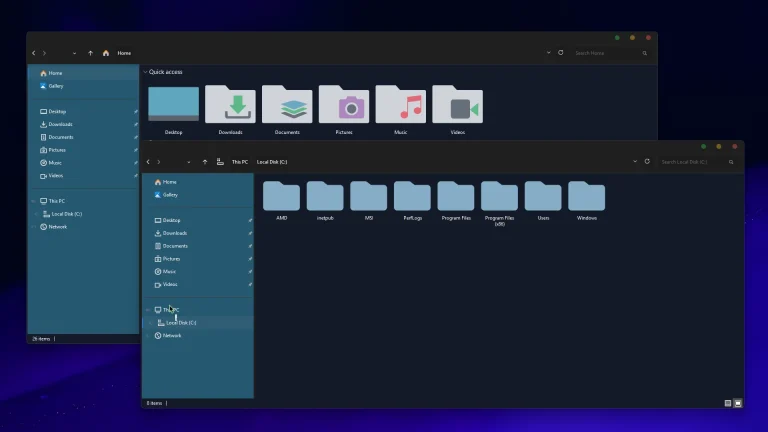
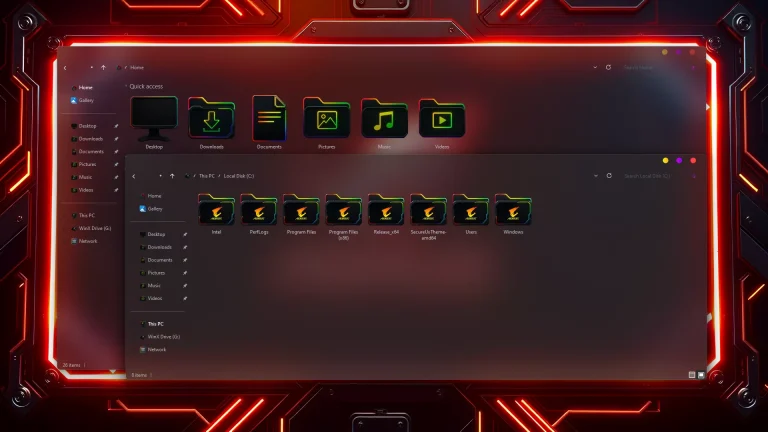
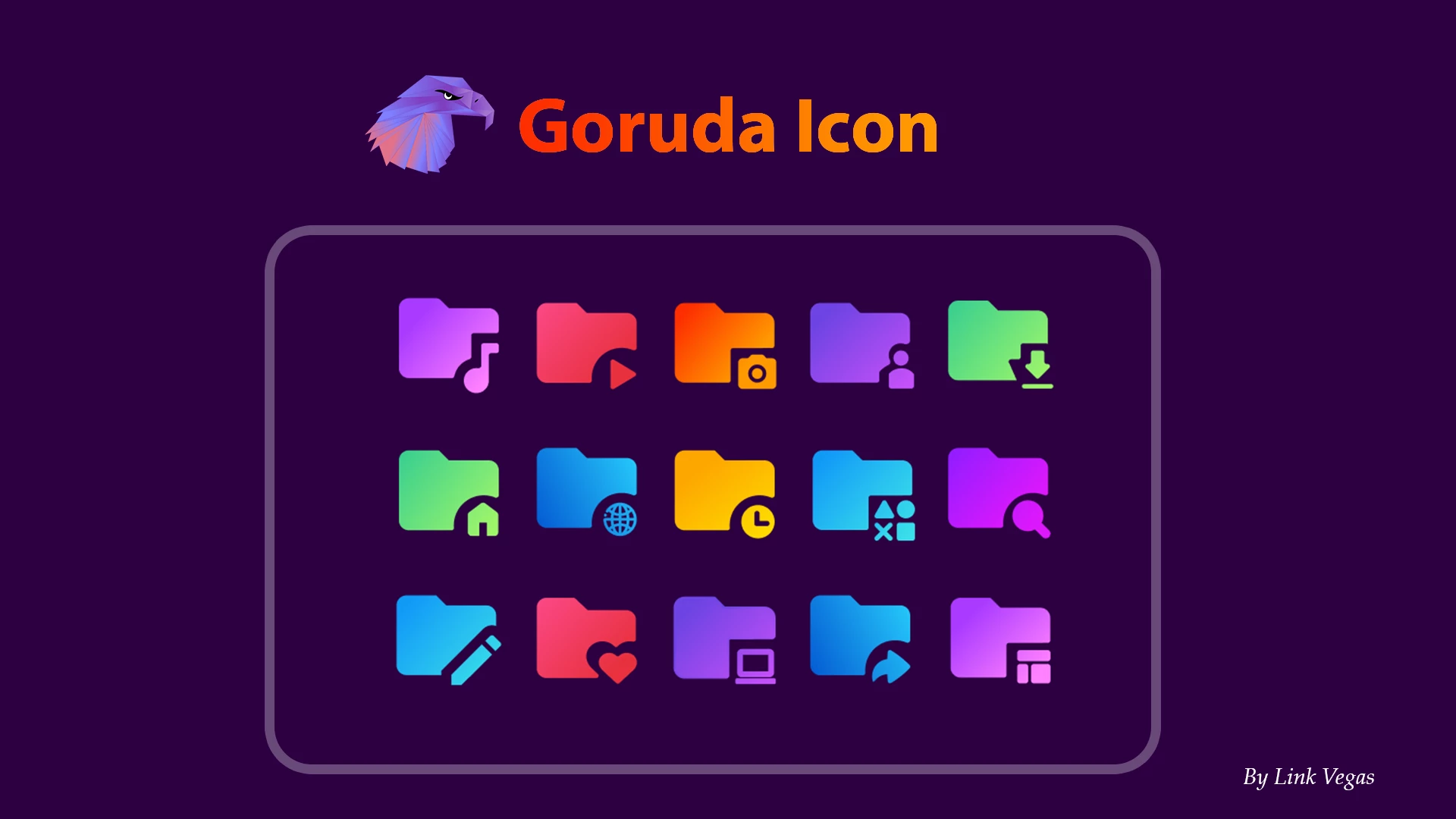
The Goruda Icon Pack gives Windows folders a bright, colorful look built around smooth gradients and simple symbols. Instead of the usual yellow folder design, the pack uses shades of purple, pink, orange, blue, cyan, and green, with each folder carrying a small symbol that helps distinguish its purpose.
The design works particularly well for users who enjoy colorful desktop setups without making every part of Windows overly complicated. Music, videos, pictures, downloads, network folders, documents, and other supported locations use the same rounded folder shape while keeping their own recognizable symbols and color combinations.Goruda is designed to be applied with the 7TSP utility, which patches supported Windows icon resources. Because this process changes system icon resources, create a System Restore Point before applying the pack. It is also a good idea to keep the backup created by 7TSP in case you want to return to the standard Windows icons later.Key Features:
- Colorful gradient folder designs
- Purple, pink, orange, blue, cyan, and green color variations
- Individual symbols for different folder types and locations
- Consistent rounded folder shape throughout the set
- Designed for supported Windows system and Explorer icons
- Works well with dark, colorful, and minimal desktop setups
- Applied through the 7TSP icon patching utility
- No separate background application is required after the icons are applied
Compatibility & Included Files
Icon-pack compatibility can depend on the Windows build and the version of 7TSP being used. A major Windows update may restore some icons to their defaults or change the resources that 7TSP patches. If that happens, check the pack and tool compatibility before applying it again.Installation steps:
- Create a Windows System Restore Point before making any changes.
- Download the Goruda Icon Pack using the button below.
- Extract the downloaded archive with 7-Zip, WinRAR, or another archive utility you trust.
- Download and open the 7TSP GUI tool.
- Use the option for adding or selecting a custom icon pack.
- Browse to the extracted Goruda 7TSP pack and select it.
- Start the patching process and allow 7TSP to finish before closing the program.
- Restart Windows when the patching process is complete.
- Open File Explorer and check the supported folders and system locations.
Download Goruda Icon Pack
Use the button below to download the Goruda Icon Pack. Extract the archive before loading it into 7TSP, and make sure your System Restore Point is ready before patching Windows icon resources.7TSP Icon Pack 15 MB
DownloadHow to remove:
- Open the 7TSP GUI tool that you used to apply the icon pack.
- Look for the option to restore or remove the patched icons.
- If 7TSP created a backup during installation, select the backup restore option.
- Allow the restoration process to finish without closing the program.
- Restart your computer after the original Windows icon resources have been restored.
- Open File Explorer and check your folders, drives, and system locations to confirm that the default icons are back.