

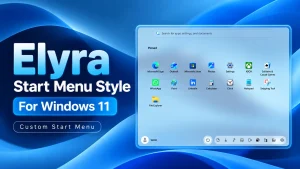
Elyra Start Menu Style For Windows 11
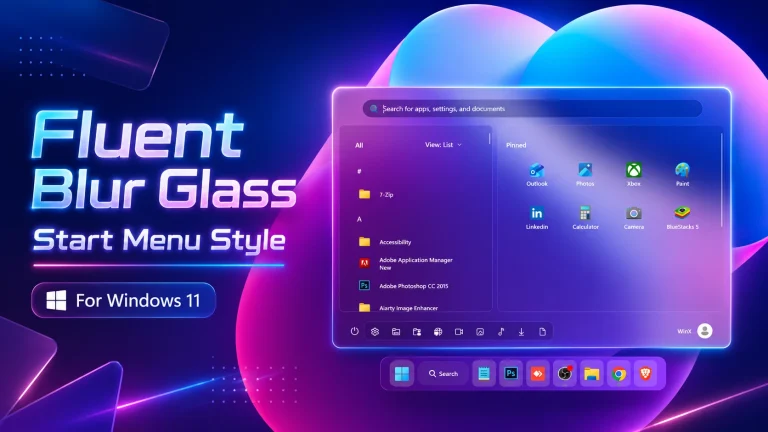
Elyra Start Menu Style brings a clean, translucent Start Menu to Windows 11 with a centered search bar, organized pinned apps, rounded corners, and convenient bottom shortcuts.

Elyra Start Menu Style For Windows 11
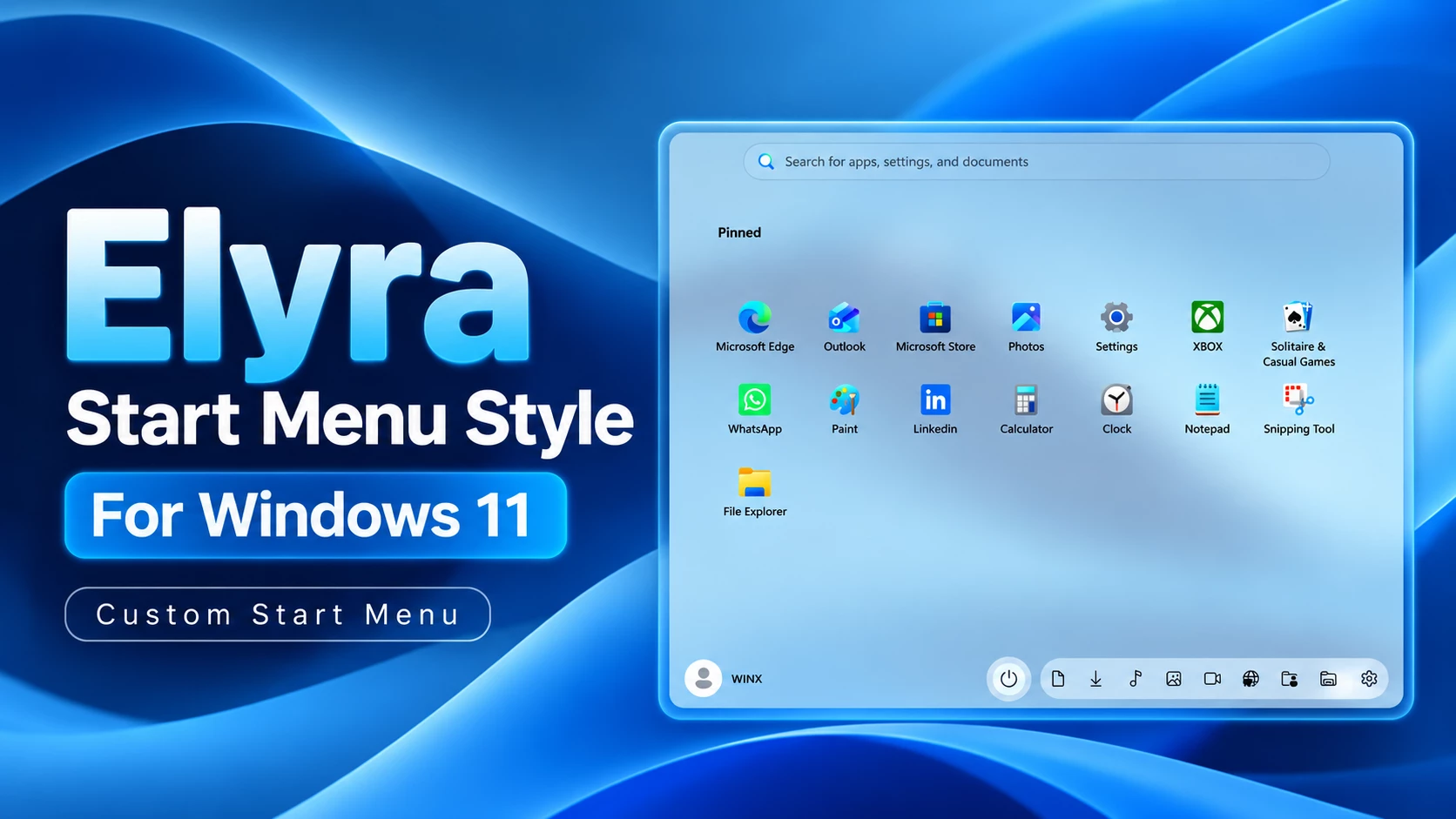
Elyra Start Menu Style For Windows 11 gives the default Windows 11 Start Menu a softer and more modern appearance. It uses a translucent panel with a subtle glass effect, rounded corners, a centered search field, and a spacious pinned-app layout. The style keeps the familiar Windows controls easy to recognize while giving the Start Menu a cleaner visual identity.
The Start Menu opens in a wide centered panel with a lightly tinted transparent background. Depending on the desktop wallpaper and selected color, the panel can appear warm olive, pale blue, or softly blended with the surrounding desktop. This makes the interface feel more integrated with the rest of the Windows environment.
Design Overview
The upper section contains a rounded search bar with the text “Search for apps, settings, and documents.” Below it, the pinned area is arranged in a spacious grid so that application icons and labels remain easy to identify.
The layout includes familiar shortcuts such as Microsoft Edge, Outlook, Microsoft Store, Photos, Settings, Xbox, Solitaire & Casual Games, WhatsApp, Paint, LinkedIn, Calculator, Clock, Notepad, Snipping Tool, and File Explorer. The arrangement leaves enough open space around the icons, helping the menu look less crowded.
At the bottom, the user profile appears on the left with the account name, while the power button and a row of quick-access icons sit along the right side. These shortcuts provide access to common locations and settings without taking attention away from the pinned applications.
Features
- Translucent glass-inspired Start Menu panel
- Rounded corners with a soft modern finish
- Centered search bar for apps, settings, and documents
- Spacious pinned-app grid with readable labels
- Support for common Windows and third-party application shortcuts
- Bottom profile area with visible account name
- Separate power button for quick access
- Bottom shortcut row for frequently used Windows locations and tools
- Works well with both colorful and dark desktop wallpapers
- Clean layout that keeps the normal Start Menu workflow familiar
Before You Install
Elyra is a visual customization for the Windows 11 Start Menu and may depend on Windhawk or another compatible customization method. Create a system restore point before changing Start Menu components. It is also a good idea to save your current Windhawk settings so you can return to your previous layout if needed.
Close important applications before applying the style, and restart Windows Explorer after making changes if the updated layout does not appear immediately.
How to Install Elyra Start Menu Style
Note: Elyra is provided as a YAML-format configuration code. Copy the complete code from the box below and paste it into Textual Mode under the mod’s Settings tab. After pasting the code, click Save settings to apply the style.
- Download and install Windhawk.
- Open Windhawk and install the Windows 11 Start Menu Styler mod.
- Open the installed mod and go to the Settings tab.
- Switch the editor to Textual Mode.
- Remove the existing configuration code from the editor.
- copy the complete configuration code.
- Paste the copied YAML code into the Textual Mode editor.
- Click Save settings to apply the configuration.
- Open the Windows 11 Start Menu to use the new Elyra Start Menu Style.
Make sure you copy the complete configuration from the box below. A partial code snippet may not apply the full layout correctly, so avoid leaving out any lines while copying.
Use the YAML configuration in its supplied format. Do not replace the complete configuration with a small styling snippet unless the instructions specifically ask you to do so.
theme: Elyra Start menu By Link VegasdisableNewStartMenuLayout: forceNewLayoutstyleConstants: - ''controlStyles: - target: Grid#MainMenu styles: - Width=800 - MaxWidth=800 - target: Grid#FrameRoot styles: - Height=650 - MaxHeight=650 - Width=850 - MaxWidth=850 - target: Grid#TopLevelSuggestionsListHeader styles: - Visibility=Collapsed - Height=0 - target: Grid#TopLevelSuggestionsRoot styles: - Visibility=Collapsed - Height=0 - MaxHeight=0 - target: Grid#ShowMoreSuggestions styles: - Visibility=Collapsed - Height=0 - target: StartMenu.PinnedList#StartMenuPinnedList styles: - Height=430 - MaxHeight=430 - RenderTransform:=<TranslateTransform Y="42" X="18" /> - target: TextBlock#PinnedListHeaderText styles: - Margin=60,0,0,0 - target: Microsoft.UI.Xaml.Controls.PipsPager#PinnedListPipsPager styles: - Margin=-90,8,0,0 - target: Border#AcrylicOverlay styles: - Visibility=Collapsed - target: Border#AcrylicBorder styles: - Background:=<AcrylicBrush TintColor="{ThemeResource CardStrokeColorDefaultSolid}" FallbackColor="{ThemeResource CardStrokeColorDefaultSolid}" TintOpacity="0" TintLuminosityOpacity=".55" Opacity="1"/> - BorderBrush:=<AcrylicBrush TintColor="{ThemeResource SurfaceStrokeColorDefault}" FallbackColor="{ThemeResource SurfaceStrokeColorDefault}" TintOpacity="0" TintLuminosityOpacity="0" Opacity="1"/> - BorderThickness=1 - CornerRadius=8 - Margin=8 - target: Border#DropShadow styles: - CornerRadius=8 - Margin=0 - target: Border#StartDropShadow styles: - CornerRadius=8 - target: StartMenu.SearchBoxToggleButton styles: - Height=38 - Margin=58,0,58,0 - RenderTransform:=<TranslateTransform Y="0" X="0" /> - Canvas.ZIndex=10 - target: StartMenu.SearchBoxToggleButton > Grid > Border#BorderElement styles: - Background=Transparent - CornerRadius=20 - target: StartDocked.UserTileView styles: - RenderTransform:=<TranslateTransform Y="0" X="0" /> - target: Grid#AllListHeading > TextBlock#AllListHeadingText styles: - Margin=60,0,0,0 - target: Grid#AllListHeading > Microsoft.UI.Xaml.Controls.DropDownButton#ViewSelectionButton styles: - Margin=0,0,16,0 - target: Grid#NavPanePlaceholder styles: - Margin=15,0,15,0 - target: StartDocked.AppListView#NavigationPanePlacesListView > Border styles: - Background:=<AcrylicBrush TintColor="{ThemeResource CardStrokeColorDefaultSolid}" FallbackColor="{ThemeResource CardStrokeColorDefaultSolid}" TintOpacity="0" TintLuminosityOpacity=".55" Opacity="1"/> - CornerRadius=18 - Margin=0,0,15,0 - target: StartDocked.PowerOptionsView styles: - Margin=-430,0,0,0 - target: StartDocked.NavigationPaneButton#PowerButton > Grid@CommonStates > Border styles: - Background:=<AcrylicBrush TintColor="{ThemeResource CardStrokeColorDefaultSolid}" FallbackColor="{ThemeResource CardStrokeColorDefaultSolid}" TintOpacity="0" TintLuminosityOpacity="1" Opacity="1"/> - BorderBrush@Normal:=<AcrylicBrush TintColor="{ThemeResource SurfaceStrokeColorDefault}" FallbackColor="{ThemeResource SurfaceStrokeColorDefault}" TintOpacity=".55" TintLuminosityOpacity=".20" Opacity="1"/> - CornerRadius=30 - BorderThickness=5 - Margin=0 - BorderBrush@PointerOver:=<AcrylicBrush TintColor="{ThemeResource SystemAccentColor}" FallbackColor="{ThemeResource SystemAccentColor}" TintOpacity=".8" TintLuminosityOpacity=".55" Opacity=".45"/> - target: StartMenu.PinnedList#StartMenuPinnedList Border#ContentBorder@CommonStates > Grid#DroppedFlickerWorkaroundWrapper > Border styles: - FocusVisualPrimaryBrush:=<SolidColorBrush Color="#b3cefd" Opacity=".10"/> - CornerRadius=15 - Height=80 - Width=92 - target: StartMenu.PinnedList#StartMenuPinnedList Border#ContentBorder@CommonStates > Grid#DroppedFlickerWorkaroundWrapper > Border#BackgroundBorder styles: - Background@Normal:=<AcrylicBrush TintColor="{ThemeResource CardStrokeColorDefaultSolid}" FallbackColor="{ThemeResource CardStrokeColorDefaultSolid}" TintOpacity="0" TintLuminosityOpacity=".45" Opacity="1"/> - Background@PointerOver:=<AcrylicBrush TintColor="{ThemeResource CardStrokeColorDefaultSolid}" FallbackColor="{ThemeResource CardStrokeColorDefaultSolid}" TintOpacity="0" TintLuminosityOpacity=".30" Opacity="1"/> - target: GridView#AllAppsGrid styles: - Margin=0,8,0,82themeResourceVariables: - ''webContentStyles: - target: '' styles: - ''webContentCustomJs: ''How to Remove the Style
- Open Windhawk and select the Start Menu mod used for Elyra.
- Disable the mod or restore the backup configuration.
- Restart Windows Explorer.
- If the original layout does not return, restart the computer and check the mod settings again.
Final Thoughts
Elyra Start Menu Style For Windows 11 is a good choice for users who want a cleaner and more spacious Start Menu without losing the familiar Windows layout. Its translucent panel, organized pinned apps, centered search field, and compact bottom controls create a balanced interface that suits both bright and dark desktop setups.
Because Start Menu customizations can behave differently after Windows updates, keep a backup of your original settings and review the compatibility notes for the Windhawk mod before applying future changes.
Disclaimer: This customization is provided for Windows personalization purposes. Compatibility may vary depending on your Windows version, Windhawk configuration, installed applications, and future system updates.
You may also like

Disclaimer: All themes, visual styles, and concepts shared on this website are unofficial, fan-made creations built from imagination for customization purposes. We are not affiliated with, endorsed by, or sponsored by Microsoft or any other official brand.