Soft Glass Start Menu Style
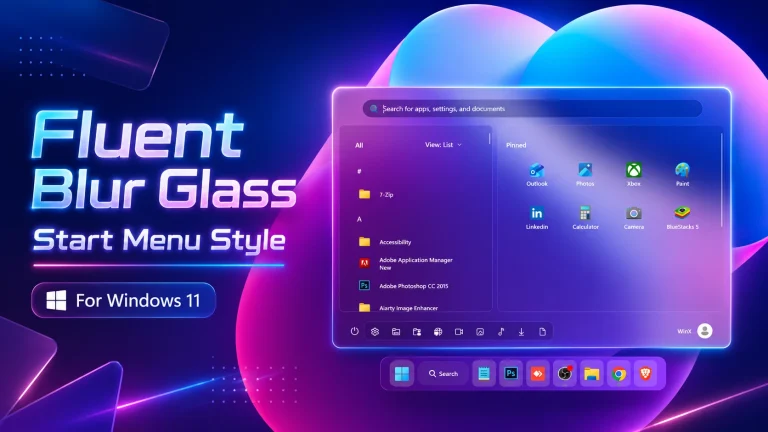
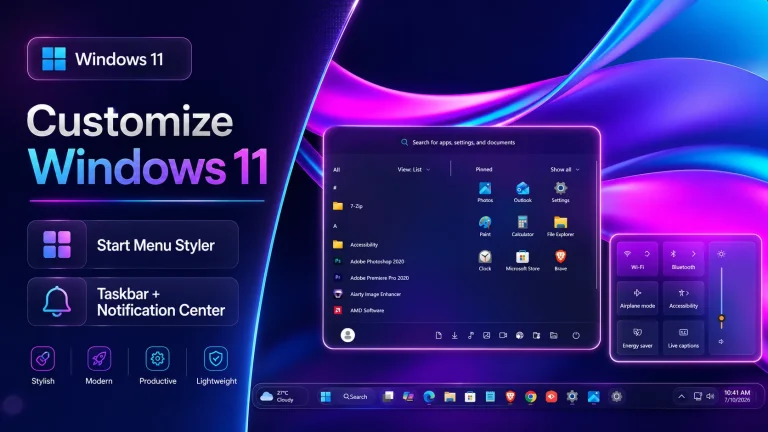
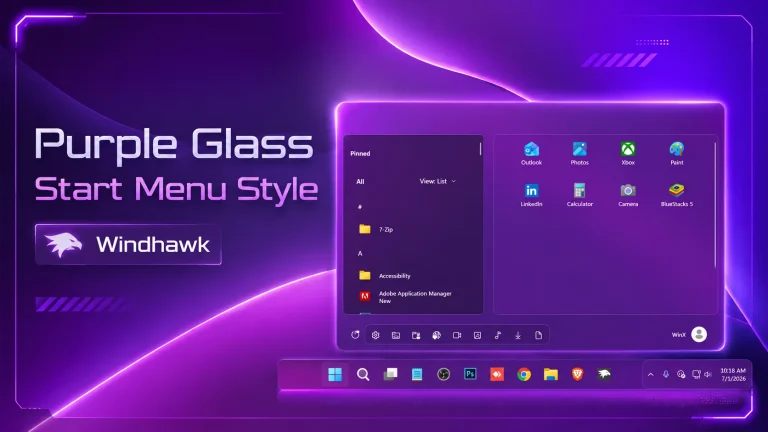
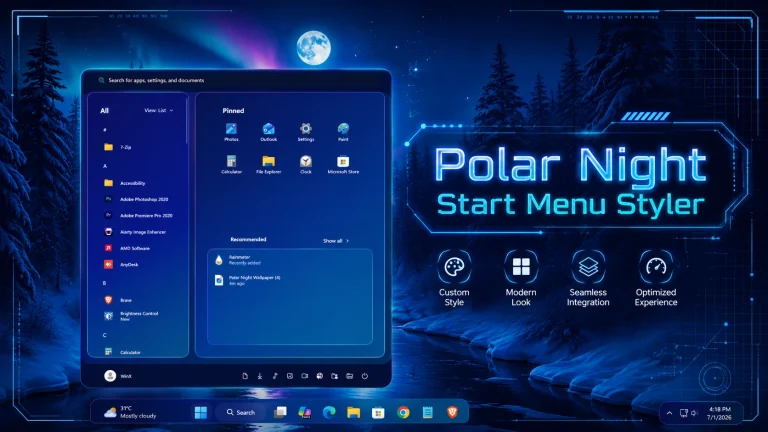
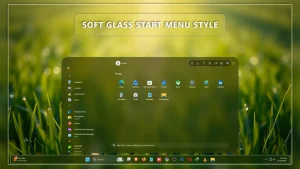
Soft Glass Start Menu Style brings a smooth translucent blur with elegant light reflections, creating a calm and modern Windows 11 experience. Clean edges, subtle glow, and soft transparency make your Start Menu feel premium and distraction-free

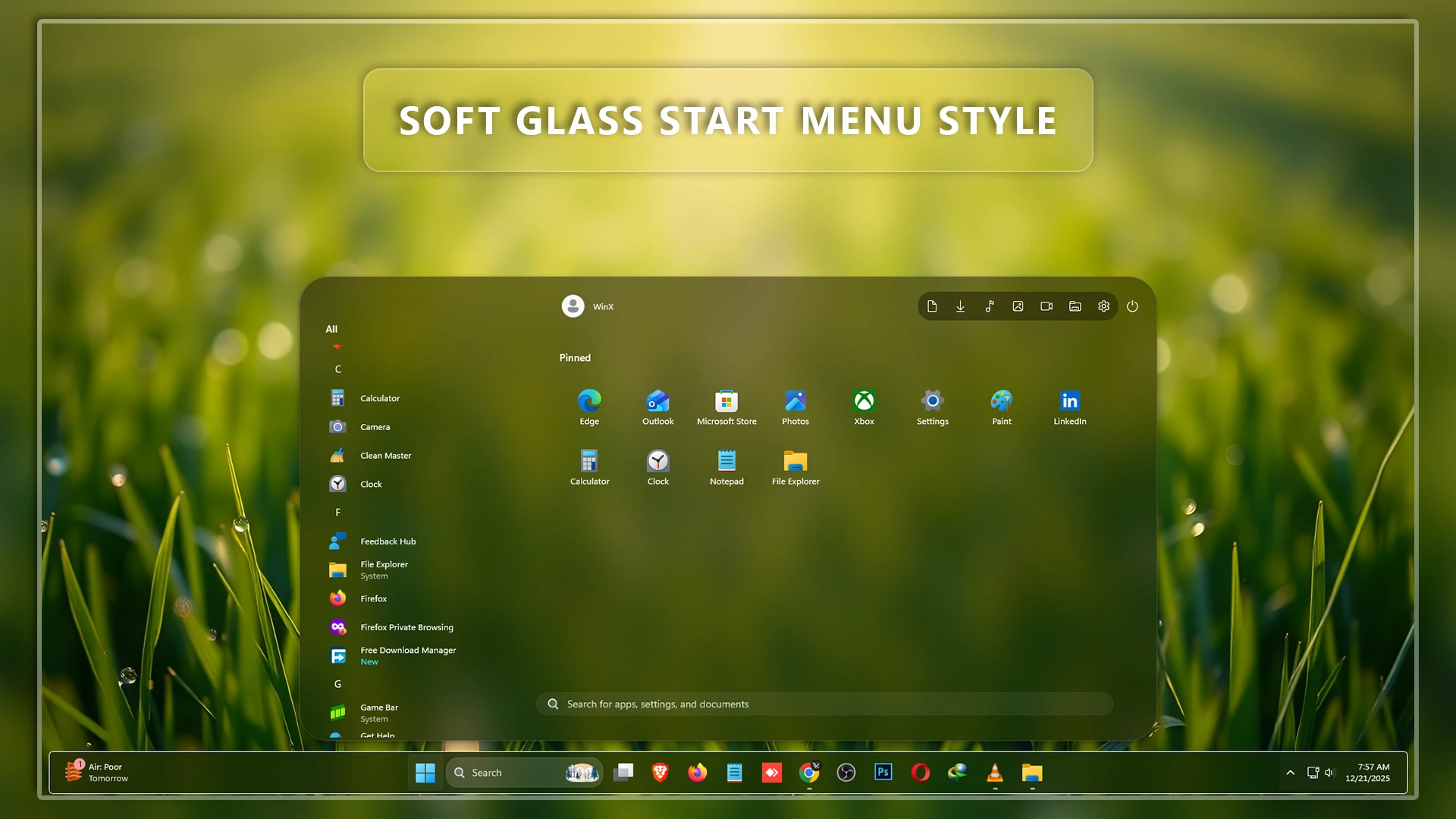
Soft Glass Start Menu Style – WindhawkIf you’re looking for a modern, elegant, and premium-looking Start Menu customization for Windows 11, then the Soft Glass Start Menu Style – Windhawk is an excellent choice. This beautifully crafted Windhawk Start Menu style brings a smooth glass-inspired design that perfectly blends with the modern Windows 11 interface. The transparent acrylic effects, soft blur visuals, and clean layout create a professional desktop experience while maintaining excellent usability.
The Soft Glass Start Menu Style is designed for users who love minimalism and visual elegance. Instead of the standard Windows 11 Start Menu appearance, this style introduces a refined glass effect with subtle transparency and balanced spacing. The result is a cleaner, more attractive desktop environment that feels modern and premium.
Modern Glass Design for Windows 11
The main highlight of this customization is its beautiful glass-inspired appearance. The Start Menu features smooth transparency effects that allow your wallpaper and desktop colors to blend naturally with the interface. This creates a polished and visually appealing look that enhances the overall Windows 11 experience.
Unlike many heavy customization packs, Soft Glass Start Menu Style focuses on simplicity and elegance. The soft blur effects improve visual quality without making the interface feel cluttered. Every element is carefully styled to provide a balanced and comfortable user experience.
Why Choose Soft Glass Start Menu Style?
There are many Start Menu styles available for Windhawk, but Soft Glass stands out because of its clean and modern approach. The transparent design adds depth to your desktop while maintaining readability and functionality. Whether you’re a casual user, content creator, gamer, or professional, this style can significantly improve the appearance of your Windows 11 setup.
- Elegant glass-inspired transparency effects
- Modern Windows 11 aesthetic
- Clean and minimal interface design
- Smooth blur and acrylic visuals
- Easy installation through Windhawk
- Lightweight and performance-friendly
- Perfect for customization enthusiasts
Compatible with Windows 11
The Soft Glass Start Menu Style is specially optimized for Windows 11 systems. It works seamlessly with Windhawk and integrates naturally with the operating system. Users can enjoy a refreshed Start Menu appearance without affecting the core functionality of Windows.
The style complements various desktop themes, icon packs, wallpapers, and taskbar customizations. Whether you use a dark theme or a light theme, Soft Glass adapts beautifully to your setup.
Easy Installation with Windhawk
Installing the Soft Glass Start Menu Style is quick and straightforward. Windhawk provides a simple platform for applying Start Menu customizations without requiring advanced technical knowledge. Once installed, users can instantly transform the appearance of their Start Menu and enjoy a fresh new desktop experience.
The customization process is beginner-friendly, making it accessible for both experienced users and those new to Windows customization.
Enhance Your Desktop Experience
A beautiful desktop environment can improve productivity and make daily computer usage more enjoyable. The Soft Glass Start Menu Style helps create a cleaner workspace by combining modern design principles with practical usability. The smooth transparency effects add sophistication while maintaining excellent visibility and accessibility.
Whether you’re customizing your gaming setup, workstation, or personal laptop, this Windhawk Start Menu style provides a premium look that stands out from the default Windows interface.
Perfect for Windows Customization Lovers
If you enjoy customizing Windows 11, the Soft Glass Start Menu Style deserves a place in your collection. It pairs perfectly with Rainmeter skins, custom wallpapers, modern icon packs, and taskbar styles. The elegant glass effect creates a cohesive visual experience that transforms your desktop into something truly unique.
Many users prefer glass-themed interfaces because they offer a timeless and professional appearance. Soft Glass successfully delivers that experience while remaining lightweight and practical for everyday use.
- 21H2 YES
- 22H2 YES
- 22H3 YES
- 24H2 YES
- Windows 11 25H2: YES work, but test carefully after Windows updates
- Download & Install windhawk.
- install & Open the Windows 11 Start Menu Styler mod in Windhawk.
- Go to the “Advanced” tab.
- Copy the content below to the text box under “Mod settings” and click “Save”.
{ "controlStyles[0].target": "StartDocked.StartSizingFrame", "controlStyles[0].styles[0]": "MinWidth=1200", "controlStyles[0].styles[1]": "MaxWidth=1200", "controlStyles[0].styles[2]": "MaxHeight=650", "controlStyles[0].styles[3]": "CornerRadius=5", "controlStyles[1].target": "Windows.UI.Xaml.Controls.Grid#UndockedRoot", "controlStyles[1].styles[0]": "Width=900", "controlStyles[1].styles[1]": "Margin=305,-10,0,-60", "controlStyles[2].target": "Windows.UI.Xaml.Controls.Grid#AllAppsRoot", "controlStyles[2].styles[0]": "Visibility=Visible", "controlStyles[2].styles[1]": "Width=340", "controlStyles[2].styles[2]": "Margin=-1690,0,1690,-60", "controlStyles[3].target": "StartDocked.AllAppsGridListView#AppsList", "controlStyles[3].styles[0]": "Padding=90,13,6,16", "controlStyles[4].target": "StartMenu.PinnedList", "controlStyles[4].styles[0]": "Width=840", "controlStyles[4].styles[1]": "Height=600", "controlStyles[4].styles[2]": "Margin=-20,50,0,0", "controlStyles[5].target": "StartDocked.SearchBoxToggleButton", "controlStyles[5].styles[0]": "Visibility=Visible", "controlStyles[5].styles[1]": "Margin=330,0,60,0", "controlStyles[5].styles[2]": "RenderTransform:=<TranslateTransform Y=\"550\" X=\"0\" />", "controlStyles[6].target": "StartDocked.LauncherFrame > Grid#RootGrid > Grid#RootContent > Grid#MainContent > Grid#InnerContent > Rectangle", "controlStyles[6].styles[0]": "Visibility=Collapsed", "controlStyles[7].target": "Windows.UI.Xaml.Controls.Grid#TopLevelSuggestionsContainer", "controlStyles[7].styles[0]": "Width=270", "controlStyles[7].styles[1]": "Margin=510,-670,0,0", "controlStyles[8].target": "Windows.UI.Xaml.Controls.GridView#RecommendedList > Windows.UI.Xaml.Controls.Border > Windows.UI.Xaml.Controls.ScrollViewer#ScrollViewer > Windows.UI.Xaml.Controls.Border#Root > Windows.UI.Xaml.Controls.Grid > Windows.UI.Xaml.Controls.ScrollContentPresenter#ScrollContentPresenter > Windows.UI.Xaml.Controls.ItemsPresenter > Windows.UI.Xaml.Controls.ItemsWrapGrid > Windows.UI.Xaml.Controls.GridViewItem", "controlStyles[8].styles[0]": "MaxWidth=250", "controlStyles[8].styles[1]": "MinWidth=250", "controlStyles[9].target": "Windows.UI.Xaml.Controls.GridView#RecommendedList", "controlStyles[9].styles[0]": "Visibility=Collapsed", "controlStyles[10].target": "Windows.UI.Xaml.Controls.Grid#TopLevelSuggestionsListHeader", "controlStyles[10].styles[0]": "Visibility=Collapsed", "controlStyles[11].target": "Windows.UI.Xaml.Controls.Grid#ShowMoreSuggestions", "controlStyles[11].styles[0]": "Visibility=Collapsed", "controlStyles[12].target": "Windows.UI.Xaml.Controls.Button#CloseAllAppsButton", "controlStyles[12].styles[0]": "Visibility=Collapsed", "controlStyles[13].target": "Windows.UI.Xaml.Controls.Button#ShowAllAppsButton", "controlStyles[13].styles[0]": "Visibility=Collapsed", "controlStyles[14].target": "Windows.UI.Xaml.Controls.Grid#AllAppsPaneHeader", "controlStyles[14].styles[0]": "Margin=97,-10,0,0", "controlStyles[15].target": "Windows.UI.Xaml.Controls.TextBlock#PinnedListHeaderText", "controlStyles[15].styles[0]": "Margin=30,0,0,0", "controlStyles[15].styles[1]": "RenderTransform:=<TranslateTransform Y=\"40\" X=\"-35\" />", "controlStyles[16].target": "Windows.UI.Xaml.Controls.GridView#RecommendedList > Windows.UI.Xaml.Controls.Border > Windows.UI.Xaml.Controls.ScrollViewer#ScrollViewer > Windows.UI.Xaml.Controls.Border#Root > Windows.UI.Xaml.Controls.Grid > Windows.UI.Xaml.Controls.ScrollContentPresenter#ScrollContentPresenter > Windows.UI.Xaml.Controls.ItemsPresenter > Windows.UI.Xaml.Controls.ItemsWrapGrid > Windows.UI.Xaml.Controls.GridViewItem > Windows.UI.Xaml.Controls.Border#ContentBorder@CommonStates > Windows.UI.Xaml.Controls.Grid#DroppedFlickerWorkaroundWrapper > Border#BackgroundBorder", "controlStyles[16].styles[0]": "Background@Normal:=<SolidColorBrush Color=\"{ThemeResource SystemAltMediumLowColor}\" Opacity=\".1\" />", "controlStyles[16].styles[1]": "Background@PointerOver:=<SolidColorBrush Color=\"{ThemeResource SystemAltMediumLowColor}\" Opacity=\"1\" />", "controlStyles[16].styles[2]": "BorderThickness=1", "controlStyles[16].styles[3]": "BorderBrush:=<SolidColorBrush Color=\"{ThemeResource SystemListLowColor}\" Opacity=\".1\" />", "controlStyles[16].styles[4]": "Margin=0,2,0,3", "controlStyles[16].styles[5]": "CornerRadius=5", "controlStyles[17].target": "StartMenu.ExpandedFolderList", "controlStyles[17].styles[0]": "Margin=0,0,350,0", "controlStyles[18].target": "Windows.UI.Xaml.Controls.TextBlock#MoreSuggestionsListHeaderText", "controlStyles[18].styles[0]": "Margin=-30,0,0,0", "controlStyles[19].target": " Windows.UI.Xaml.Controls.Grid#MoreSuggestionsRoot ", "controlStyles[19].styles[0]": "Width=550", "controlStyles[19].styles[1]": "Margin=-360,0,0,0", "controlStyles[20].target": "StartDocked.NavigationPaneView#NavigationPane > Windows.UI.Xaml.Controls.Grid#RootPanel", "controlStyles[20].styles[0]": "Width=880", "controlStyles[20].styles[1]": "Margin=0,0,-290,0", "controlStyles[20].styles[2]": "RenderTransform:=<TranslateTransform Y=\"-575\" X=\"0\" />", "controlStyles[21].target": "StartDocked.AppListView#NavigationPanePlacesListView", "controlStyles[21].styles[0]": "Visibility=Visible", "controlStyles[22].target": "Border#AcrylicOverlay", "controlStyles[22].styles[0]": "Visibility=Collapsed", "controlStyles[23].target": "Windows.UI.Xaml.Controls.SemanticZoom#ZoomControl", "controlStyles[23].styles[0]": "IsZoomOutButtonEnabled=True", "controlStyles[24].target": "Windows.UI.Xaml.Controls.Button#ZoomOutButton", "controlStyles[24].styles[0]": "Width=40", "controlStyles[24].styles[1]": "Height=25", "controlStyles[24].styles[2]": "CornerRadius=5", "controlStyles[24].styles[3]": "Margin=0,-35,0,0", "controlStyles[24].styles[4]": "VerticalAlignment=0", "controlStyles[25].target": "Windows.UI.Xaml.Controls.Button#ZoomOutButton > Windows.UI.Xaml.Controls.ContentPresenter#ContentPresenter > Windows.UI.Xaml.Controls.TextBlock", "controlStyles[25].styles[0]": "Text=", "controlStyles[25].styles[1]": "FontSize=18", "controlStyles[26].target": "Windows.UI.Xaml.Controls.ContentPresenter#ZoomedOutPresenter", "controlStyles[26].styles[0]": "Margin=85,0,0,0", "controlStyles[27].target": "Border#AcrylicBorder", "controlStyles[27].styles[0]": "Background:=<AcrylicBrush TintColor=\"{ThemeResource CardStrokeColorDefaultSolid}\" FallbackColor=\"{ThemeResource CardStrokeColorDefaultSolid}\" TintOpacity=\"0\" TintLuminosityOpacity=\".55\" Opacity=\"1\"/>", "controlStyles[27].styles[1]": "CornerRadius=5", "controlStyles[28].target": "Windows.UI.Xaml.Controls.Border#ContentBorder@CommonStates > Windows.UI.Xaml.Controls.Grid#DroppedFlickerWorkaroundWrapper > Border#BackgroundBorder", "controlStyles[29].target": "StartDocked.AppListView#NavigationPanePlacesListView > Windows.UI.Xaml.Controls.Border", "controlStyles[29].styles[0]": "Background:=<AcrylicBrush TintColor=\"{ThemeResource CardStrokeColorDefaultSolid}\" FallbackColor=\"{ThemeResource CardStrokeColorDefaultSolid}\" TintOpacity=\"0\" TintLuminosityOpacity=\".55\" Opacity=\"1\"/>", "controlStyles[29].styles[1]": "CornerRadius=18", "controlStyles[30].target": "Border#ContentBorder@CommonStates > Grid#DroppedFlickerWorkaroundWrapper > Border", "controlStyles[30].styles[0]": "FocusVisualPrimaryBrush:=<SolidColorBrush Color=\"#b3cefd\" Opacity=\".10\"/>", "controlStyles[30].styles[1]": "CornerRadius=5", "controlStyles[30].styles[2]": "Height=80", "controlStyles[30].styles[3]": "Width=92", "controlStyles[31].target": "Border#DropShadow", "controlStyles[31].styles[0]": "CornerRadius=5", "controlStyles[32].target": "StartDocked.SearchBoxToggleButton", "controlStyles[32].styles[0]": "Canvas.ZIndex=1", "controlStyles[33].target": "StartDocked.UserTileView#UserTile", "controlStyles[33].styles[0]": "Margin=50,0,0,0", "controlStyles[34].target": "StartDocked.LauncherFrame > Grid#RootPanel > Grid#RootGrid", "controlStyles[34].styles[0]": "MinWidth=1200", "controlStyles[34].styles[1]": "MaxWidth=1200","controlStyles[34].styles[2]": "CornerRadius=5", "controlStyles[35].target": "StartDocked.LauncherFrame > Grid#RootPanel > Grid#RootGrid > Grid#RootContent", "controlStyles[35].styles[0]": "MinWidth=1200", "controlStyles[35].styles[1]": "MaxWidth=1200","controlStyles[35].styles[2]": "CornerRadius=5", "controlStyles[36].target": "Windows.UI.Xaml.Shapes.Rectangle", "controlStyles[36].styles[0]": "Visibility=Collapsed", "disableNewStartMenuLayout": "legacyClassicLayout"}Final Thoughts
The Soft Glass Start Menu Style – Windhawk is one of the best choices for users who want a modern, transparent, and visually appealing Start Menu design for Windows 11. Its soft blur effects, elegant glass appearance, and clean layout make it a fantastic customization option for anyone looking to enhance their desktop experience.
Download the Soft Glass Start Menu Style today and give your Windows 11 desktop a fresh, premium, and professional appearance with the power of Windhawk customization.