Amazing MacOS Widget Rainmeter Skin
Download macOS Widget Rainmeter Skin for Windows and create a clean macOS-inspired desktop with useful widgets and setup tips.

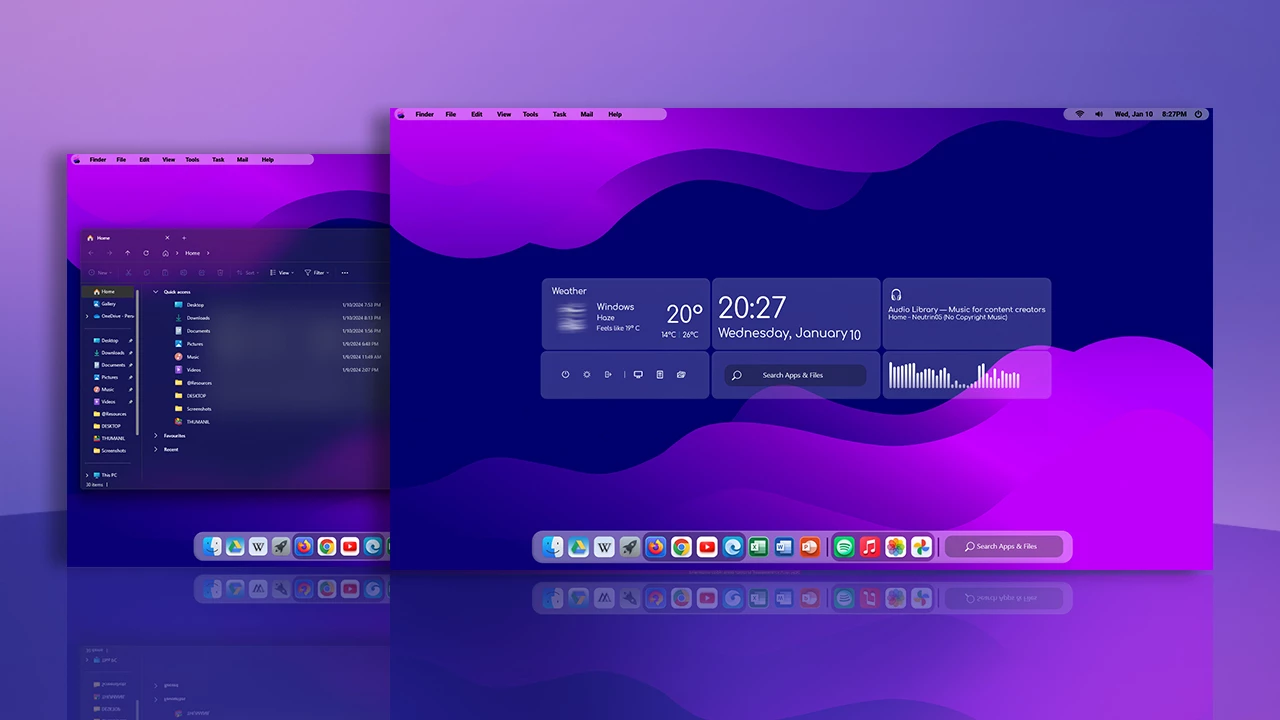
macOS Widget Rainmeter Skin
macOS Widget Rainmeter Skin is a clean and modern desktop customization setup for Windows users who like the simple and organized look of macOS-inspired widgets. It adds useful desktop elements with a smooth layout, rounded design, and minimal visual style.
If you want your Windows desktop to look more polished and productive, the macOS Widget Rainmeter Skin can be a good choice. It is designed for users who enjoy clean widgets, soft transparency, and a desktop layout that feels modern without looking too crowded.
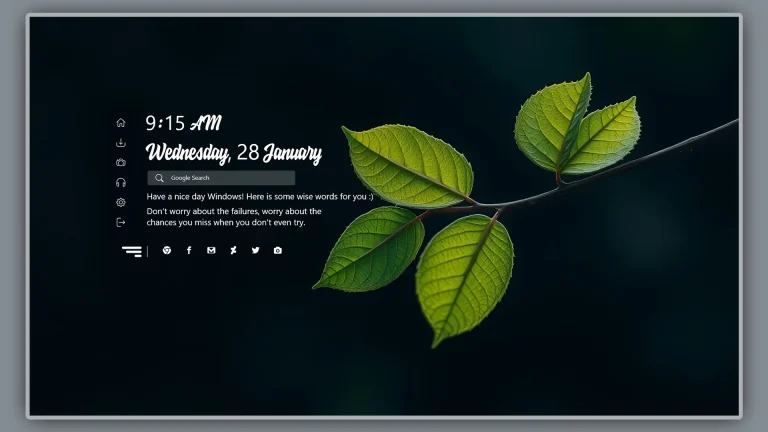
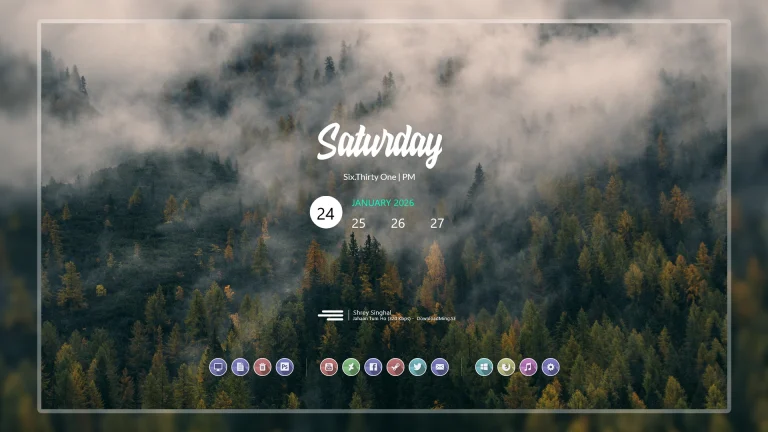
This Rainmeter skin can help display useful information such as clock, weather, calendar, system usage, music controls, and other desktop widgets depending on the included skin files. It works best when paired with a clean wallpaper, matching icons, and a simple dock-style setup.
Rainmeter Skin Overview
The macOS Widget Rainmeter Skin focuses on a macOS-inspired widget style for Windows desktops. It is not an official macOS product, but it is designed to give Windows users a similar clean and minimal desktop feeling through Rainmeter customization.
The layout is suitable for users who want useful widgets on the desktop while keeping the screen neat and easy to use. Whether you are working, studying, browsing, or creating content, this skin can help make your desktop look more organized.
Design Style
The design style of the macOS Widget Rainmeter Skin is clean, rounded, and modern. It may include soft transparency, smooth corners, light shadows, and simple widget panels that blend well with different wallpapers.
This skin works especially well with macOS-style wallpapers, light or dark backgrounds, minimal icon packs, and clean taskbar styles. For a better result, keep the widget layout balanced and avoid placing too many elements on one side of the screen.
What Is Included In This?
- macOS Widget Rainmeter Skin
- Rainmeter skin files
- macOS-inspired desktop widgets
- Customizable widget layout
- Desktop personalization elements
- Clean macOS-inspired widget layout for Windows desktops
- Rounded panels and a minimal visual style
- Support for selected clock, calendar, system, weather, music, or shortcut widgets when included
- Flexible positioning through Rainmeter
- Works well with light or dark wallpapers
- Suitable for tidy productivity and desktop-personalization setups
- Windows 10 or Windows 11.
- A current version of Rainmeter installed from its official website.
- Enough screen space to arrange the widgets comfortably.
- macOS Widget Rainmeter skin files
- macOS-inspired desktop widget resources
- Customizable widget layout files
Before You Install
Rainmeter skins are usually easy to load, but it is still worth saving your current layout before making major desktop changes. If you already use several skins, take a note of their positions or make a backup from Rainmeter so you can return to the same layout later.
- Install Rainmeter before downloading or loading this skin.
- Keep the downloaded package and extracted folder until the setup is working correctly.
- Use a trusted archive tool if the package needs to be extracted.
- Do not run unknown scripts or installers that are unrelated to the skin files.
How to Install macOS Widget Rainmeter Skin
- Download and install Rainmeter from the official website.
- Download the macOS Widget Rainmeter Skin using the button below.
- If the download is an archive, extract it to a folder you can find easily.
- If the package contains an .rmskin file, double-click it and select Install in the Rainmeter Skin Installer.
- If it contains a normal Rainmeter skin folder, copy the folder to your Rainmeter Skins directory, then open the Rainmeter Manage window and refresh the skin list.
- Choose the widget you want from the installed skin folder and select Load.
- Move the widget into place, then load additional widgets one at a time if you want a fuller setup.
macOS Widget Rainmeter Skin 85 MB
DownloadThe exact widget names can vary by package, so check the extracted folder after installation. Some widgets, such as weather or music controls, may need a small amount of configuration before they display useful information.
Customize Your Widget Layout
For a cleaner result, begin with one or two widgets and leave some empty space around them. Rainmeter lets you move widgets, adjust their position, and reload them after changing supported settings. A simple layout usually looks better and is easier to manage than adding every available panel at once.
- Use a wallpaper with enough contrast behind text-based widgets.
- Keep only the widgets you need for daily work or study.
- Place larger panels near the edges of the screen to keep the center clear.
- Test docks, icon packs, and other extras one at a time.
- Reload a skin after making supported configuration changes.
How to Remove the Skin
To hide a widget, right-click the active Rainmeter skin and choose Unload skin, or use the Rainmeter Manage window to unload it. This removes the widget from your desktop without deleting the files.
If you no longer want the package, unload all of its widgets first, then remove the related skin folder from the Rainmeter Skins directory. If you installed an .rmskin package, use its removal option when available. Keep a backup of the folder if you may want to use the same layout again later.
Frequently Asked Questions
Does this skin turn Windows into macOS?
No. It adds macOS-inspired desktop widgets through Rainmeter while Windows remains your operating system.
Do I need Rainmeter before using this skin?
Yes. Rainmeter is required to load and manage the widget files included with this package.
Will every widget shown in the post be included?
Widget availability depends on the files in this package. Check the extracted skin folder to see which widgets and configuration options are included.
How can I remove a widget without deleting the package?
Right-click the active widget and select Unload skin, or unload it from the Rainmeter Manage window. You can load it again later.
Disclaimer
This independently created Rainmeter skin is intended for personal Windows desktop customization. The term “macOS” is used only as a visual-style reference. This package is not an official Apple product, macOS release, update, or Apple-developed software, and it is not affiliated with, endorsed by, or sponsored by Apple Inc. All trademarks and brand names belong to their respective owners.
Final Thoughts
The macOS Widget Rainmeter Skin for Windows is a useful option for anyone who wants a softer, more organized desktop. Load the main widgets first, make a few careful adjustments, and keep the final layout focused on the information you use most.