macOS Inspired Taskbar Style for Windows 11
macOS Taskbar Style for Windows 11 Using Windhawk : Get a clean macOS-style taskbar on Windows 11 using Windhawk. This guide shows how to add dock-like spacing, smooth animations, transparency, and a modern floating taskbar look—without heavy software. Perfect for minimal and premium Windows customization lovers.

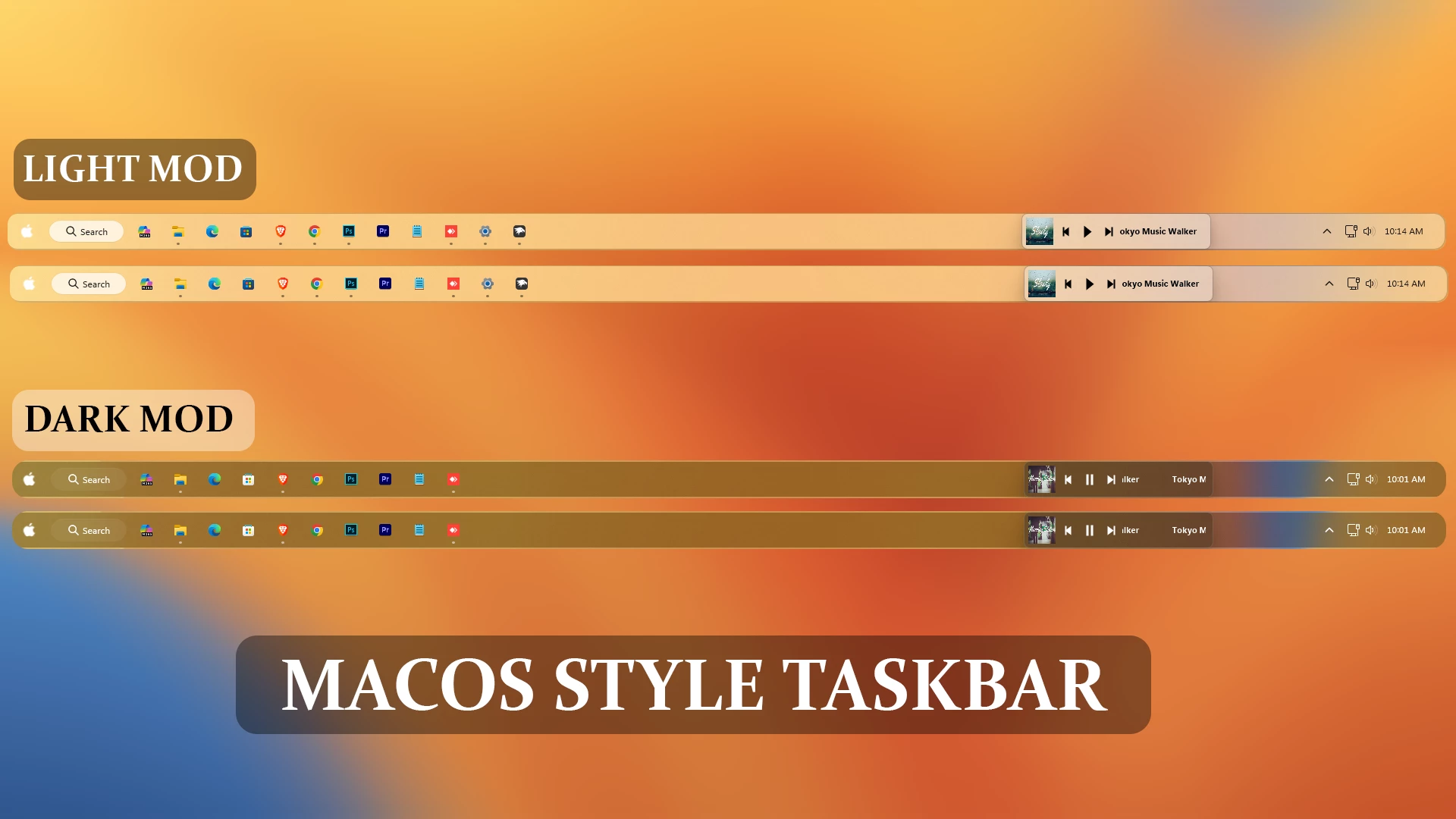
macOS Inspired Taskbar Style for Windows 11 Using Windhawk
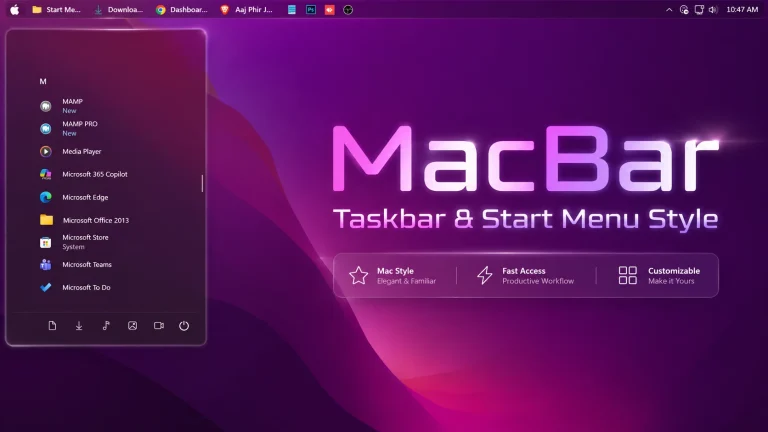
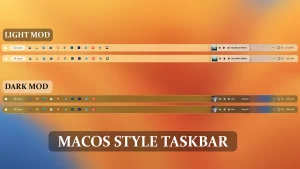
If you enjoy a clean and minimal desktop experience, the macOS Inspired Taskbar Style for Windows 11 is a great way to refresh the appearance of your system. By using Windhawk and its customization mods, you can transform the default Windows 11 taskbar into a modern dock-like design with a smoother, more elegant visual style.
Windows 11 already comes with a modern interface, but many users like to personalize their desktop with unique layouts, custom icons, and improved visual elements. This macOS-inspired taskbar style focuses on simplicity, centered icons, clean spacing, and a premium-looking appearance while keeping the familiar Windows experience.
About macOS Inspired Taskbar Style for Windows 11
The macOS Inspired Taskbar Style for Windows 11 is a desktop customization setup created for users who want to bring a macOS-like dock appearance to their Windows taskbar. Using the Windhawk Taskbar Styler mod, users can customize different visual elements of the Windows 11 taskbar without changing the core operating system.
This style is designed for people who enjoy minimal interfaces, modern layouts, and organized desktops. It works especially well with dark themes, glass effects, custom wallpapers, and other Windows personalization setups.
Why Choose a macOS Inspired Taskbar Style?
The taskbar is one of the most frequently used parts of Windows. A well-designed taskbar can make your desktop feel cleaner and more enjoyable during daily use. The macOS-inspired design brings a balanced look with smooth spacing and a dock-style appearance that many customization enthusiasts prefer.
Whether you use your PC for work, study, browsing, or creative projects, a personalized taskbar can help create a more comfortable workspace. This style is suitable for users who want a modern desktop without replacing the Windows environment they already know.
Features of This Windows 11 Taskbar Style
- macOS-inspired dock-like taskbar appearance
- Clean and minimal visual design
- Centered taskbar icon layout
- Works with Windows 11 customization setups
- Compatible with Windhawk Taskbar Styler mod
- Suitable for dark themes and modern wallpapers
- Helps create a more personalized desktop experience
How Windhawk Helps Customize Windows 11
Windhawk is a Windows customization platform that allows users to install community-created mods to adjust different parts of the Windows interface. With the right mod and settings, users can personalize supported Windows elements and create unique desktop designs.
Before installing any mod, always download Windhawk and customization resources from trusted sources. Carefully review mod settings and make sure they are compatible with your Windows version.
Compatibility
- Windows 11 21H2: May work, but not recommended for the best experience
- Windows 11 22H2: May work, but compatibility can vary
- Windows 11 23H2: Recommended
- Windows 11 24H2: Recommended
- Windows 11 25H2: YES work, but test carefully after Windows updates
Installation steps:
- Download & Install windhawk.
- install & Open the Windows 11 taskbar Styler mod in Windhawk.
- Go to the “Advanced” tab.
- Copy the content below to the text box under “Mod settings” and click “Save”.
Start Menu & Explorer
{ "controlStyles[0].target": "Taskbar.TaskbarFrame#TaskbarFrame", "controlStyles[0].styles[1]": "HorizontalAlignment=Center", "controlStyles[0].styles[2]": "Width=Auto", "controlStyles[1].target": "Taskbar.TaskbarFrame#TaskbarFrame > Grid#RootGrid", "controlStyles[1].styles[0]": "Padding=6,0,6,0", "controlStyles[1].styles[1]": "Margin=10,2,10,3", "controlStyles[1].styles[2]": "BorderThickness=2", "controlStyles[1].styles[3]": "BorderBrush:=<SolidColorBrush Color=\"{ThemeResource SurfaceStrokeColorDefault}\" Opacity=\".80\" />", "controlStyles[2].target": "Rectangle#BackgroundFill", "controlStyles[2].styles[0]": "Visibility=Collapsed", "controlStyles[3].target": "Rectangle#BackgroundStroke", "controlStyles[3].styles[0]": "Visibility=Collapsed", "controlStyles[4].target": "Taskbar.AugmentedEntryPointButton#AugmentedEntryPointButton > Taskbar.TaskListButtonPanel#ExperienceToggleButtonRootPanel", "controlStyles[4].styles[0]": "Margin=0", "controlStyles[5].target": "Grid#SystemTrayFrameGrid", "controlStyles[5].styles[0]": "Background:=#00000000", "controlStyles[5].styles[1]": "CornerRadius=5", "controlStyles[5].styles[2]": "BackgroundSizing=InnerBorderEdge", "controlStyles[5].styles[3]": "Margin=0,2,0,3", "controlStyles[5].styles[4]": "BorderThickness=5", "controlStyles[6].target": "SystemTray.ChevronIconView", "controlStyles[6].styles[0]": "Padding=0", "controlStyles[7].target": "SystemTray.NotifyIconView#NotifyItemIcon", "controlStyles[7].styles[0]": "Padding=0", "controlStyles[8].target": "SystemTray.OmniButton", "controlStyles[8].styles[0]": "Padding=0", "controlStyles[9].target": "SystemTray.CopilotIcon", "controlStyles[9].styles[0]": "Padding=0", "controlStyles[10].target": "SystemTray.OmniButton#NotificationCenterButton > Grid > ContentPresenter > ItemsPresenter > StackPanel > ContentPresenter > systemtray:IconView#SystemTrayIcon > Grid", "controlStyles[10].styles[0]": "Padding=0,0,0,0", "controlStyles[11].target": "SystemTray.IconView#SystemTrayIcon > Grid#ContainerGrid > ContentPresenter#ContentPresenter > Grid#ContentGrid > SystemTray.TextIconContent > Grid#ContainerGrid", "controlStyles[11].styles[0]": "Padding=0", "controlStyles[12].target": "SystemTray.StackListView#IconStack > ItemsPresenter > StackPanel > ContentPresenter > SystemTray.IconView#SystemTrayIcon", "controlStyles[12].styles[0]": "Padding=0", "controlStyles[13].target": "SystemTray.Stack#ShowDesktopStack", "controlStyles[13].styles[0]": "Margin=20,0,0,0", "controlStyles[14].target": "Taskbar.Gripper#GripperControl", "controlStyles[14].styles[0]": "Width=Auto", "controlStyles[14].styles[1]": "MinWidth=24", "controlStyles[1].styles[4]": "CornerRadius=15", "controlStyles[1].styles[5]": "Background:=<AcrylicBrush TintColor=\"{ThemeResource CardStrokeColorDefaultSolid}\" FallbackColor=\"{ThemeResource CardStrokeColorDefaultSolid}\" TintOpacity=\"0\" TintLuminosityOpacity=\".45\" Opacity=\"1\"/>", "controlStyles[15].target": "Taskbar.ExperienceToggleButton#LaunchListButton[AutomationProperties.AutomationId=StartButton] > Taskbar.TaskListButtonPanel > Microsoft.UI.Xaml.Controls.AnimatedVisualPlayer#Icon", "controlStyles[15].styles[0]": "Visibility=Collapsed", "controlStyles[16].target": "Taskbar.ExperienceToggleButton#LaunchListButton[AutomationProperties.AutomationId=StartButton] > Taskbar.TaskListButtonPanel > Border#BackgroundElement", "controlStyles[16].styles[0]": "Background:=<ImageBrush Stretch=\"none\" ImageSource=\"https://www.linkvegastheme.com/wp-content/uploads/2025/11/apple.png\" />", "controlStyles[16].styles[1]": "Margin=-5,-1,0,0", "controlStyles[17].target": "TextBlock#DateInnerTextBlock", "controlStyles[17].styles[0]": "Visibility=Collapsed"}Required Windhawk Mods Taskbar Height & Icon Size for similar results
To achieve similar results, install and configure the following Windhawk mods in addition to Taskbar Styler
{ "IconSize": 16, "TaskbarHeight": 55, "TaskbarButtonWidth": 45, "IconSizeSmall": 16, "TaskbarButtonWidthSmall": 32}Required Windhawk Mos for similar results
Taskbar on top for Windows 11
Taskbar Music Lounge
Taskbar Music Lounge
{ "PanelWidth": 250, "PanelHeight": 0, "FontSize": 11, "OffsetX": 1350, "OffsetY": 0, "AutoTheme": 1, "TextColor": 16777215, "BgOpacity": 20}If you want, you can download the zip file from below.
Whether you love macOS design or just want a premium and modern Windows 11 taskbar, this Windhawk customization guide is perfect for you. Ideal for minimal UI lovers, productivity users, and Windows modders looking for a fresh macOS experience on Windows 11
⚠️ Disclaimer: This macOS-inspired Taskbar Style for Windows 11 is provided for UI personalization and educational purposes only. It is an unofficial customization and is not developed, endorsed, or supported by Apple or Microsoft. The style only changes the visual appearance of supported Windows interface elements through compatible customization tools. Compatibility may vary depending on your Windows version, Windhawk version, installed mods, and system configuration. Please keep a backup of your current settings before applying any changes.