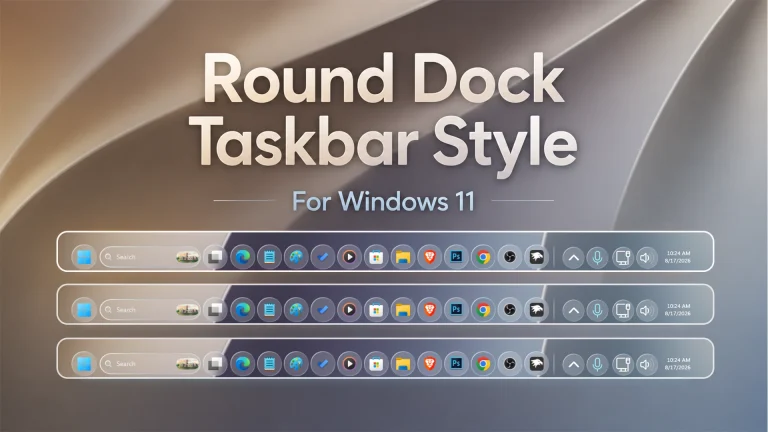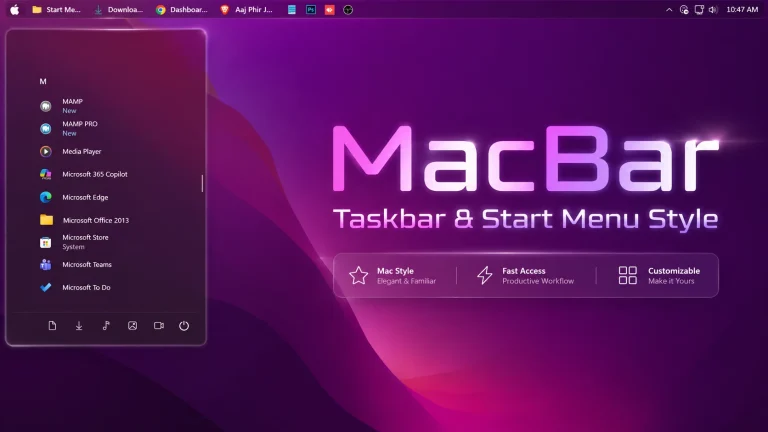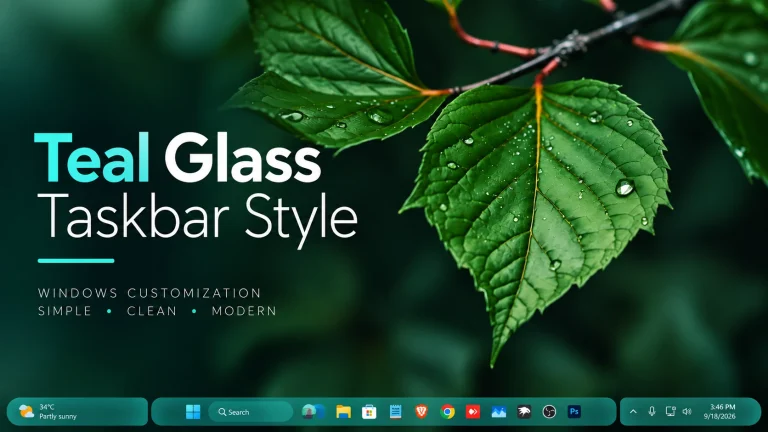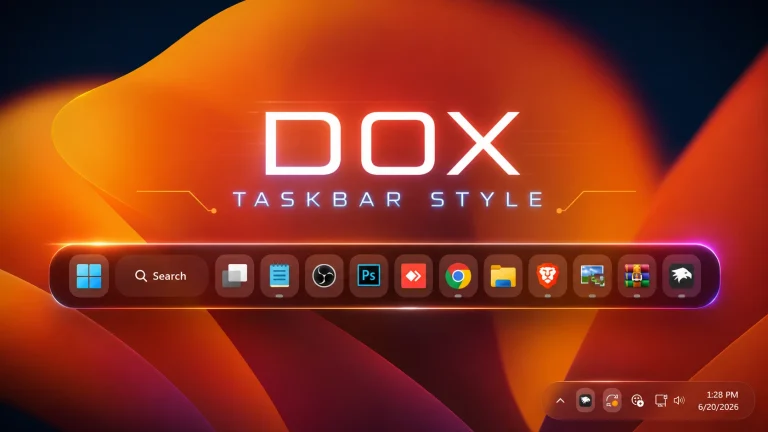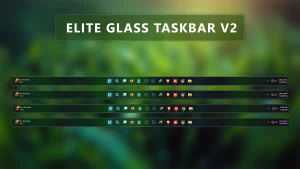
Elite Glass Taskbar Style V2
Elite Glass Taskbar Style V2 : Elite Glass Taskbar Style using Windhawk transforms the default Windows 11 taskbar into a sleek, premium glass interface with advanced transparency and blur effects.

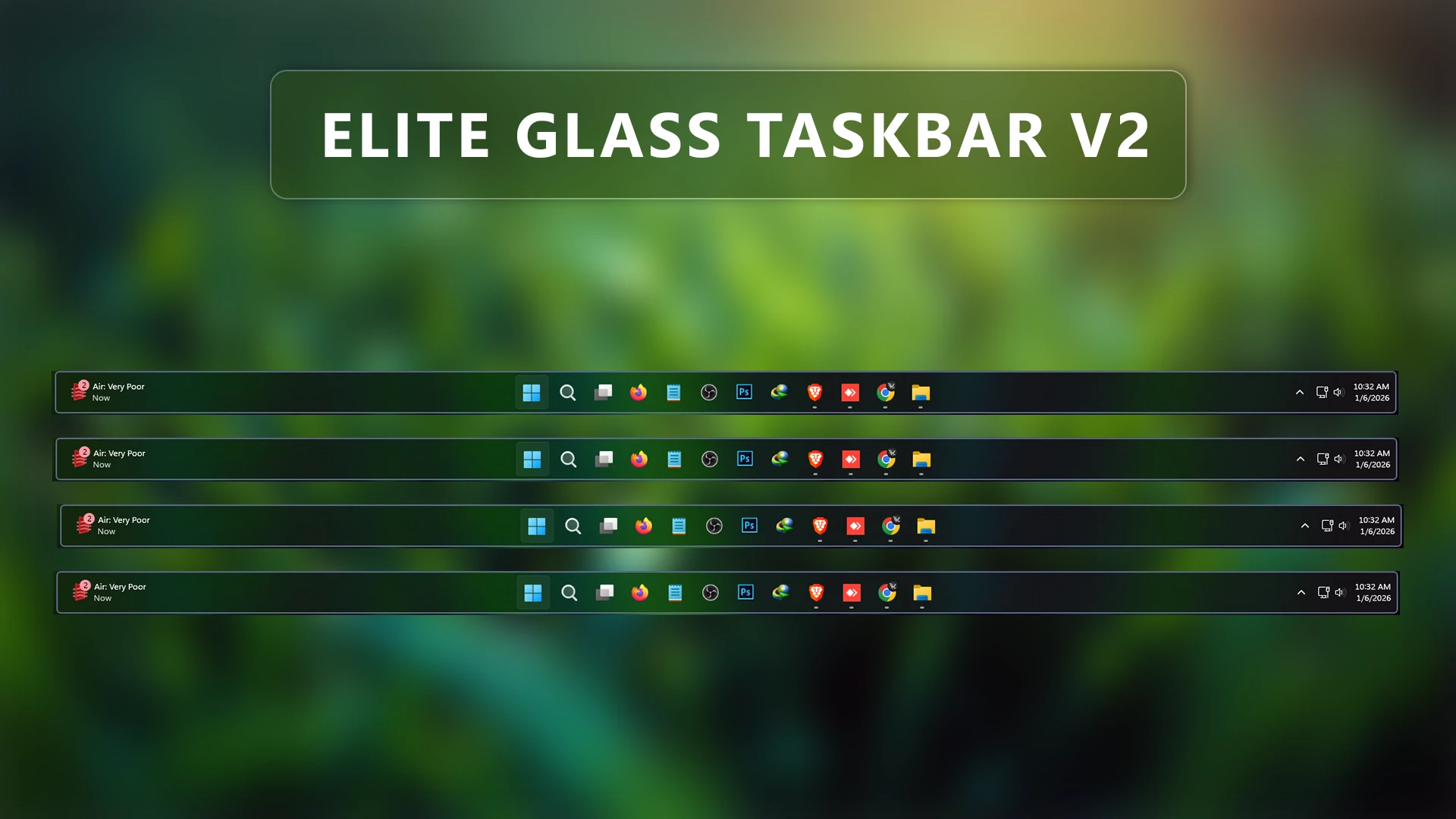
Elite Glass Taskbar Style V2 Windows 11
Elite Glass Taskbar Style using Windhawk transforms the default Windows 11 taskbar into a sleek, premium glass interface with advanced transparency and blur effects. Designed for users who love modern UI and minimal aesthetics, this style delivers a smooth glassmorphism look that instantly elevates your desktop experience. The taskbar appears crystal-clear with soft blur, subtle reflections, and refined opacity that blends beautifully with dark, AMOLED, and neon-themed wallpapers.
The Elite Glass Taskbar Style V2 for Windows 11 is a refined Windhawk customization created for users who want a cleaner, more polished taskbar with a modern glass-inspired appearance. This updated version focuses on improved transparency, smoother visual balance, and a more premium look while keeping the familiar Windows 11 taskbar experience.
Features
- Modern glass-inspired taskbar appearance
- Clean transparency and acrylic-style effects
- Refined spacing and visual balance
- Designed for Windows 11 customization
- Works with compatible Windhawk taskbar styling mods
- Pairs well with dark, minimal, and glass wallpapers
- Suitable for matching Start Menu and desktop customization setups
- Can be disabled or changed through Windhawk settings
Elite Glass Taskbar Style V2 can be especially useful if you are building a complete Windows 11 customization setup with matching Start Menu styles, wallpapers, icons, and other UI modifications. Since Windows updates and Windhawk mod versions can affect visual compatibility, it is recommended to keep your existing settings backed up before applying a new taskbar configuration.
Download Windhawk To Use The Style
Compatibility
- Windows 11 21H2: May work, but not recommended for the best experience
- Windows 11 22H2: May work, but compatibility can vary
- Windows 11 23H2: Recommended
- Windows 11 24H2: Recommended
- Windows 11 25H2: YES work, but test carefully after Windows updates
Start Menu Style
Installation steps:
- Download & Install windhawk.
- install & Open the Windows 11 taskbar Styler mod in Windhawk.
- Go to the “Advanced” tab.
- Copy the content below to the text box under “Mod settings” and click “Save”.
{ "controlStyles[0].target": "Taskbar.TaskbarFrame#TaskbarFrame", "controlStyles[0].styles[1]": "HorizontalAlignment=Center", "controlStyles[0].styles[2]": "Width=Auto", "controlStyles[1].target": "Taskbar.TaskbarFrame#TaskbarFrame > Grid#RootGrid", "controlStyles[1].styles[0]": "Padding=6,0,6,0", "controlStyles[1].styles[1]": "Margin=10,2,10,3", "controlStyles[1].styles[2]": "BorderThickness=2", "controlStyles[1].styles[3]": "BorderBrush:=#5D688A", "controlStyles[2].target": "Rectangle#BackgroundFill", "controlStyles[2].styles[0]": "Visibility=Collapsed", "controlStyles[3].target": "Rectangle#BackgroundStroke", "controlStyles[3].styles[0]": "Visibility=Collapsed", "controlStyles[4].target": "Taskbar.AugmentedEntryPointButton#AugmentedEntryPointButton > Taskbar.TaskListButtonPanel#ExperienceToggleButtonRootPanel", "controlStyles[4].styles[0]": "Margin=0", "controlStyles[5].target": "Grid#SystemTrayFrameGrid", "controlStyles[5].styles[0]": "Background:=#00000000", "controlStyles[5].styles[1]": "CornerRadius=5", "controlStyles[5].styles[2]": "BackgroundSizing=InnerBorderEdge", "controlStyles[5].styles[3]": "Margin=0,2,0,3", "controlStyles[5].styles[4]": "BorderThickness=5", "controlStyles[6].target": "SystemTray.ChevronIconView", "controlStyles[6].styles[0]": "Padding=0", "controlStyles[7].target": "SystemTray.NotifyIconView#NotifyItemIcon", "controlStyles[7].styles[0]": "Padding=0", "controlStyles[8].target": "SystemTray.OmniButton", "controlStyles[8].styles[0]": "Padding=0", "controlStyles[9].target": "SystemTray.CopilotIcon", "controlStyles[9].styles[0]": "Padding=0", "controlStyles[10].target": "SystemTray.OmniButton#NotificationCenterButton > Grid > ContentPresenter > ItemsPresenter > StackPanel > ContentPresenter > systemtray:IconView#SystemTrayIcon > Grid", "controlStyles[10].styles[0]": "Padding=0,0,0,0", "controlStyles[11].target": "SystemTray.IconView#SystemTrayIcon > Grid#ContainerGrid > ContentPresenter#ContentPresenter > Grid#ContentGrid > SystemTray.TextIconContent > Grid#ContainerGrid", "controlStyles[11].styles[0]": "Padding=0", "controlStyles[12].target": "SystemTray.StackListView#IconStack > ItemsPresenter > StackPanel > ContentPresenter > SystemTray.IconView#SystemTrayIcon", "controlStyles[12].styles[0]": "Padding=0", "controlStyles[13].target": "SystemTray.Stack#ShowDesktopStack", "controlStyles[13].styles[0]": "Margin=0,0,0,0", "controlStyles[14].target": "Taskbar.Gripper#GripperControl", "controlStyles[14].styles[0]": "Width=Auto", "controlStyles[14].styles[1]": "MinWidth=24", "controlStyles[1].styles[4]": "CornerRadius=5", "controlStyles[1].styles[5]": "Background:=<AcrylicBrush TintColor=\"{ThemeResource CardStrokeColorDefaultSolid}\" FallbackColor=\"{ThemeResource CardStrokeColorDefaultSolid}\" TintOpacity=\"0\" TintLuminosityOpacity=\".5\" Opacity=\"1\"/>"}Required Windhawk Mods for similar results
To achieve similar results, install and configure the following Windhawk mods in addition to Taskbar Styler
{ "TaskbarHeight": 65, "IconSize": 25, "TaskbarButtonWidth": 50, "IconSizeSmall": 16, "TaskbarButtonWidthSmall": 32} ⚠️ Disclaimer: This Windhawk Start Menu Style is provided for Windows UI personalization and educational purposes only. It is an unofficial customization and is not developed, endorsed, or supported by Microsoft. Compatibility may vary depending on your Windows version, Windhawk version, Start Menu Styler version, and system configuration. Windows updates may also affect how the style works. Please keep a backup of your current settings before applying any changes.
Performance is optimized to ensure smooth animations and stability, even on mid-range systems. Text, system tray icons, and taskbar buttons remain sharp and readable while maintaining a premium frosted-glass finish. Fully compatible with the latest Windows 11 builds, Elite Glass Taskbar Style is perfect for users who want elegant transparency, modern design, and next-level customization—all achieved easily through Windhawk configuration.