Ares Icon Pack For Windows 11 – Cool Icons
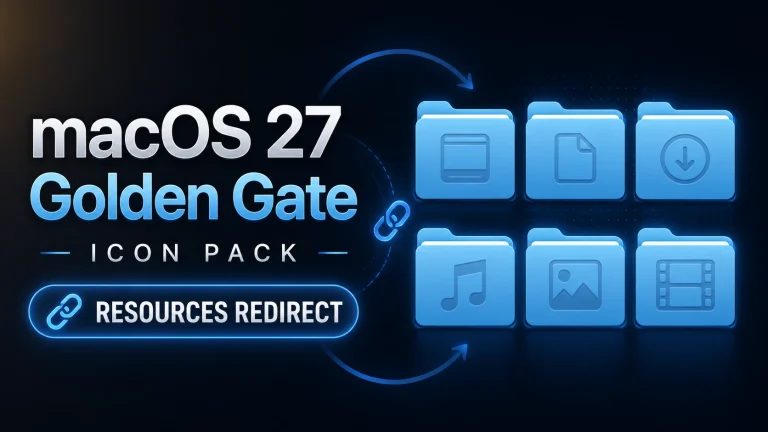
Upgrade your desktop with the Ares Icon Pack For Windows 11, designed for seamless resources redirect and Windhawk customization. Enjoy a clean, consistent, and modern UI with smooth performance, perfect for glass-style themes and advanced Windows personalization setups.

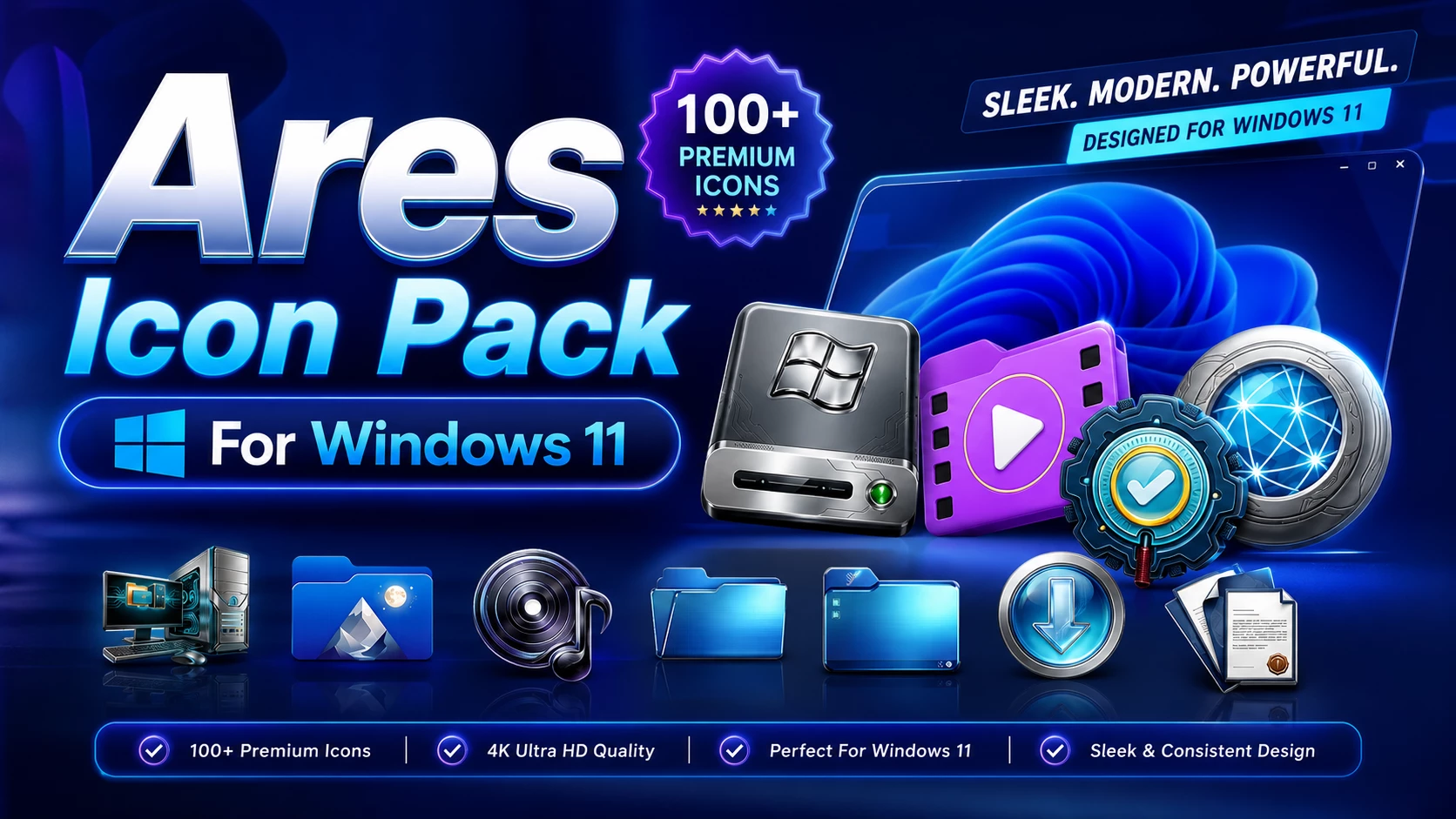
Ares Icon Pack For Windows 11 (Resources Redirect) Windhawk
Are you tired of the default Windows icons and looking for a way to truly personalize your desktop? If you want a look that is both modern and vibrant, the Ares Icon Pack for Windows 11 is the ultimate choice. In this guide, we will show you how to apply these stunning icons safely using Windhawk and the Resource Redirect method.
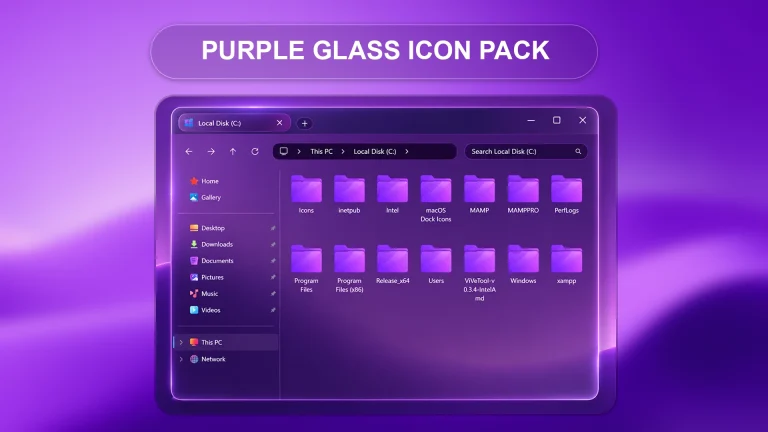
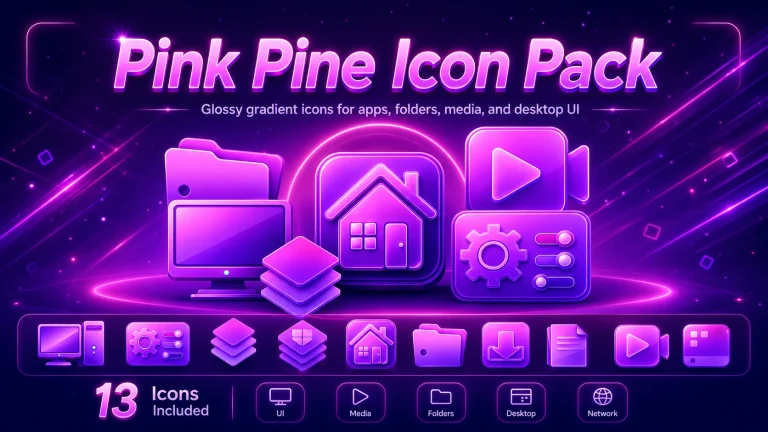
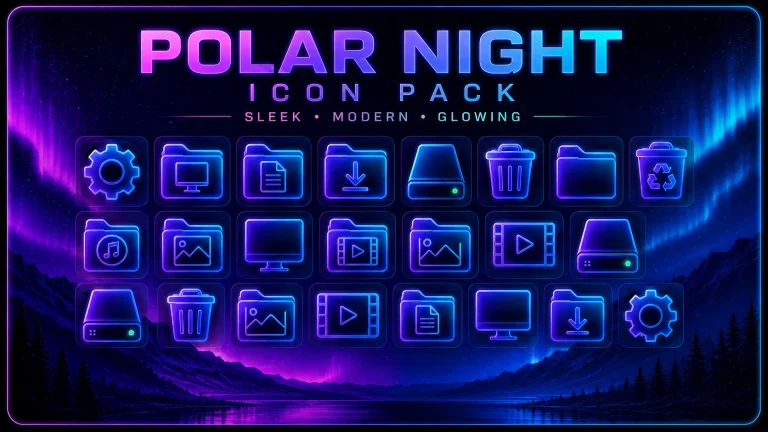
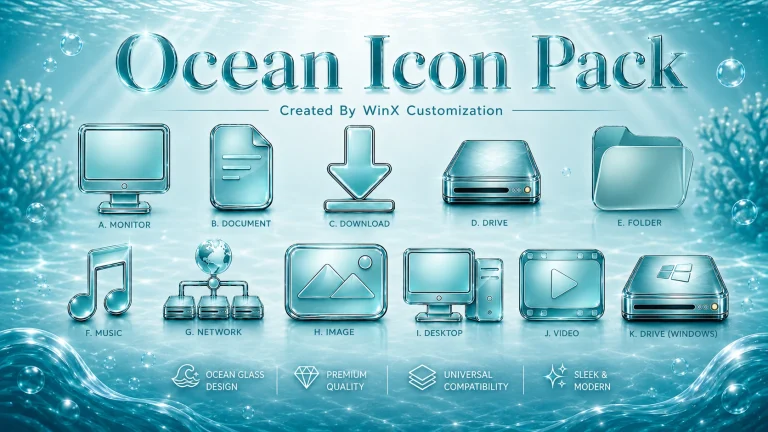
If you’re aiming to give your Windows 11 setup a premium, modern, and visually consistent look, the Ares Icon Pack For Windows 11 is one of the best customization resources available right now. Combined with Windhawk tweaks, this icon pack transforms your system into a sleek, glass-inspired UI similar to the setup shown in the screenshot above..
What is Ares Icon Pack?
The Ares Icon Pack For Windows 11 is a high-quality icon collection designed to replace default Windows icons with a more polished, vibrant, and consistent aesthetic. It perfectly complements modern UI styles like glassmorphism, acrylic blur, and gradient-based themes.From folders to system drives and quick access icons, everything gets a refined visual upgrade.
Features of Ares Icon Pack For Resources Redirect
Why Choose Ares Icon Pack For Resources Redirect?
Choosing the Ares Icon Pack For Windows 11 for your resources redirect setup isn’t just about looks—it’s about control, consistency, and performance in your customization workflow.First, it solves a common problem: broken or inconsistent icons after applying themes or mods. When you use Windhawk tweaks or system-level UI changes, default Windows icons often don’t match the new style. Ares fixes this by providing a fully unified icon system, so everything—from File Explorer to drives—feels part of the same design language.
This method is:
- Safe No system damage risk
- Reversible Easily restore default icons
- Flexible Supports full customization
- Windows 11 Operating System
- Windhawk Installed
- Resource Redirect Mod Enabled
- Basic File Path Knowledge
How to Install Icon Pack (Step-by-Step)
- Download and install Windhawk
- Enable the Resource Redirect mod inside Windhawk
- Download the Icon Pack ZIP file
- Extract the icon pack to a folder on your system
- Copy the folder path and paste it into Resource Redirect settings
- Apply changes and restart Windows Explorer
For a detailed guide, you can also check:
What’s Included in the Pack?
- Icon Pack (Full System Icons Set)
- Resource Redirect Compatible Files
- Ready-to-use configuration setup
Ares Icon Pack 26MB
DownloadFAQ – Icon Pack
Is This Icon Pack safe to use?
Yes, it is completely safe when used with Windhawk Resource Redirect because it does not modify system files.
Does it work on Windows 11?
Yes, the icon pack is fully optimized for Windows 11 systems.
Can I revert back to default icons?
Yes, simply disable Resource Redirect or remove the configuration to restore default icons.
Conclusion
The Ares Icon Pack For Windows 11 is a must-have if you want a clean, modern, and premium desktop experience. When paired with Windhawk and glass-style UI tweaks, it creates a stunning setup like the one shown in the screenshot.If you’re serious about Windows customization, this is one upgrade you shouldn’t skip..