

Explorer Theme For Windows 10
Explorer Theme For Windows 10:The Explorer Windows 10 Theme reimagines your desktop experience with a clean, classic, and functional design inspired by the original Windows 10 aesthetic.

Explorer Theme For Windows 10
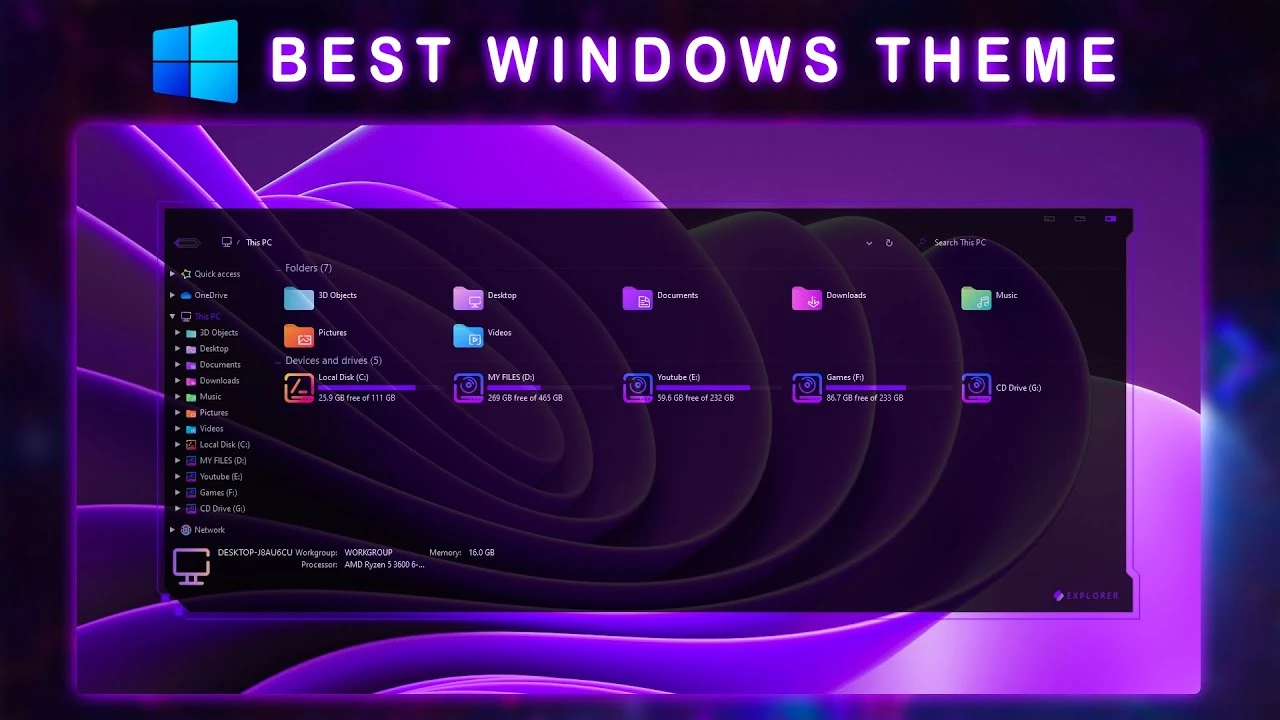
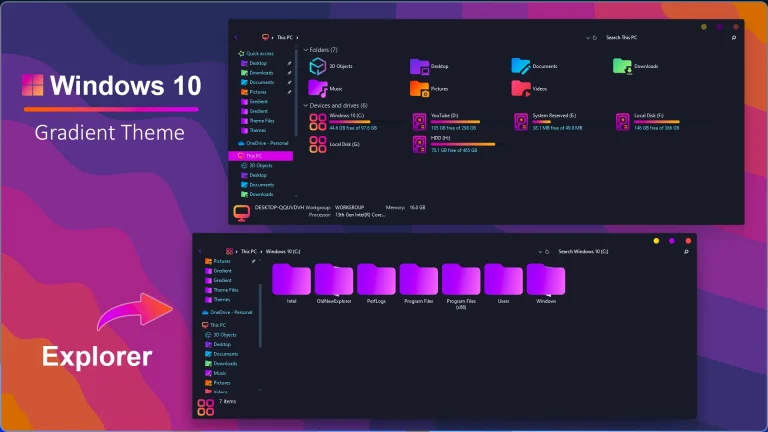
Explorer Theme For Windows 10 is a dark and modern Windows customization theme designed for users who want a stylish alternative to the default Windows appearance. Inspired by the classic Windows 10 interface, this theme combines a dark File Explorer layout with purple accent colors and a clean desktop design.
As shown in the preview, the theme creates a futuristic desktop environment with a dark background, glowing purple elements, and a customized Explorer appearance. The balanced combination of dark tones and vibrant accents gives Windows a fresh and personalized look while keeping the familiar user experience.
This theme is suitable for users who enjoy dark desktop setups, gaming-inspired designs, and modern Windows customization. It can be combined with matching wallpapers, icons, and additional customization tools to create a complete visual experience.
Key Features
- Dark Windows 10 inspired visual style
- Purple accent customization
- Modern File Explorer appearance
- Clean and minimal desktop design
- Works well with matching wallpapers and icon packs
- Suitable for futuristic and gaming-style desktop setups
System Requirements
- Windows 10 operating system
- A compatible theme patcher such as SecureUxTheme
- Windows System Restore Point before applying changes
- Basic knowledge of installing third-party Windows themes
What is included in this?
- Windows 10 Theme
- Icon Pack
- Wallpaper
Optional Customization Tools
How to Install
- Create a Windows System Restore Point before starting customization.
- Install a compatible theme patcher such as SecureUxTheme.
- Download and extract the Explorer Theme package.
- Copy the theme files to the Windows theme folder.
- Apply the theme from Windows Personalization settings.
- Restart Windows Explorer or your PC if required.
If you are new to Windows customization, make sure to follow the installation steps carefully before applying third-party themes.
Explorer Windows 10 Theme4.59MB
Download How to Remove
- Open Windows Personalization settings.
- Select the default Windows theme or another installed theme.
- Remove the third-party theme files from the Windows theme folder.
- Disable or uninstall additional customization tools if installed.
- Restart Windows Explorer or your computer to restore the previous appearance.
Check Out This Category
Downloading issue
Ad-Blocker Detected!
Oops! unable to access the file download link. It seems that your ad blocker is removing the download link. Please try again or consider whitelisting our site in your ad blocker to resolve this issue.
We have detected that an ad blocker is active in your browser. This can lead to conflicts with our site, blocking many important scripts, and affecting downloads.
The revenue we generate from ads is vital for maintaining and managing this website. Therefore, we kindly request that you whitelist our website in your ad-blocker. Please rest assured that we won't inundate you with an excessive number of ads, nor will we inconvenience you or slow down your browsing experience. Your support is immensely appreciated!