

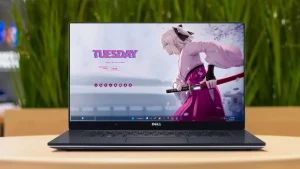
Anime Desktop Suite Rainmeter
Anime Desktop Suite Rainmeter : The Anime Desktop Suite for Rainmeter is a complete customization package that transforms your Windows desktop into a vibrant, dynamic anime-inspired environment

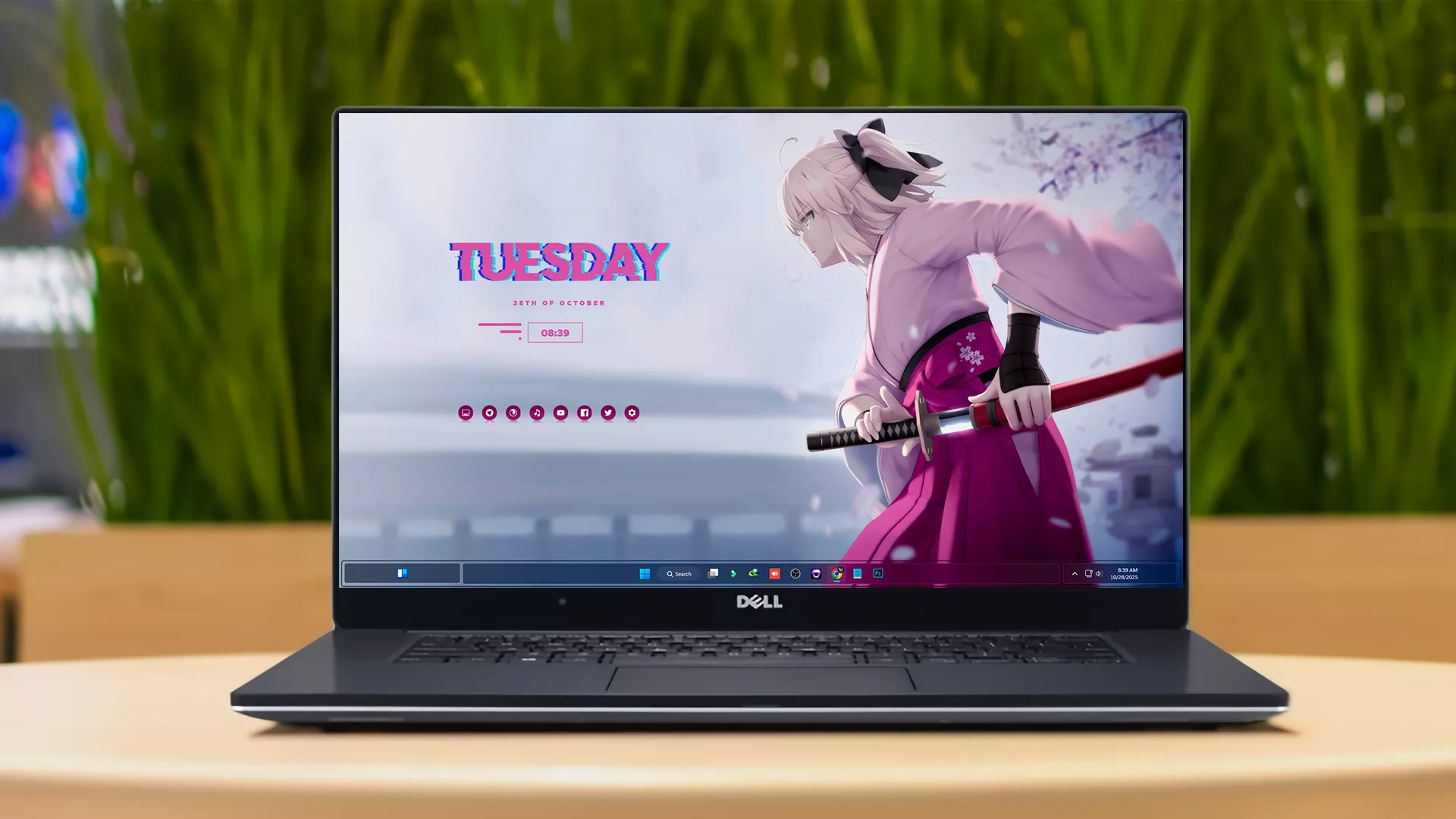
Anime Desktop Suite Rainmeter for Windows
Transform your ordinary Windows desktop into a colorful and organized anime-inspired workspace with the Anime Desktop Suite Rainmeter. This customization package combines Rainmeter skins, desktop widgets, application shortcuts, dock icons, and a matching wallpaper to create a complete anime-style desktop setup.
The suite is designed for anime fans who want a desktop that feels more personal without making the interface difficult to use. Its clean layout helps keep important information visible while maintaining a vibrant visual style inspired by Japanese animation.
Depending on the skins included in the package, you may be able to display useful information such as the current time, date, system performance, music controls, storage usage, application shortcuts, and other desktop details. Each component can be positioned separately, allowing you to create a layout that suits your screen resolution and personal preferences.
The setup can work well on both simple and detailed desktop layouts. You can use only a few Rainmeter widgets for a minimal appearance or combine the available skins, Nexus Dock icons, and wallpaper for a more complete anime desktop transformation.
Please note that this is a third-party desktop customization package. It is not an official Microsoft product, and the final appearance may vary depending on your Windows version, display resolution, scaling settings, installed fonts, and Rainmeter configuration.
About the Anime Desktop Suite
The Anime Desktop Suite is built around Rainmeter, a popular desktop customization application for Windows. Rainmeter allows users to place lightweight and interactive skins directly on the desktop. These skins can display information, provide application shortcuts, and add decorative elements without replacing the Windows operating system.
This suite brings several matching elements together in one package. Instead of downloading unrelated skins, wallpapers, and icons separately, you can use the included resources to create a more consistent desktop appearance.
The anime artwork, widget positioning, colors, and dock icons are designed to complement one another. This can help the desktop look cleaner and more intentional than a setup made with randomly selected customization resources.
Key features:
- Complete anime-inspired desktop customization package.
- Clean and visually balanced Rainmeter skin layout.
- Matching wallpaper, dock icons, and shortcut resources.
- Useful desktop widgets for time, date, music
- Individual skins can be loaded, unloaded, and repositioned.
- Supports custom transparency, positioning, and layout adjustments.
- Suitable for minimalist and detailed desktop setups.
- Designed to work with Rainmeter and Nexus Dock.
- Does not replace the core Windows desktop environment.
- Easy to remove by unloading the skins and restoring the original wallpaper.
Requirements:
- A Windows computer with a supported version of Rainmeter.
- The latest suitable version of Rainmeter installed.
- Nexus Dock if you want to use the included dock backup and icons.
- WinRAR, 7-Zip, or the built-in Windows ZIP extractor.
- Permission to install desktop customization applications.
- Enough free storage space for the theme files and wallpaper.
- A display resolution suitable for the included desktop layout.
Package contents:
- Anime-inspired Rainmeter skins.
- Nexus Dock backup files.
- Matching dock icons.
- Anime desktop wallpaper.
- Supporting customization files included with the package.
Anime Desktop Suite Files 3 MB
DownloadThe exact skins and resources may vary depending on the version of the package. Some widgets may also require additional configuration after installation.
Required tools:
Rainmeter is required to load the desktop skins. Nexus Dock is only necessary when you want to use the included dock layout, backup, and icons. You can install the Rainmeter skins without using Nexus Dock.
Before You Install
Close unnecessary applications before starting the installation. If you already use Rainmeter, save a copy of your current skin layout so that you can restore it later if necessary.
You should also keep a copy of your original wallpaper and Nexus Dock configuration. Although the customization can normally be removed easily, keeping a backup makes it faster to return to your previous desktop setup.
Extract all downloaded files before opening the skin installer. Running files directly from a compressed ZIP archive may prevent some skins, icons, or resources from loading correctly.
Rainmeter installation steps:
- Visit the official Rainmeter website using the link provided above.
- Download the available Rainmeter installer.
- Open the installer and follow the on-screen instructions.
- Choose the standard installation option unless you need a portable setup.
- Complete the installation process.
- Rainmeter should start automatically after installation.
- Look for the Rainmeter icon in the Windows system tray.
How to Install the Anime Rainmeter Skins
- Download the Anime Desktop Suite ZIP file using the button below.
- Extract the downloaded ZIP file using WinRAR, 7-Zip, or Windows File Explorer.
- Open the extracted folder and locate the file ending in .rmskin.
- Double-click the .rmskin file.
- The Rainmeter Skin Installer window will appear.
- Review the listed skin package and included components.
- Click Install to add the skins to Rainmeter.
- Wait until the installation is complete.
- Right-click the Rainmeter icon in the system tray.
- Open the Skins menu and locate the installed anime skin folder.
- Select the required skin file and click Load.
- Repeat the process for the other widgets you want to display.
Wallpaper setup steps:
- Open the extracted Anime Desktop Suite folder.
- Locate the included wallpaper image.
- Right-click the wallpaper file.
- Select Set as desktop background.
- Open Windows personalization settings if the image does not fit correctly.
- Choose a suitable fit option such as Fill, Fit, or Stretch.
Nexus Dock setup steps:
- Download and install Nexus Dock from the official Winstep website.
- Open Nexus Dock after installation.
- Locate the dock backup or configuration files included with the Anime Desktop Suite.
- Use the backup restoration option available in Nexus Dock settings, when supported.
- Apply the included dock icons to the required application shortcuts.
- Add or remove shortcuts based on the programs installed on your computer.
- Adjust the dock position, size, transparency, and animation settings.
- Save the configuration after completing the setup.
After loading a skin, click and drag it to the desired area of your desktop. Arrange the widgets around the main subject of the wallpaper so that important parts of the artwork remain visible.
For example, you can place the clock and date near the top of the screen, system monitors on one side, music controls near the bottom, and application shortcuts close to the dock.
Right-click a loaded skin to access its Rainmeter options. From this menu, you can change its position, disable dragging, adjust transparency, control click-through behavior, and unload the skin.
Once you are satisfied with the arrangement, disable dragging for the widgets. This prevents them from moving accidentally while you use the desktop.
Some shortcuts in the included dock backup may point to applications that are not installed on your computer. In that case, replace those shortcuts with the correct application files from your own system.
The recommended wallpaper fit may depend on your screen resolution. The Fill option usually works well for standard widescreen monitors, although it may crop a small part of the image.
How to Customize the Skins
Many Rainmeter skins include settings for colors, fonts, transparency, application paths, weather locations, and music player support. The available options depend on how each skin was created.
Start by right-clicking the widget and checking whether it includes a settings skin or configuration menu. Some skins provide simple visual controls, while others require editing a configuration file.
When editing a skin file manually, make a backup before changing any values. A small formatting mistake can prevent the skin from loading. After saving your changes, right-click the Rainmeter tray icon and select Refresh all.
System Performance and Resource Usage
Rainmeter itself is designed to run efficiently, but the total resource usage depends on the number and complexity of the skins you load. Animated skins, frequent system monitoring, visualizers, and high-refresh widgets may use more processor or graphics resources than simple clocks and shortcuts.
For a smoother experience, load only the widgets you regularly use. Unload unnecessary visualizers or system monitors if you notice increased CPU usage, battery drain, or slower desktop performance.
You can check Rainmeter resource usage through Windows Task Manager. If a particular skin causes unusually high usage, unload it and refresh Rainmeter before trying another configuration.
Save layout steps:
- Open the Rainmeter Manage window.
- Select the Layouts tab.
- Enter a name for your current anime desktop setup.
- Choose whether to include the current wallpaper.
- Click Save.
Disclaimer
Anime Desktop Suite Rainmeter is a third-party Windows desktop customization resource created for personal customization purposes. It is not an official Microsoft product and is not affiliated with Microsoft. This package only changes the visual appearance of your desktop through Rainmeter and optional customization tools. Windows and Microsoft-related trademarks belong to their respective owners. Use this customization at your own discretion.
Final Thoughts
The Anime Desktop Suite Rainmeter package is a practical choice for users who want to create a colorful and personalized anime-style Windows desktop. By combining Rainmeter widgets, a matching wallpaper, dock icons, and an optional Nexus Dock layout, the suite provides a consistent visual experience without replacing the normal Windows interface.
For the best results, install one component at a time, arrange the widgets according to your screen resolution, and save the completed layout in Rainmeter. You can then customize the colors, transparency, shortcuts, and positioning to build a desktop setup that matches your preferences.

Disclaimer: All themes, visual styles, and concepts shared on this website are unofficial, fan-made creations built from imagination for customization purposes. We are not affiliated with, endorsed by, or sponsored by Microsoft or any other official brand.