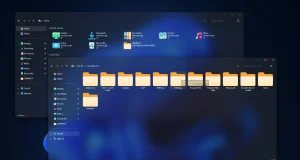
Future Fluent Icon Pack for Windows 10/11
Give your Windows 10 or Windows 11 desktop a fresh modern look with the Future Fluent Icon Pack. Learn about features, safety tips, compatibility, and download details.

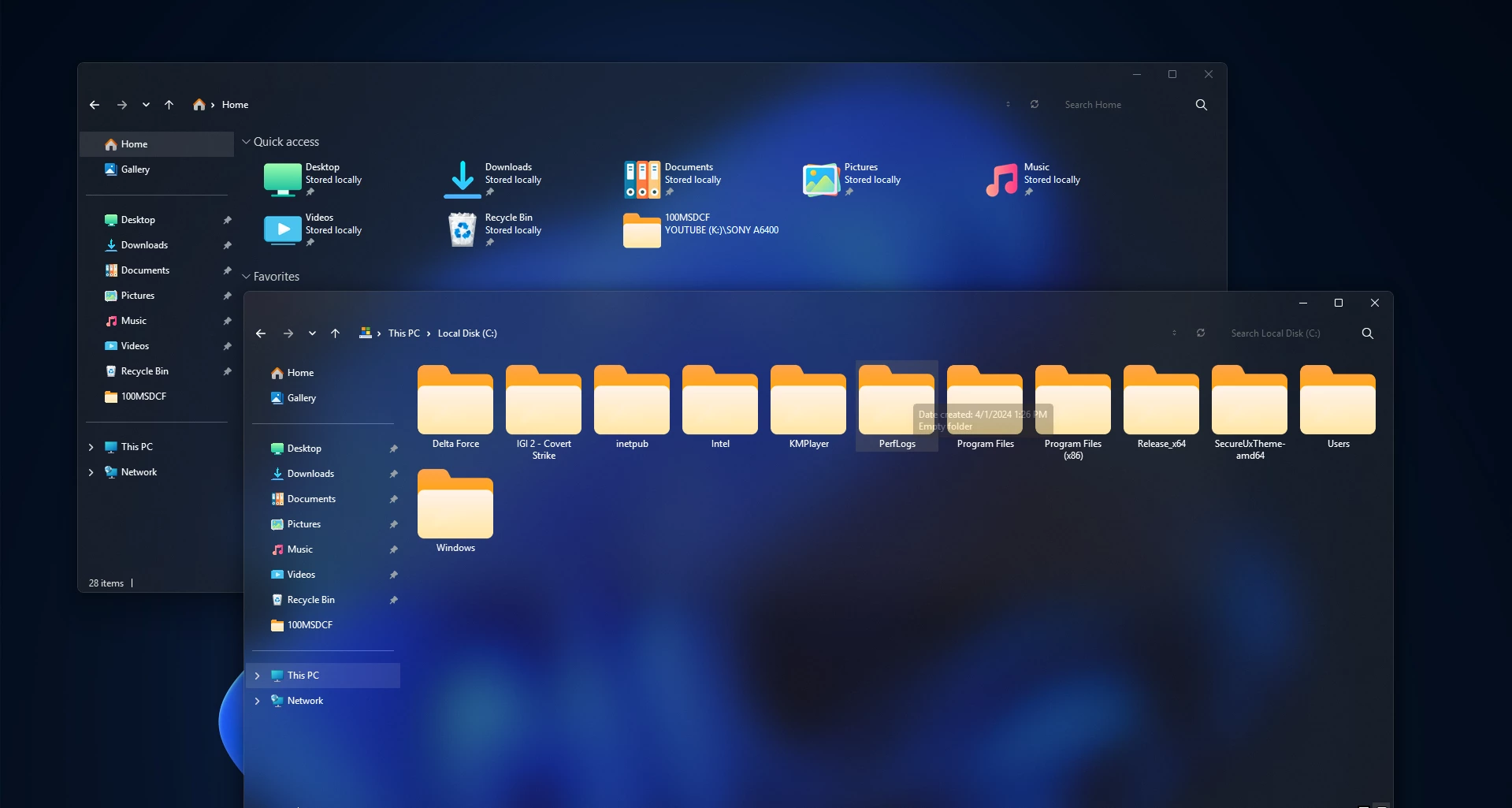
Future Fluent Icon Pack for Windows 10/11
The Future Fluent Icon Pack is a clean and modern icon collection designed for Windows 10 and Windows 11 users who want to refresh the look of their desktop. It brings a smooth, colorful, and polished visual style while keeping the icons easy to recognize and comfortable to use.
This icon pack is made for desktop customization lovers who prefer a fresh appearance without making the system look confusing. The design follows a modern fluent-inspired style with soft shapes, balanced colors, and a neat overall presentation.
The Future Fluent Icon Pack is a community-created customization resource. It is not an official Microsoft product, and it does not change your Windows version. It only helps personalize the visual appearance of supported system icons.
Modern Icon Style for a Cleaner Desktop
Windows already has a simple and useful icon design, but many users enjoy customizing their setup to match their personal style. The Future Fluent Icon Pack gives your desktop, folders, drives, and system locations a more updated and visually consistent look.
The icons are designed to look smooth and minimal while still feeling bold enough for a modern desktop setup. This makes the pack suitable for clean themes, colorful wallpapers, dark mode setups, and futuristic Windows customization styles.
If you like organizing your desktop and making your PC look more personal, this icon pack can be a good addition to your customization collection.
Main Features of Future Fluent Icon Pack
- Clean and modern fluent-inspired icon design
- Suitable for Windows 10 and Windows 11 customization
- Designed for use with the 7TSP icon patching tool
- Updated look for common system icons
- Good match for minimal and futuristic desktop setups
- Beginner-friendly visual style with recognizable icons
- Lightweight download package
What Is Included in This Download?
The download includes the icon pack file prepared for 7TSP. It focuses on system icon customization and does not include unnecessary extra software.
- Future Fluent 7TSP Icon Pack
You may need a compatible version of the 7TSP utility to apply this icon pack. Before using it, make sure your 7TSP version supports your current Windows build.
Important Safety Steps Before Applying
Icon packs made for 7TSP may change Windows system resources. These changes are mainly visual, but it is still important to prepare your system before applying the pack.
- Create a system restore point before installation.
- Close all running applications before applying the icon pack.
- Scan the downloaded file with Windows Security or another trusted security tool.
- Use a compatible and trusted version of 7TSP.
- Make sure the icon pack supports your current Windows version.
- Keep a backup option available in case you want to restore default icons.
Creating a restore point is strongly recommended because it gives you a simple way to return your system to its previous state if something does not work as expected.
How to Create a System Restore Point
- Click on the Windows search box.
- Type Create a restore point and open it.
- Select your system drive, usually C:.
- Click Configure and make sure system protection is turned on.
- Click Create.
- Enter a name such as Before Future Fluent Icon Pack.
- Wait until Windows finishes creating the restore point.
After the restore point is created, you can continue with the customization process more confidently.
How to Apply Future Fluent Icon Pack
The installation process may look slightly different depending on the 7TSP version you use. The steps below provide a general guide for beginners.
- Download the icon pack from the button below.
- Extract the downloaded archive using a trusted archive tool.
- Open the compatible 7TSP application.
- Select the option to add or choose a custom icon pack.
- Browse and select the extracted Future Fluent Icon Pack file.
- Confirm that the correct icon pack is selected.
- Start the patching process and wait until it finishes.
- Restart your computer when the tool asks for it.
Future Fluent 7TSP Icon Pack 11 MB
DownloadDo not turn off your computer or close the tool while the icon pack is being applied. The process may take a few minutes depending on your system.
What to Do If Some Icons Do Not Change
Sometimes Windows may continue showing old icons because of the icon cache. This is common after applying new icon packs and does not always mean the installation failed.
First, restart your computer. If some icons still look unchanged, you may need to refresh File Explorer or rebuild the Windows icon cache using normal Windows troubleshooting methods.
Some third-party applications use their own icons, so they may not change automatically with a system icon pack. In that case, you can update shortcut icons manually if needed.
How to Restore Default Windows Icons
If you want to return to the original Windows icons, use the restore or backup feature available in your 7TSP utility. This is usually the easiest way to undo the icon changes.
You can also use the Windows system restore point that you created before applying the pack. Open Create a restore point, choose System Restore, and select the restore point you made earlier.
After restoring, restart your computer so Windows can reload the default icon resources properly.
Best Setup Ideas for This Icon Pack
The Future Fluent Icon Pack works well with clean wallpapers, glass-style themes, minimal taskbar designs, and modern Windows customization setups. To make your desktop look more organized, try using fewer shortcuts and matching your wallpaper colors with the icon style.
You can also combine this pack with a simple cursor theme, a soft accent color, and a clean Start menu layout. However, it is better to apply one customization at a time so you can easily find and fix any issue if something goes wrong.
A balanced desktop setup usually looks better than a setup with too many effects. Keep the design clean, readable, and comfortable for daily use.
Frequently Asked Questions
Is Future Fluent Icon Pack an official Microsoft icon pack?
No. This is a community-created customization pack. It is not made, supported, or distributed by Microsoft.
Does this icon pack change my Windows version?
No. It only changes supported visual icon resources. It does not upgrade, activate, or replace your Windows operating system.
Can I use it on Windows 10?
The icon pack is intended for compatible versions of Windows 10 and Windows 11. Your result may depend on your exact Windows build and 7TSP version.
Is a system restore point necessary?
Yes, it is highly recommended. A restore point helps you return to your previous system state if the icon pack does not apply correctly or if you want to undo the changes later.
Will Windows updates remove the icons?
Major Windows updates may reset some system icons. If that happens, wait for a compatible version of the pack or restore your backup before applying it again.
Final Thoughts
The Future Fluent Icon Pack is a nice choice for users who want a clean, modern, and visually fresh Windows desktop. It gives Windows 10 and Windows 11 a more personalized appearance while keeping the overall design simple and easy to understand.
Before applying the pack, always check compatibility, scan the download, and create a system restore point. A careful setup process helps you enjoy desktop customization with fewer problems.
Download note: After downloading, scan the archive with Windows Security or another trusted security tool. Create a system restore point before applying the icon pack and make sure it is compatible with your current Windows build.