Cool Dragon Knight Taskbar Style for Windows 11
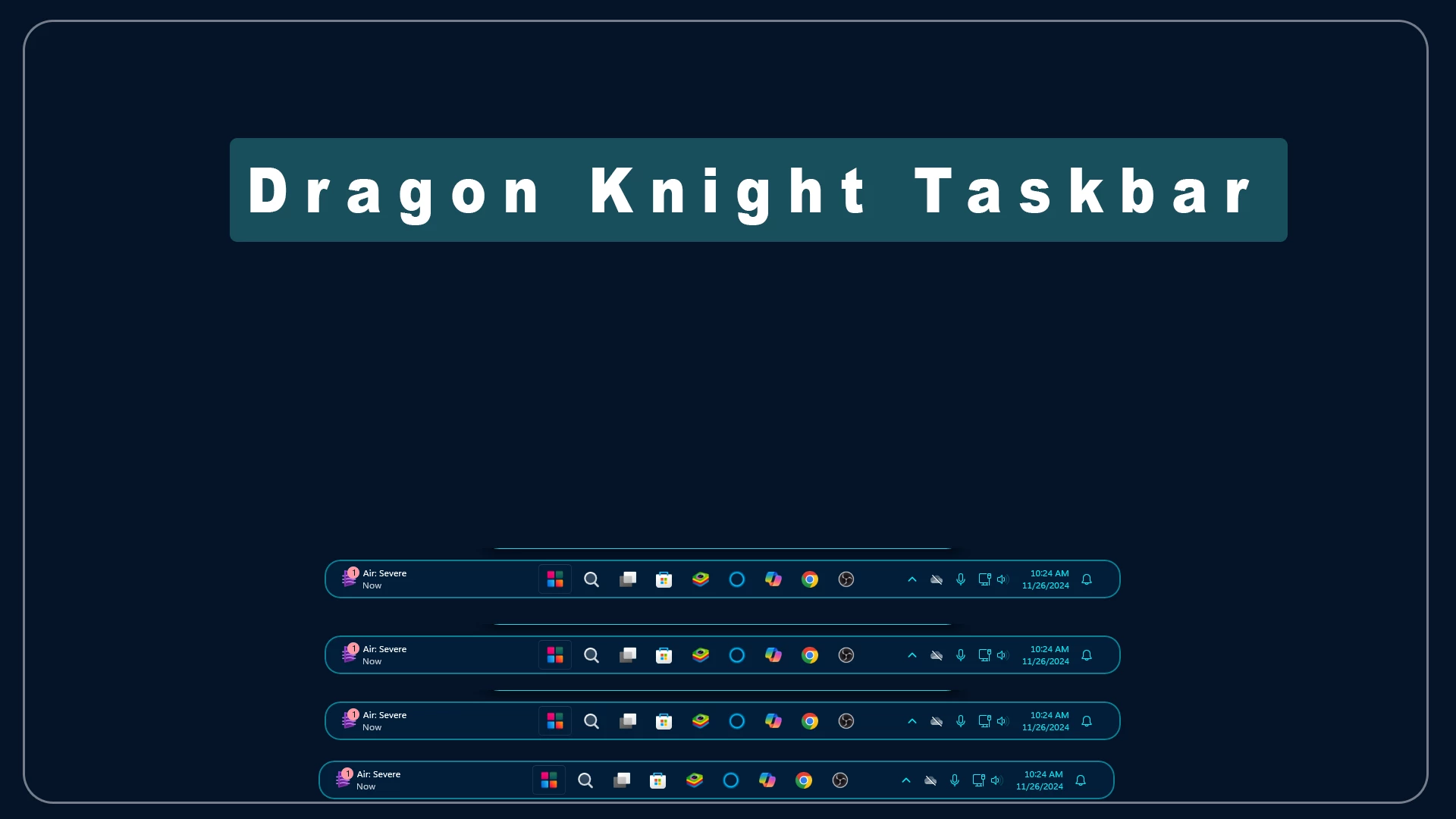
Dragon Knight Taskbar Style for Windows 11 : The Dragon Knight Taskbar Menu Style transforms your desktop into a mythical battleground of style and strength. Inspired by medieval legends and dragon mythology, this custom taskbar features a dark, textured metal design with glowing ember highlights, rune-like details, and a fiery aura that pulses subtly beneath icons.

Dragon Knight Taskbar Style for Windows 11
Windhawk gives Windows 11 users the freedom to customize different parts of the desktop without changing the entire system. The Dragon Knight Taskbar Style is made for those who want something different from the default Windows 11 taskbar and prefer a cleaner, darker, and more unique desktop look.
This style changes the usual taskbar appearance with a dark blue color, rounded corners, and a bright cyan outline around the edges. The centered icons and simple layout keep everything easy to access while giving the desktop a more customized feel. The overall design matches well with dark wallpapers, gaming setups, and modern Windows customization themes.
The Dragon Knight Taskbar Style focuses on keeping things simple while adding a noticeable visual change to the desktop. The darker color combination and highlighted border create a stylish look without making the taskbar feel too complicated or distracting.
In this guide, you will learn what this taskbar style offers, how to apply it using Windhawk, how to remove it when needed, and some basic things to check if the customization does not work properly.
What Is Dragon Knight Taskbar Style?
Dragon Knight Taskbar Style is a custom Windows 11 taskbar design created for users who enjoy personalizing their desktop. It is not an official Microsoft design. Instead, it is a third-party customization that works with the Windhawk tool.
The idea behind this style is to give the Windows 11 taskbar a stronger identity. The dark navy background, rounded shape, and cyan edge highlight create a bold appearance that fits nicely with gaming, dark, and fantasy-inspired desktop setups.
For users who already customize their desktop with wallpapers, icon packs, Rainmeter skins, or Start Menu styles, this taskbar design can help bring all the elements together. Since the taskbar is always visible while using Windows, even a small change can make the whole desktop setup feel different.
Main Features of This Taskbar Style
Dragon Knight Taskbar Style mainly focuses on changing the look of the Windows 11 taskbar while keeping the normal Windows experience. The final result may look slightly different depending on your Windows version, Windhawk settings, scaling options, and other customization tools.
- Dark navy-colored taskbar design
- Rounded corners for a smoother appearance
- Cyan outline detail around the taskbar
- Centered icons with a clean layout
- Works well with dark and gaming-style desktop setups
- Can be combined with wallpapers, icon packs, and Rainmeter skins
- Provides a fresh alternative to the default Windows 11 taskbar look
Download Windhawk To Use The Style
Compatibility
- Windows 11 21H2: Yes
- Windows 11 22H2: Yes
- Windows 11 23H2: Yes
- Windows 11 24H2: Yes
- Windows 11 25H2: Yes, but test carefully after Windows updates.
How to Install
- Download and install Windhawk
- Open Windhawk and install the Windows 11 Start Menu Styler mod
- Go to the Advanced tab
- Paste the provided configuration code into the “Mod settings” box
- Click Save to apply the style
- For more details, visit this GitHub guide
{ "controlStyles[0].target": "Taskbar.TaskbarFrame#TaskbarFrame", "controlStyles[0].styles[1]": "HorizontalAlignment=Center", "controlStyles[0].styles[2]": "Width=Auto", "controlStyles[1].target": "Taskbar.TaskbarFrame#TaskbarFrame > Grid#RootGrid", "controlStyles[1].styles[0]": "Padding=6,0,6,0", "controlStyles[1].styles[1]": "Margin=0,2,0,3", "controlStyles[1].styles[2]": "BorderThickness=2", "controlStyles[1].styles[3]": "BorderBrush:=#078093", "controlStyles[2].target": "Rectangle#BackgroundFill", "controlStyles[2].styles[0]": "Visibility=Collapsed", "controlStyles[3].target": "Rectangle#BackgroundStroke", "controlStyles[3].styles[0]": "Visibility=Collapsed", "controlStyles[4].target": "Taskbar.AugmentedEntryPointButton#AugmentedEntryPointButton > Taskbar.TaskListButtonPanel#ExperienceToggleButtonRootPanel", "controlStyles[4].styles[0]": "Margin=0", "controlStyles[5].target": "Grid#SystemTrayFrameGrid", "controlStyles[5].styles[0]": "Background:=#021e39", "controlStyles[5].styles[1]": "CornerRadius=10", "controlStyles[5].styles[2]": "BackgroundSizing=InnerBorderEdge", "controlStyles[5].styles[3]": "Margin=0,2,0,3", "controlStyles[5].styles[4]": "BorderThickness=5", "controlStyles[6].target": "SystemTray.ChevronIconView", "controlStyles[6].styles[0]": "Padding=0", "controlStyles[7].target": "SystemTray.NotifyIconView#NotifyItemIcon", "controlStyles[7].styles[0]": "Padding=0", "controlStyles[8].target": "SystemTray.OmniButton", "controlStyles[8].styles[0]": "Padding=0", "controlStyles[9].target": "SystemTray.CopilotIcon", "controlStyles[9].styles[0]": "Padding=0", "controlStyles[10].target": "SystemTray.OmniButton#NotificationCenterButton > Grid > ContentPresenter > ItemsPresenter > StackPanel > ContentPresenter > systemtray:IconView#SystemTrayIcon > Grid", "controlStyles[10].styles[0]": "Padding=4,0,4,0", "controlStyles[11].target": "SystemTray.IconView#SystemTrayIcon > Grid#ContainerGrid > ContentPresenter#ContentPresenter > Grid#ContentGrid > SystemTray.TextIconContent > Grid#ContainerGrid", "controlStyles[11].styles[0]": "Padding=0", "controlStyles[12].target": "SystemTray.StackListView#IconStack > ItemsPresenter > StackPanel > ContentPresenter > SystemTray.IconView#SystemTrayIcon", "controlStyles[12].styles[0]": "Padding=0", "controlStyles[13].target": "SystemTray.Stack#ShowDesktopStack", "controlStyles[13].styles[0]": "Margin=0,-4,-12,-4", "controlStyles[14].target": "Taskbar.Gripper#GripperControl", "controlStyles[14].styles[0]": "Width=Auto", "controlStyles[14].styles[1]": "MinWidth=24", "controlStyles[15].target": "SystemTray.SystemTrayFrame", "controlStyles[15].styles[0]": "HorizontalAlignment=1", "controlStyles[1].styles[4]": "CornerRadius=20", "controlStyles[1].styles[5]": "Background:=#021e39", "controlStyles[0].styles[0]": "MaxWidth=1050", "controlStyles[0].styles[3]": "MinWidth=1050", "controlStyles[15].styles[1]": "Margin=730,0,0,0", "controlStyles[16].target": "Taskbar.ExperienceToggleButton#LaunchListButton[AutomationProperties.AutomationId=StartButton] > Taskbar.TaskListButtonPanel > Microsoft.UI.Xaml.Controls.AnimatedVisualPlayer#Icon", "controlStyles[16].styles[0]": "Visibility=Collapsed", "controlStyles[17].target": "Taskbar.ExperienceToggleButton#LaunchListButton[AutomationProperties.AutomationId=StartButton] > Taskbar.TaskListButtonPanel > Border#BackgroundElement", "controlStyles[17].styles[0]": "Background:=<ImageBrush Stretch=\"none\" ImageSource=\"https://i.imgur.com/KRHsZa1.png\" />", "controlStyles[18].target": "TextBlock#TimeInnerTextBlock", "controlStyles[18].styles[0]": "Foreground=#03edf9", "controlStyles[19].target": "TextBlock#DateInnerTextBlock", "controlStyles[19].styles[0]": "Foreground=#03edf9", "controlStyles[20].target": "SystemTray.AdaptiveTextBlock > TextBlock", "controlStyles[20].styles[0]": "Foreground=#03edf9", "controlStyles[21].target": "Taskbar.TaskListLabeledButtonPanel@CommonStates > Rectangle#RunningIndicator", "controlStyles[21].styles[0]": "Width=40", "controlStyles[21].styles[1]": "Height=40", "controlStyles[21].styles[2]": "Stroke@ActivePressed=#614d85", "controlStyles[21].styles[3]": "Stroke@InactivePressed=#614d85", "controlStyles[21].styles[4]": "Stroke@ActiveNormal:=<LinearGradientBrush StartPoint=\"0.5,0\" EndPoint=\"1,0\"> <GradientStop Color=\"#8003edf9\" Offset=\"0.1\" /><GradientStop Color=\"#80fff951\" Offset=\"1\" /></LinearGradientBrush>", "controlStyles[21].styles[5]": "Stroke@ActivePointerOver:=<LinearGradientBrush StartPoint=\"0.1,1\" EndPoint=\"1,0.6\"> <GradientStop Color=\"#03edf9\" Offset=\"0.3\" /><GradientStop Color=\"#fff951\" Offset=\"1\" /></LinearGradientBrush>", "controlStyles[21].styles[6]": "Stroke@InactivePointerOver:=<LinearGradientBrush StartPoint=\"0.1,1\" EndPoint=\"1,0.6\"> <GradientStop Color=\"#f92aad\" Offset=\"0.3\" /><GradientStop Color=\"#fff951\" Offset=\"1\" /></LinearGradientBrush>", "controlStyles[21].styles[7]": "Fill=Transparent", "controlStyles[21].styles[8]": "RadiusX=5", "controlStyles[21].styles[9]": "RadiusY=5", "controlStyles[21].styles[10]": "StrokeThickness=3", "controlStyles[21].styles[11]": "Margin=0", "controlStyles[21].styles[12]": "Stroke@MultiWindowPointerOver:=<LinearGradientBrush StartPoint=\"0.5,0\" EndPoint=\"1,0\"> <GradientStop Color=\"#0ac5d0\" Offset=\"0.1\" /><GradientStop Color=\"#0ac5d0\" Offset=\"1\" /></LinearGradientBrush>", "controlStyles[21].styles[13]": "Stroke@MultiWindowPressed=#614d85", "controlStyles[21].styles[14]": "Stroke@MultiWindowActive:=<LinearGradientBrush StartPoint=\"0.5,0\" EndPoint=\"1,0\"> <GradientStop Color=\"#6003edf9\" Offset=\"0.1\" /><GradientStop Color=\"#60fff951\" Offset=\"1\" /></LinearGradientBrush>", "controlStyles[21].styles[15]": "Fill@MultiWindowNormal:=<LinearGradientBrush StartPoint=\"0.5,0\" EndPoint=\"1,0\"> <GradientStop Color=\"#40fff5f6\" Offset=\"0.1\" /><GradientStop Color=\"#40fff951\" Offset=\"1\" /></LinearGradientBrush>", "controlStyles[21].styles[16]": "Fill@MultiWindowPointerOver:=<LinearGradientBrush StartPoint=\"0.5,0\" EndPoint=\"1,0\"> <GradientStop Color=\"#40fff5f6\" Offset=\"0.1\" /><GradientStop Color=\"#40fff951\" Offset=\"1\" /></LinearGradientBrush>", "controlStyles[21].styles[17]": "Fill@MultiWindowActive:=<LinearGradientBrush StartPoint=\"0.1,1\" EndPoint=\"1,0.6\"> <GradientStop Color=\"#3003edf9\" Offset=\"0.3\" /><GradientStop Color=\"#30fff951\" Offset=\"1\" /></LinearGradientBrush>", "controlStyles[21].styles[18]": "Fill@MultiWindowPressed=#3c3836"}Disclaimer
This is a third-party Windows customization style made for personal desktop customization purposes with Windhawk. It is not an official Microsoft design and has no association with Microsoft. All trademarks belong to their respective owners.
Final Thoughts
Dragon Knight Taskbar Style is a useful option for Windows 11 users who want a stronger and more personalized taskbar design. It works with Windhawk and focuses on changing the taskbar appearance without replacing the entire Windows interface.
If you enjoy Windows customization and want your desktop to look more themed, this taskbar style can be a good addition to your setup. Just make sure to use it carefully, keep your system backed up, and follow the installation and uninstall steps properly.