

What Is Windhawk? Full Windows Customization Guide
Windhawk is a Windows customization tool that lets users apply small mods to change the look and behavior of Windows. This guide explains how it works, resource usage, safety, usage steps, and removal.

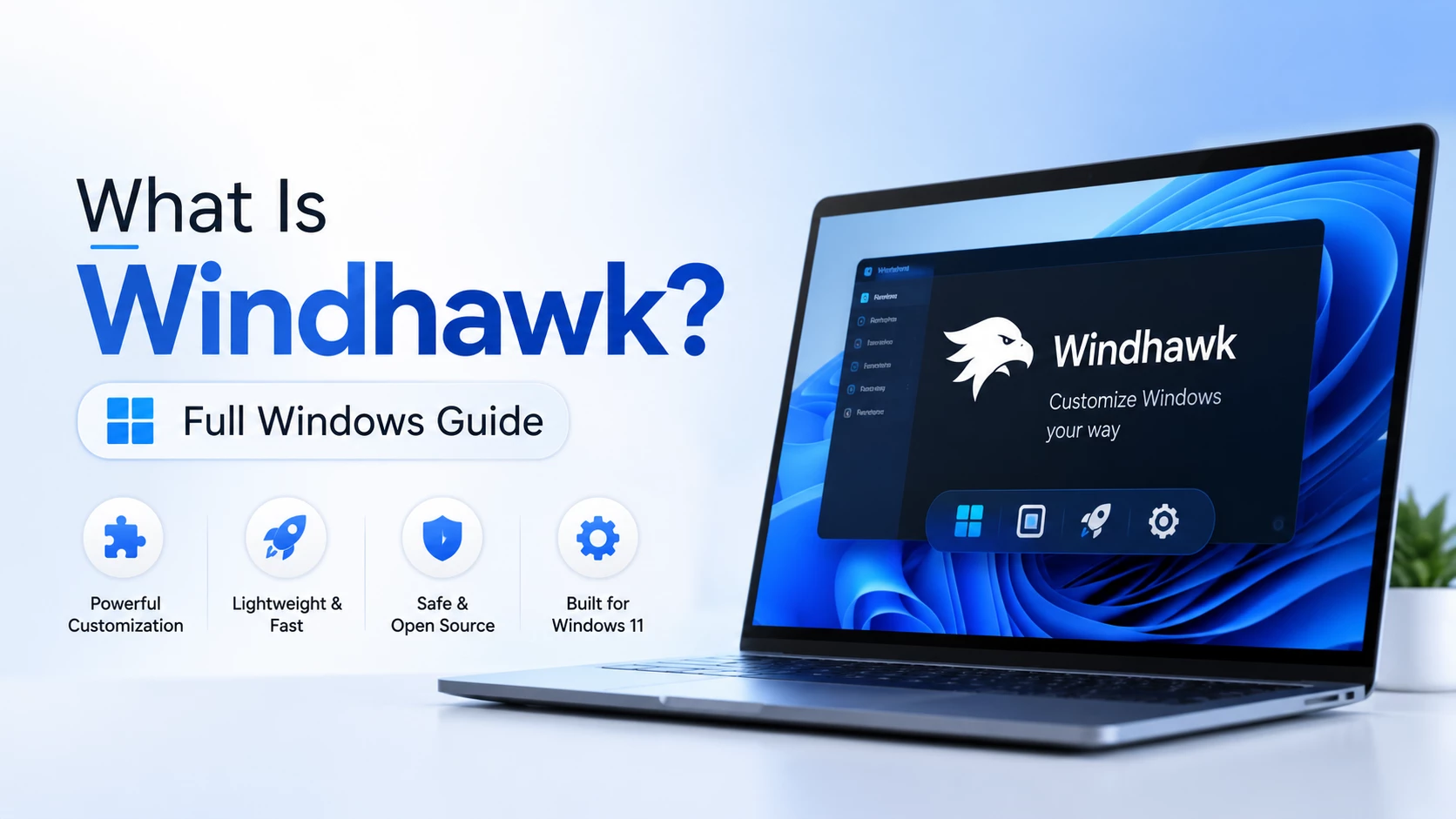
What Is Windhawk? Full Beginner Guide for Windows Customization
Windhawk is a Windows customization tool that lets you change how parts of Windows look and behave by using small add-ons called mods. It is popular among users who want more control over the taskbar, Start menu, File Explorer, window behavior, and other interface elements.
Unlike a normal Windows theme that only changes colors, wallpapers, and basic visual settings, Windhawk can adjust specific Windows features more deeply. For example, a mod may change taskbar spacing, restore older taskbar behavior, modify Start menu styling, or improve File Explorer details.
This guide explains what Windhawk is, how it works, how much system resources it may use, whether it is safe, how to use it properly, and how to remove it from your PC.
What Is Windhawk?
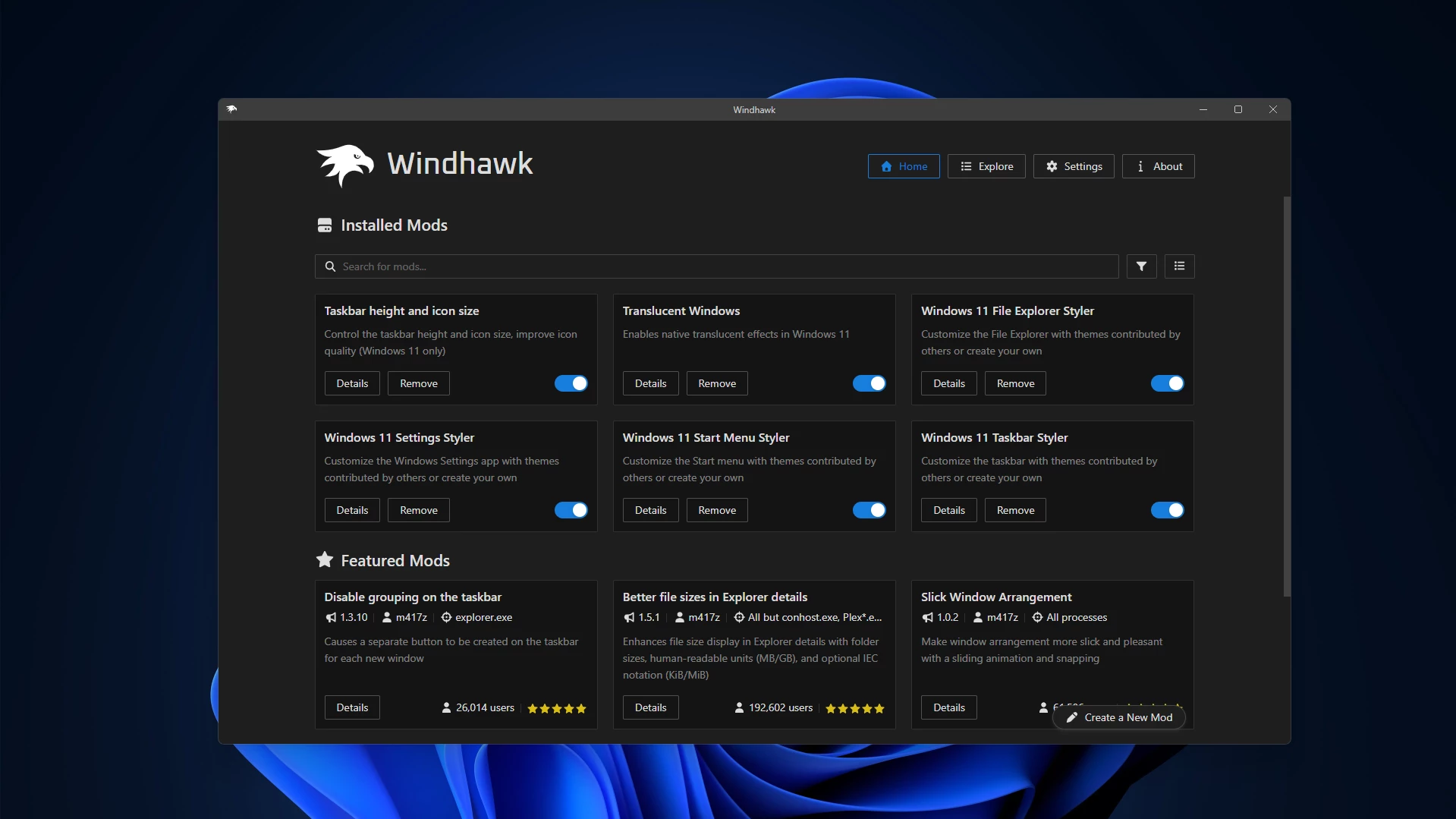
Windhawk is a third-party customization platform for Windows. It works through installable mods, where each mod focuses on a specific change. Instead of installing one big theme pack, you can choose only the features you want.
For example, one user may install a taskbar style mod, while another user may only install a File Explorer improvement mod. This modular approach makes Windhawk flexible because you do not need to apply unnecessary changes to your system.
Windhawk is mainly used by people who want to make Windows feel more personal, more practical, or closer to older Windows versions. It is especially useful for Windows 11 users who want customization options that are not available in the default Windows Settings app.
How Does Windhawk Work?
Windhawk works by loading selected mods into specific Windows processes. A process is simply a running part of Windows or an app. For example, some taskbar mods may target Windows Explorer because the taskbar is handled through Explorer-related components.
Each mod is designed for a particular purpose. One mod may change the taskbar, another may change the Start menu, and another may affect File Explorer. This means Windhawk does not apply every change everywhere. It usually works only where the selected mod needs to run.
The important thing to understand is that Windhawk is not the same as installing a normal visual theme. It does not simply change wallpaper, accent color, or icons from the Windows Settings page. It modifies behavior through small targeted mods.
Because of this, users should apply mods carefully. A well-made mod can improve the Windows experience, but a poorly configured or incompatible mod may cause visual bugs, crashes, or temporary issues with a Windows feature.
What Can You Customize With Windhawk?
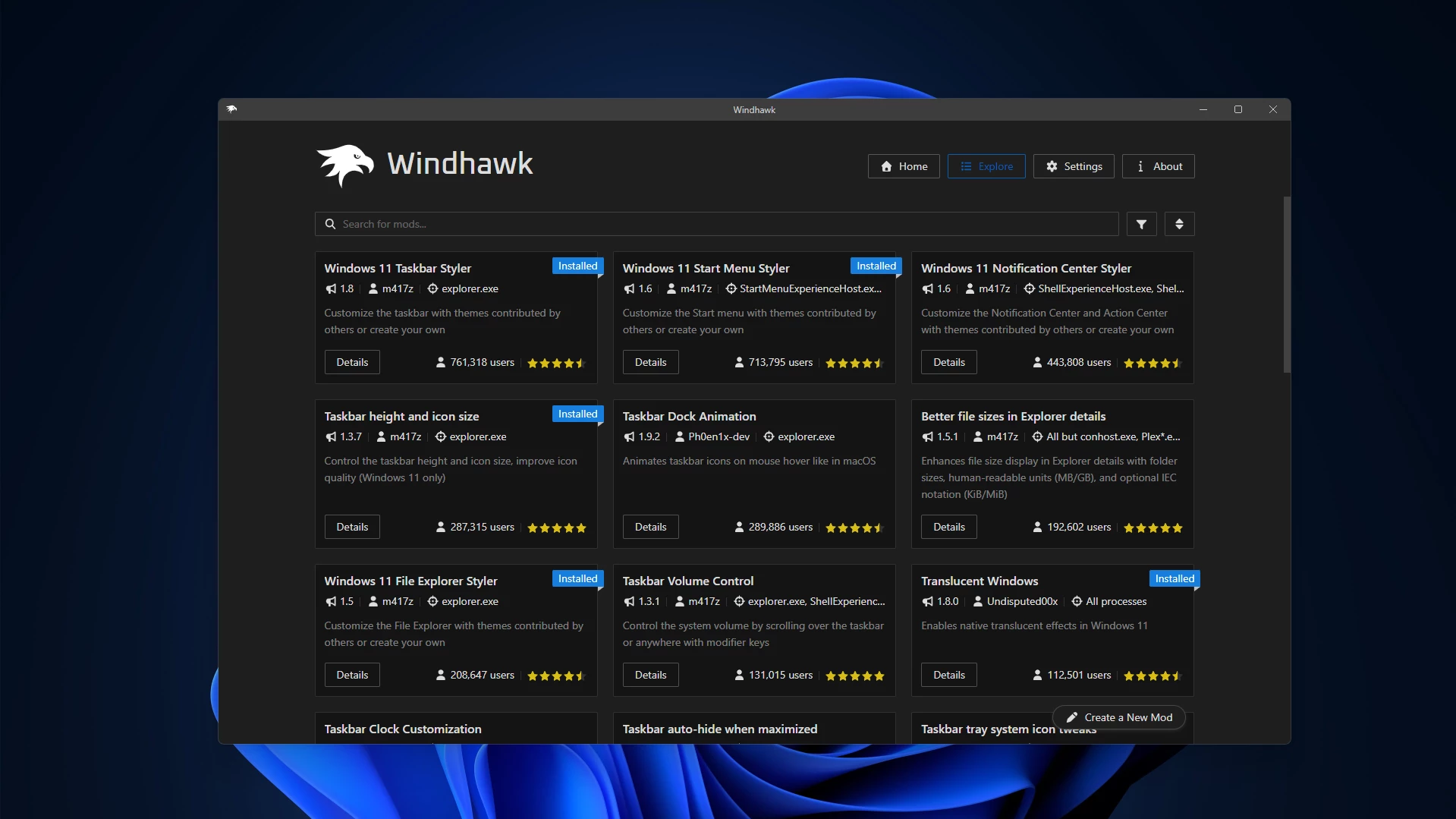
Windhawk can be used for many types of Windows customization. The available options depend on the mods you install.
- Taskbar style, size, spacing, labels, grouping, and position
- Start menu layout, appearance, and behavior
- File Explorer improvements and visual changes
- Window behavior and desktop interaction
- Mouse, keyboard, and small usability tweaks
- Classic Windows-style features that are missing in newer Windows versions
This makes Windhawk useful for both visual customization and productivity improvements. Some users install it for a cleaner desktop look, while others use it to bring back familiar Windows behavior.
How Much Resources Does Windhawk Use?
Windhawk usually uses very low system resources, but the exact CPU and RAM usage is not the same for every computer. It depends on your Windows version, the Windhawk version, and the number of mods you install.
If you use only a few simple customization mods, Windhawk should normally feel lightweight in daily use. Basic taskbar, Start menu, or File Explorer style mods usually do not create heavy resource usage on a modern Windows PC.
However, some mods may use more resources than others. For example, a mod that constantly checks system activity, shows live performance data, changes animations, or interacts with several apps may use more CPU or memory.
Also, the resource usage may not always appear only under Windhawk in Task Manager. Since some mods work with Windows processes, you may notice changes in processes like Windows Explorer instead.
The best way to check resource usage is to open Task Manager before and after enabling a mod. Install one mod at a time, test your PC, and disable any mod that causes lag, high CPU usage, freezing, or instability.
For most users, Windhawk is lightweight when used carefully. The safest approach is to keep only the mods you actually need and remove unused mods to keep your Windows setup clean and stable.
The best way to check resource usage is simple:
- Open Task Manager.
- Check CPU and memory usage before installing mods.
- Install one mod at a time.
- Check Task Manager again after enabling each mod.
- Disable any mod that causes high CPU usage, lag, or instability.
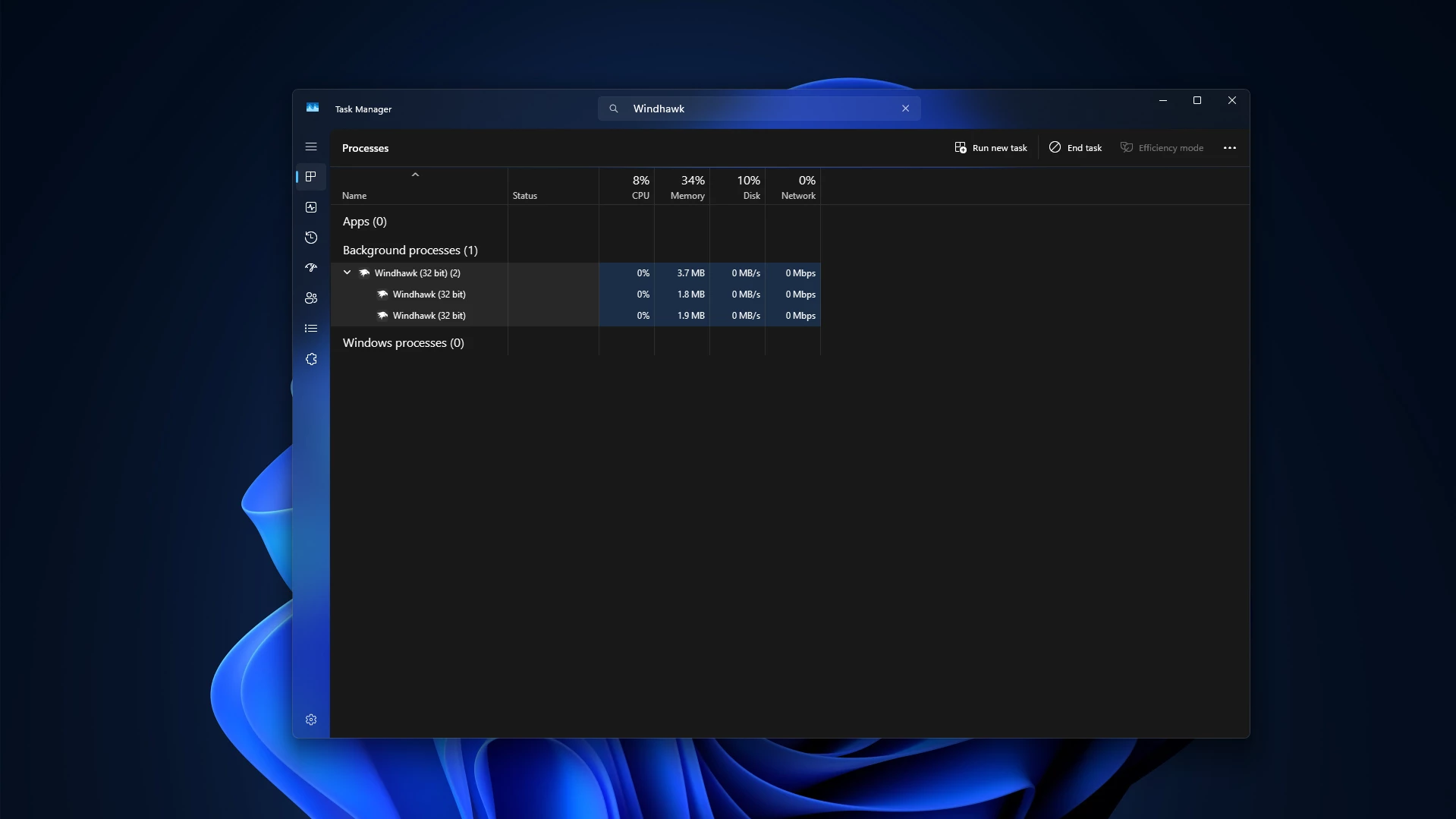
For most users, a few lightweight mods should not create a major performance problem. Still, if you install many mods at once, resource usage and compatibility issues can become harder to track.
Is Windhawk Safe?
Windhawk can be safe to use when downloaded from the official source and used carefully, but it should not be described as risk-free. It is a third-party Windows customization tool, not an official Microsoft feature.
The main safety benefit is that Windhawk uses individual mods and allows users to disable or remove them. This makes troubleshooting easier compared with heavy theme packs that may replace important system files.
However, because Windhawk changes how Windows components behave, there is always some risk of bugs, incompatibility, or temporary system issues. A Windows update can also break a mod that worked perfectly before.
For a safer experience, follow these steps before using Windhawk:
- Create a system restore point before applying custom themes or mods.
- Download Windhawk only from its official website or official GitHub page.
- Avoid modified installers from unknown websites.
- Install one mod at a time instead of installing many mods together.
- Read the mod description before installing it.
- Keep Windhawk and your mods updated.
- Disable a mod immediately if it causes freezing, crashing, or display problems.
If you use your PC for school, office, client work, or important projects, be extra careful. Test customization on a secondary PC first if possible.
Should You Create a Restore Point Before Using Windhawk?
Yes. Creating a system restore point is a smart safety step before using Windhawk or any Windows customization tool.
A restore point lets you roll back important system settings if something goes wrong. Most Windhawk mods can be disabled or removed, but a restore point gives you an extra layer of protection.
To create a restore point in Windows:
- Open the Start menu.
- Search for “Create a restore point”.
- Open the System Protection window.
- Select your system drive.
- Click “Create”.
- Give the restore point a clear name, such as “Before Windhawk”.
- Click “Create” again and wait for the process to finish.
This step is simple, but it can save time if a customization causes problems later.
How to Download Windhawk Safely
To download Windhawk safely, always use the official Windhawk website or the official GitHub release page. Avoid third-party download websites, repacked installers, and unknown links shared in random comments or forums.
Before installing, make sure the file name and source look correct. If your browser or antivirus shows a warning, do not ignore it. Check the official source again and only continue if you are confident that the download is genuine.
Do not download “special versions”, “unlocked versions”, or modified installers. Windhawk is already available as a customization tool, so there is no need to use unsafe download tricks.
How to Install Windhawk
Installing Windhawk is straightforward for most users. The exact steps may change slightly depending on the version, but the general process is usually the same.
- Download Windhawk from the official source.
- Run the installer.
- Follow the setup instructions.
- Launch Windhawk after installation.
- Open the mod browser or explore section.
- Choose a mod you want to try.
- Read the description and supported Windows version.
- Install the mod.
- Enable the mod and test the result.
After installing your first mod, check if Windows is working normally. If everything looks fine, you can continue with another mod. This one-by-one method is much safer than installing many mods at the same time.
How to Use Windhawk Mods
Using Windhawk mods is beginner-friendly if you take your time. The best approach is to start with simple mods first.
For example, if you want to customize the Windows 11 taskbar, start with one taskbar mod. Apply a small change, restart Explorer if needed, and check the result. If the mod has settings, adjust them slowly.
Many mods include options that let you change size, spacing, colors, behavior, or layout. Some changes may apply instantly, while others may need a restart of Explorer, the app, or the PC.
Before changing advanced settings, take a screenshot or note your previous settings. This makes it easier to go back if you do not like the result.
Best Practices for Beginners
If you are new to Windhawk, keep your setup clean and simple. Too many mods can make your Windows setup difficult to manage.
- Start with one or two mods only.
- Use popular and actively maintained mods.
- Do not install mods that you do not understand.
- Check compatibility after major Windows updates.
- Keep a restore point before making big changes.
- Disable unused mods to keep your setup lighter.
This approach helps you enjoy customization without making your system messy or unstable.
Explore More Windhawk Styles on Link Vegas Theme
If you want to try ready-made Windhawk styles, you can explore the Windhawk customization collections on Link Vegas Theme. The website includes Start Menu styles, Taskbar styles, File Explorer styles, Settings styles, icon packs, and other Windows customization resources.
These categories are useful for beginners because they help you find specific Windhawk styles without searching manually across different pages.
- Start Menu Styler
Find custom Windows 11 Start Menu styles made for Windhawk Start Menu Styler, including glass, dark, compact, modern, and Fluent-style designs.
Start Menu Styler - Taskbar Styler
Browse Windows 11 taskbar styles with modern layouts, rounded designs, glass effects, floating taskbar looks, and clean desktop customization ideas.
Taskbar Styler - File Explorer Styler
Explore File Explorer styles for Windhawk, including dark mode layouts, glass effects, transparent backgrounds, rounded corners, and modern navigation designs.
File Explorer Styler - Settings Styler
Find Windows 11 Settings app styles designed for Windhawk, including blur glass, dark glass, and modern Settings UI customization looks.
Settings Styler - Resource Redirect Icon Packs
Browse icon packs made for Windhawk Resource Redirect. These packs can help change Windows system icons in a cleaner and reversible way without manually replacing system files.
Resource Redirect Icon Packs
Always read the instructions on each style page before applying it. For the safest experience, create a system restore point, install the required Windhawk mod first, apply one style at a time, and restart Explorer if needed.
Most Popular Windhawk Mods
Windhawk has many useful mods, but some are especially popular among Windows customization users. These mods can help you change the taskbar, Start menu, File Explorer, notification center, clock, volume control, and other parts of Windows.
Before installing any mod, read the description carefully, check Windows version support, and create a system restore point. It is also better to install one mod at a time so you can easily find and disable a mod if it causes any issue.
- Windows 11 Taskbar Styler
This is one of the most popular Windhawk mods for changing the look of the Windows 11 taskbar. It supports custom themes and advanced taskbar styling options.
Open Windows 11 Taskbar Styler - Windows 11 Start Menu Styler
This mod allows users to customize the Windows 11 Start menu with themes and custom styling. It is useful for users who want a cleaner, modern, or classic-style Start menu.
Open Windows 11 Start Menu Styler - Windows 11 Notification Center Styler
This mod customizes the Notification Center and Action Center. It is a good option if you want your notification panel to match your overall Windows theme.
Open Windows 11 Notification Center Styler - Taskbar Height and Icon Size
This mod lets you control the Windows 11 taskbar height and icon size. It is useful for making the taskbar more compact or improving icon clarity.
Open Taskbar Height and Icon Size - Taskbar Dock Animation
This mod adds a dock-style hover animation to taskbar icons, giving the taskbar a more dynamic and modern look.
Open Taskbar Dock Animation - Better File Sizes in Explorer Details
This mod improves how file sizes are shown in File Explorer details view. It can show folder sizes and more readable file size formats.
Open Better File Sizes in Explorer Details - Windows 11 File Explorer Styler
This mod is useful for users who want to customize the appearance of File Explorer and make it match their Windows theme style.
Open Windows 11 File Explorer Styler - Taskbar Clock Customization
This mod gives more control over the Windows taskbar clock. It can be used to customize date and time formatting, fonts, colors, and other clock-related details.
Open Taskbar Clock Customization - Taskbar Volume Control
This mod lets users control system volume by scrolling over the taskbar. It is a small but very useful productivity mod for daily Windows use.
Open Taskbar Volume Control - Taskbar Labels for Windows 11
This mod allows users to customize taskbar labels and button combining behavior on Windows 11. It is helpful for users who prefer a more classic taskbar layout.
Open Taskbar Labels for Windows 11 - Taskbar Tray Icon Spacing and Grid
This mod lets you reduce or increase spacing between tray icons and can also create a grid-style tray icon layout on Windows 11.
Open Taskbar Tray Icon Spacing and Grid - Middle Click to Close on the Taskbar
This simple mod lets you close programs by middle-clicking their taskbar button instead of opening another instance.
Open Middle Click to Close on the Taskbar
These mods are a good starting point for beginners because they focus on useful Windows customization features. However, you do not need to install all of them. Choose only the mods that match your setup and keep your Windows customization clean and easy to manage.
Common Problems and Simple Fixes
Sometimes a Windhawk mod may not work correctly. This does not always mean Windhawk is broken. It may happen because of a Windows update, mod compatibility issue, or conflicting settings.
If a problem appears after installing a mod, try these steps:
- Disable the latest mod you installed.
- Restart Windows Explorer from Task Manager.
- Restart your PC.
- Update Windhawk and the mod.
- Check if the mod supports your Windows version.
- Remove the mod if the issue continues.
If Windows becomes slow or unstable after enabling a mod, do not keep using it. Disable it first, then test your system again.
How to Disable a Windhawk Mod
If you do not like a mod or it causes problems, you can disable it without removing Windhawk completely.
- Open Windhawk.
- Go to your installed mods.
- Select the mod you want to stop using.
- Turn it off or disable it.
- Restart Explorer or restart your PC if needed.
Disabling a mod is useful when you want to test whether a specific mod is causing an issue.
How to Remove a Windhawk Mod
If you no longer need a mod, you can remove it from Windhawk.
- Open Windhawk.
- Go to the installed mods list.
- Select the mod you want to remove.
- Choose the remove or uninstall option.
- Restart the affected app, Explorer, or Windows if required.
After removing a mod, check whether the related Windows feature has returned to its default behavior.
How to Remove Windhawk Completely
If you want to stop using Windhawk completely, first disable or remove your installed mods. This helps Windows return to its normal behavior before the main app is removed.
Then uninstall Windhawk from Windows Settings:
- Open Windows Settings.
- Go to Apps.
- Open Installed Apps.
- Search for Windhawk.
- Click the three-dot menu next to it.
- Select Uninstall.
- Follow the uninstall steps.
- Restart your PC after removal.
You can also check Control Panel if you prefer the older uninstall method. After uninstalling, restart your computer to make sure all background components are closed properly.
Is Windhawk Good for Windows 11 Customization?
Windhawk can be a good option for Windows 11 customization, especially if you want more control than the default Windows Settings app provides.
It is useful for people who want to customize the taskbar, Start menu, File Explorer, and small system behaviors. It is also helpful for users who miss some classic Windows features.
However, it is not necessary for everyone. If you only want to change wallpaper, accent color, dark mode, or basic themes, Windows Settings may be enough. Windhawk is better for users who want deeper customization.
Who Should Use Windhawk?
Windhawk is suitable for users who enjoy Windows customization and are comfortable testing small system changes.
It is a good choice if you:
- Want more taskbar customization options.
- Prefer classic Windows behavior.
- Like testing visual styles and interface tweaks.
- Want to change specific Windows features without installing a full theme pack.
It may not be the best choice if you do not like troubleshooting, if your PC is used for critical work, or if you want only official Microsoft customization options.
Final Thoughts
Windhawk is a powerful and flexible Windows customization tool. It gives users more control over the Windows interface through small, focused mods. You can use it to customize the taskbar, Start menu, File Explorer, and other parts of the system.
At the same time, it should be used responsibly. Windhawk is not an official Microsoft feature, and no customization tool should be treated as completely risk-free. Always download it from the official source, create a restore point, install mods one by one, and remove anything that causes problems.
If you want a cleaner, more personal, and more flexible Windows setup, Windhawk is worth exploring. Just keep your setup simple, safe, and easy to reverse.
Disclaimer: All themes, visual styles, and concepts shared on this website are unofficial, fan-made creations built from imagination for customization purposes. We are not affiliated with, endorsed by, or sponsored by Microsoft or any other official brand.